Share Screen with Audio
You share your screen to play a video, and everyone watches in silence — because Zoom shares the picture but not the sound unless you check one easily missed box. Screen sharing with audio is a two-click setting, but it hides in a different place on each app version, and forgetting it mid-presentation is a rite of passage. This guide finds the checkbox everywhere and tests it before it counts. For capturing meetings instead, see how to record meetings.
TL;DR / Quick Fix
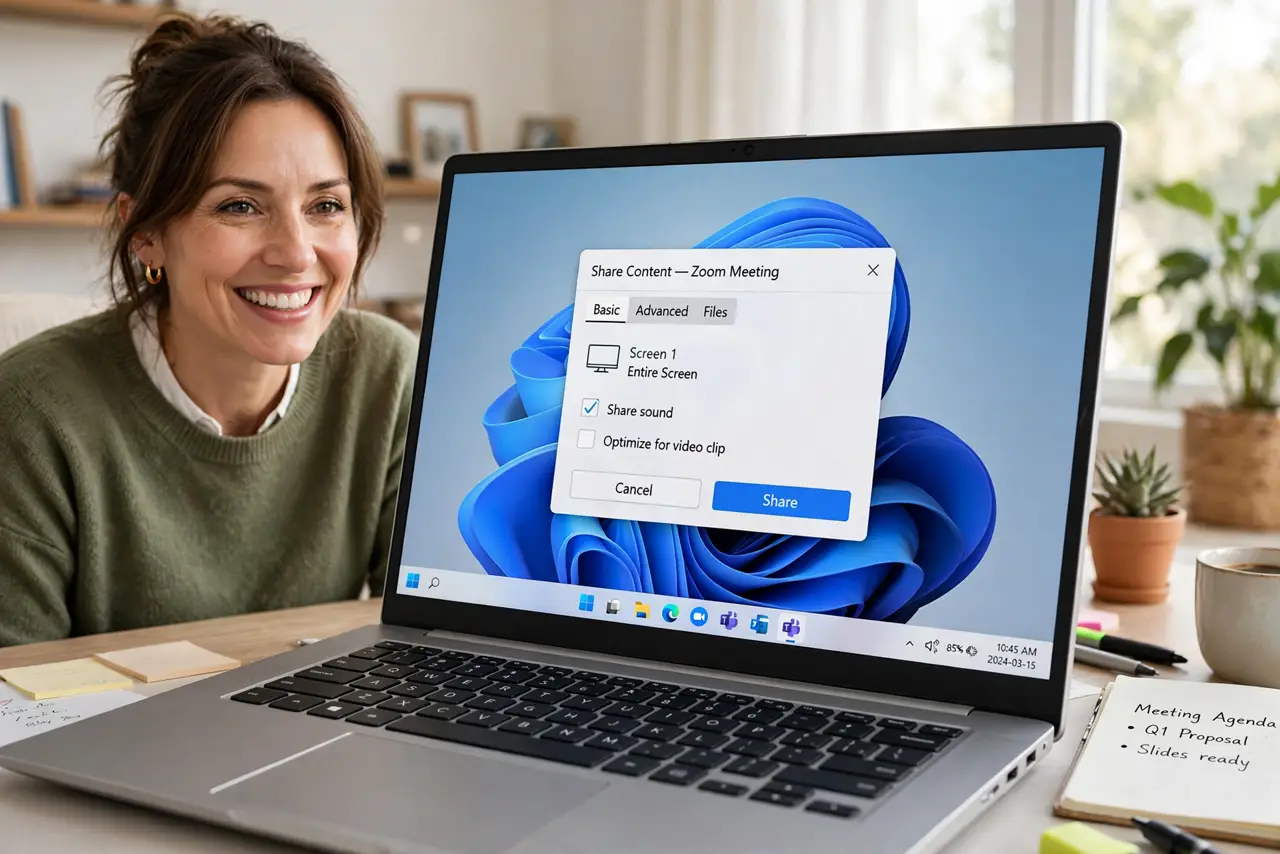
Quick fix: in the Zoom share dialog, check Share sound before clicking Share — that one checkbox routes your computer's audio to the call. For videos, also check Optimize for video clip. Test with a friend first; discovering silent sharing mid-presentation is avoidable.
Follow these steps
- Open the share dialog. Click Share Screen in the meeting toolbar. Do not rush past this dialog — the audio checkbox lives here, not in the main settings.
- Check Share sound. Tick Share sound (sometimes labeled Share computer audio) at the bottom of the dialog. This routes system audio — videos, music, app sounds — into the call.
- Optimize for video clips. If sharing a video, also check Optimize for video clip. It boosts frame rate and smooths motion; without it, shared video looks choppy.
- Choose the right source. Share the specific app window rather than the whole desktop when possible — cleaner for viewers and it avoids surprise notifications appearing.
- Test before the real thing. Start a solo meeting, share with sound, and play something. If you hear it through the call, the setup is right — two minutes now saves the mid-meeting scramble.
- Mind the volume balance. Your mic stays live while sharing, so narration over the video works. Keep the video volume moderate so your voice stays on top.
What NOT to do
- Do not forget the checkbox and 'fix it live.' Stopping the share to re-tick the box mid-presentation looks unprofessional — set it before sharing.
- Do not share the whole desktop with notifications on. One message preview can derail a client demo — share the app window and silence alerts.
- Do not crank shared video to full volume. Compressed call audio distorts easily; moderate levels sound better to everyone.
- Do not assume phone sharing works the same. Mobile screen sharing has its own audio path — test on the device you will actually use.
Frequently asked questions
Why is there no Share sound option?
Update Zoom — very old versions lack it. On some Linux builds the option differs; the desktop apps on Windows and Mac have it.
Can I share audio without sharing video?
Yes — choose the Advanced tab in the share dialog and pick Computer Audio Only. Great for playing a clip without showing your screen.
Does it work for YouTube in a browser?
Yes. Share the browser tab or window with Share sound checked, and the video's audio goes to the call.