Always Open the Desktop Site
Mobile sites are handy until they hide the feature you need — the full settings page, the real table, the button that only exists on desktop. Chrome on Android can request the desktop version of any site, either for one visit or as the default for everything. Here is where both switches live and what to do when a site ignores them.
TL;DR / Quick Fix
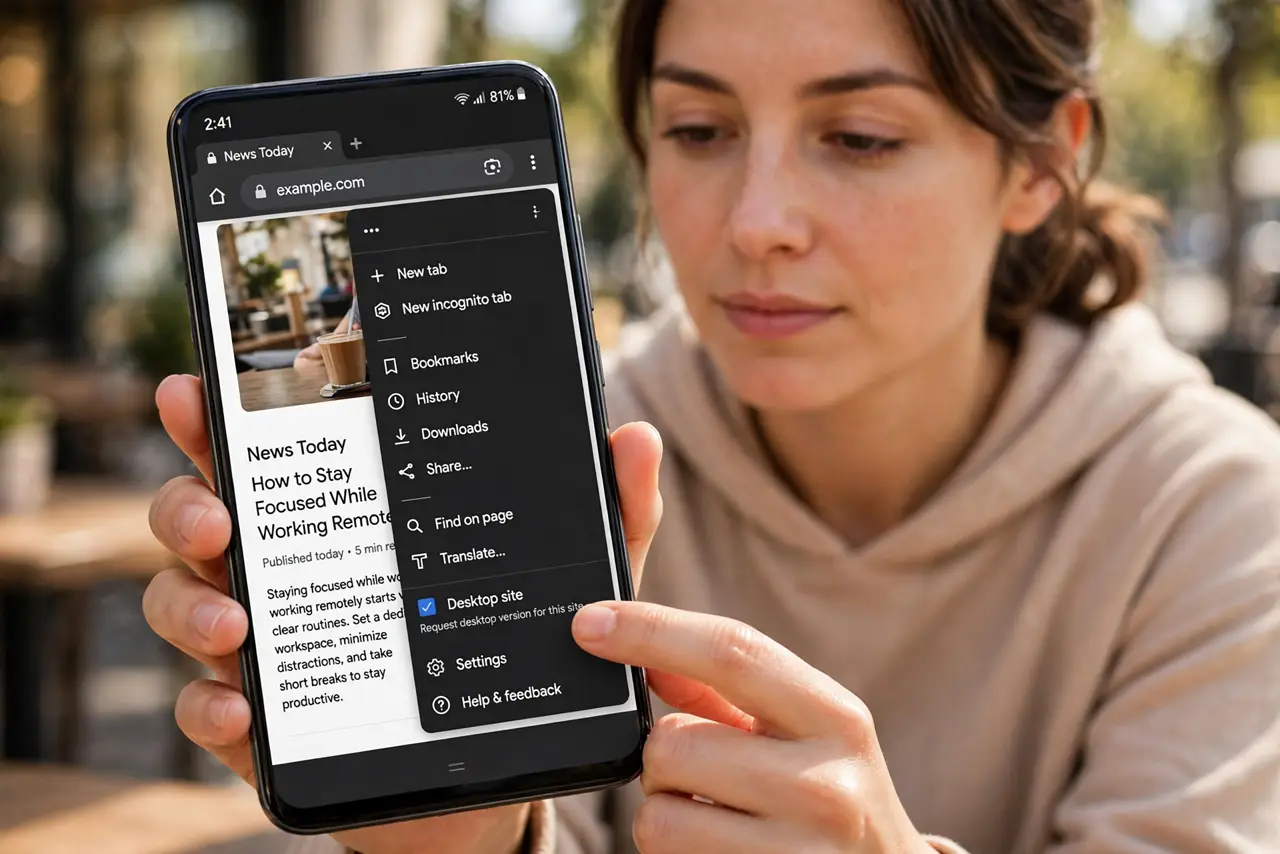
Quick fix: in Chrome on Android, tap the three dots and check Desktop site for a one-time fix. For always-on, open Chrome Settings > Site settings > Desktop site and toggle it on. Some pages still force mobile layouts. Close and reopen the tab after changing the setting.
Follow these steps
- Use the per-site toggle for one visit. Open the page, tap the three dots in Chrome, and check Desktop site. The page reloads in its desktop layout right away — quick and reversible.
- Turn on the global default for every site. Open Chrome > Settings > Site settings > Desktop site and switch it on. From then on, every new tab asks for the desktop version first.
- Know that some sites will ignore you. Big portals often detect the phone anyway and serve the mobile layout regardless. That is the site's choice, not a Chrome bug — the toggle did its job.
- Close and reopen the tab after changing it. The setting applies to new page loads. Reopen the site in a fresh tab so the desktop request goes out from the start.
- Make tiny desktop layouts readable. Pinch to zoom, or open Chrome Settings > Accessibility and raise text scaling. Desktop pages on a phone are small by nature — and a screen that sleeps mid-read makes it worse.
- Switch back per-site when things break. Payments, maps embeds, and mobile checkouts sometimes misbehave in desktop mode. Uncheck Desktop site for that one tab and move on.
What NOT to do
- Do not expect every site to obey the request. Forced mobile layouts are the site's decision, not a setting you missed.
- Do not confuse Desktop site with a different browser. It only changes which layout the site serves you.
- Do not leave the global toggle on if you mostly browse mobile-first sites. Per-site is saner and breaks less.
- Do not clear all browsing data to fix one stubborn page. Check the toggle first — a wipe is overkill.
Frequently asked questions
Why does the site still look mobile after I enabled it?
The site is overriding your request with its own device detection. Common on banking and social portals — there is nothing to fix on your side.
Does desktop mode use more mobile data?
Slightly, yes. Desktop pages load more images and scripts. On a metered connection, stick with the mobile layout.
Where did the Desktop site setting go?
Chrome moved the global switch under Settings > Site settings > Desktop site. The per-tab toggle under the three dots still works the same.