What Is Identity Check?
A thief watches you type your PIN at a coffee shop, then snatches your phone — and suddenly they can change your Apple ID or Google account password using just that PIN. That is the nightmare scenario behind Identity Check: a setting that forces biometric approval for the most sensitive changes when you are away from trusted places. Here is what it does and how to turn it on.
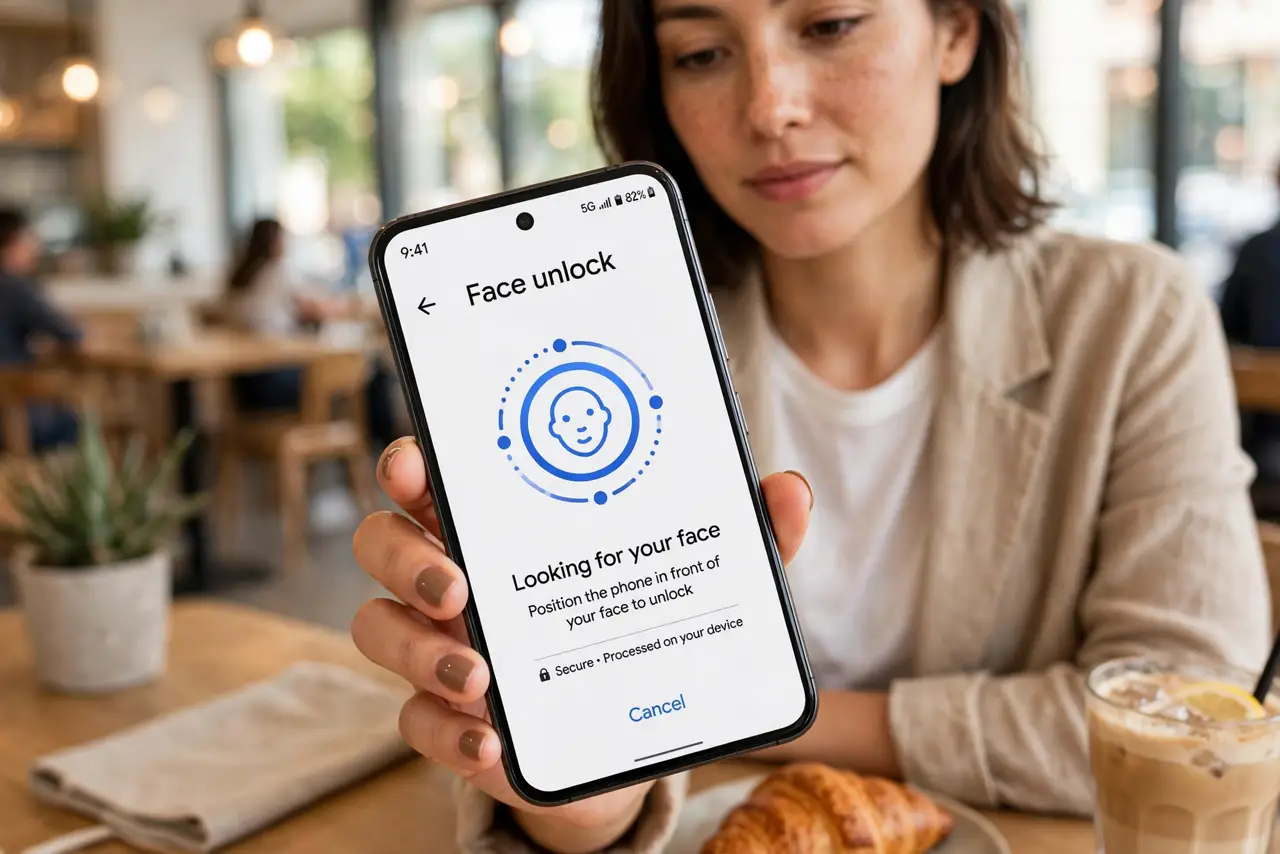
TL;DR / Quick Fix
Quick fix: Identity Check forces face or fingerprint approval — not just your PIN — for sensitive changes like resetting account passwords away from trusted locations. Turn it on in security settings, add biometrics, and a thief who knows your PIN still cannot lock you out.
Follow these steps
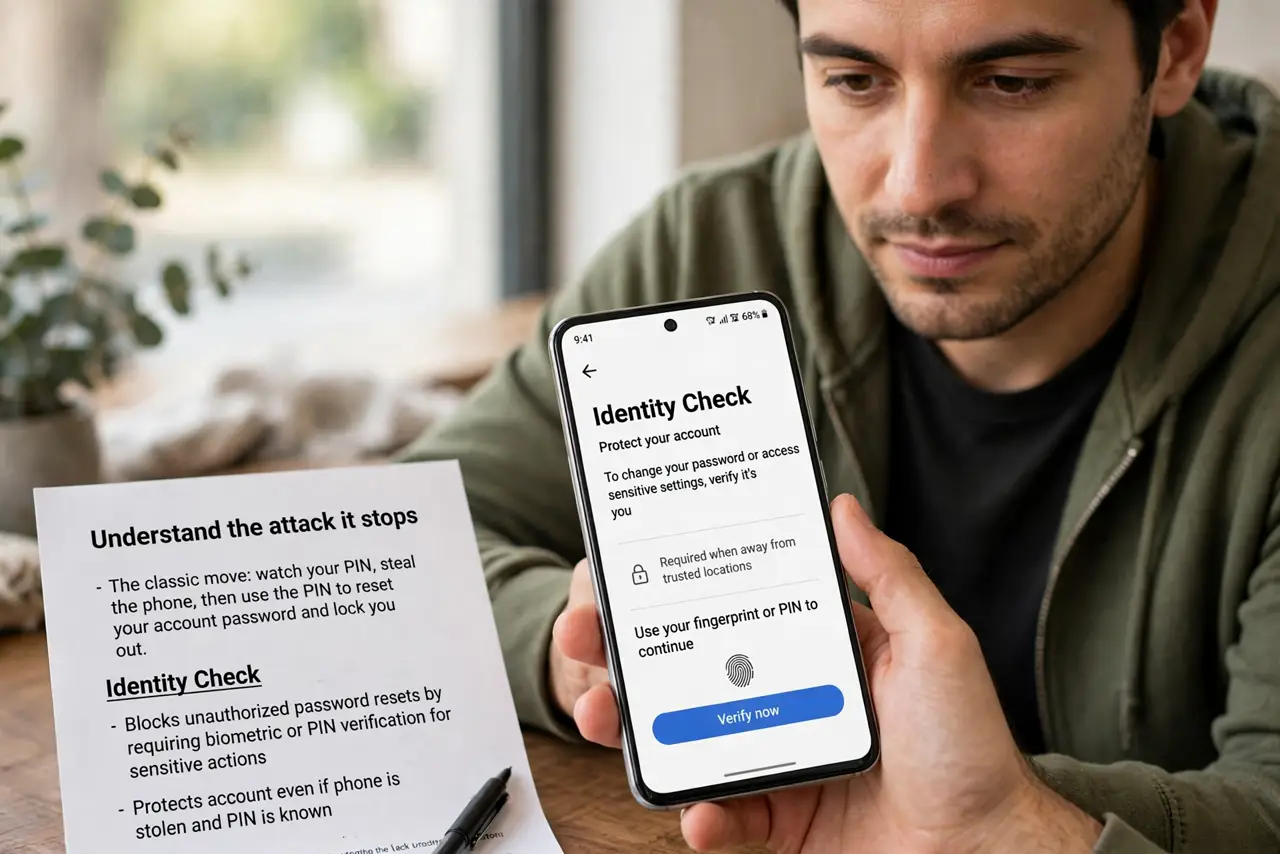
- Understand the attack it stops. The classic move: watch your PIN, steal the phone, then use the PIN to reset your account password and lock you out. Identity Check breaks that chain by demanding biometrics for account-level changes outside trusted places.
- Turn it on in security settings. On Android, open Settings, then Security and privacy, and look for Identity Check or Theft protection. On iPhone, the equivalent is Stolen Device Protection — same idea, different name.
- Register biometrics first. The feature is useless without a face or fingerprint enrolled. Add at least one biometric and a strong device PIN before enabling it — the PIN alone is exactly what it stops trusting.
- Add your trusted places. Home and work can be marked trusted, where the PIN alone still works for convenience. Everywhere else, sensitive changes need your face or fingerprint — that is the protection.
- Know which actions it guards. Account password changes, adding new biometrics, turning off theft protection, and factory resets are the typical guarded actions. Day-to-day unlocking is unchanged.
- Test it before you need it. Try changing a guarded setting away from home. If biometrics are demanded, it is working. Better to discover a setup mistake now than after a theft.
What NOT to do
- Do not skip adding biometrics. Without them, Identity Check has nothing stronger than the PIN to fall back on.
- Do not assume a long PIN alone protects you. Shoulder-surfing defeats any PIN; biometrics cannot be watched and copied the same way.
- Do not turn off theft protection features for convenience. The five seconds you save are nothing next to losing your accounts.
- Do not share your PIN where anyone can see. The whole point of the feature is that the PIN got compromised — guard it anyway.
Frequently asked questions
Is Identity Check the same as a screen lock?
No. The screen lock protects the phone itself; Identity Check protects account-level changes from someone who already knows your PIN.
Does it slow down normal phone use?
No — unlocking and opening apps work as before. It only adds biometric checks to the few truly sensitive settings.
What if biometrics fail in an emergency?
Trusted places keep working with just the PIN, and you can always fall back to another enrolled biometric — which is why enrolling two is smart.
What to read next
- Stop MFA Fatigue Attacks
- What Is Credential Stuffing?