Erase Photobombers
That perfect travel photo has a stranger's head in the corner, a trash can behind the monument, or a car ruining the street scene. Magic Eraser in Google Photos removes them with a brush stroke and rebuilds the background — no editor, no skill needed. Here is how to get clean shots.

TL;DR / Quick Fix
Quick fix: open the photo in Google Photos, tap Edit, and use Magic Eraser to brush away tourists — the phone fills the background automatically. Zoom in for clean edges around people. It works best on simple backgrounds; busy crowds may need a couple of passes.
Follow these steps
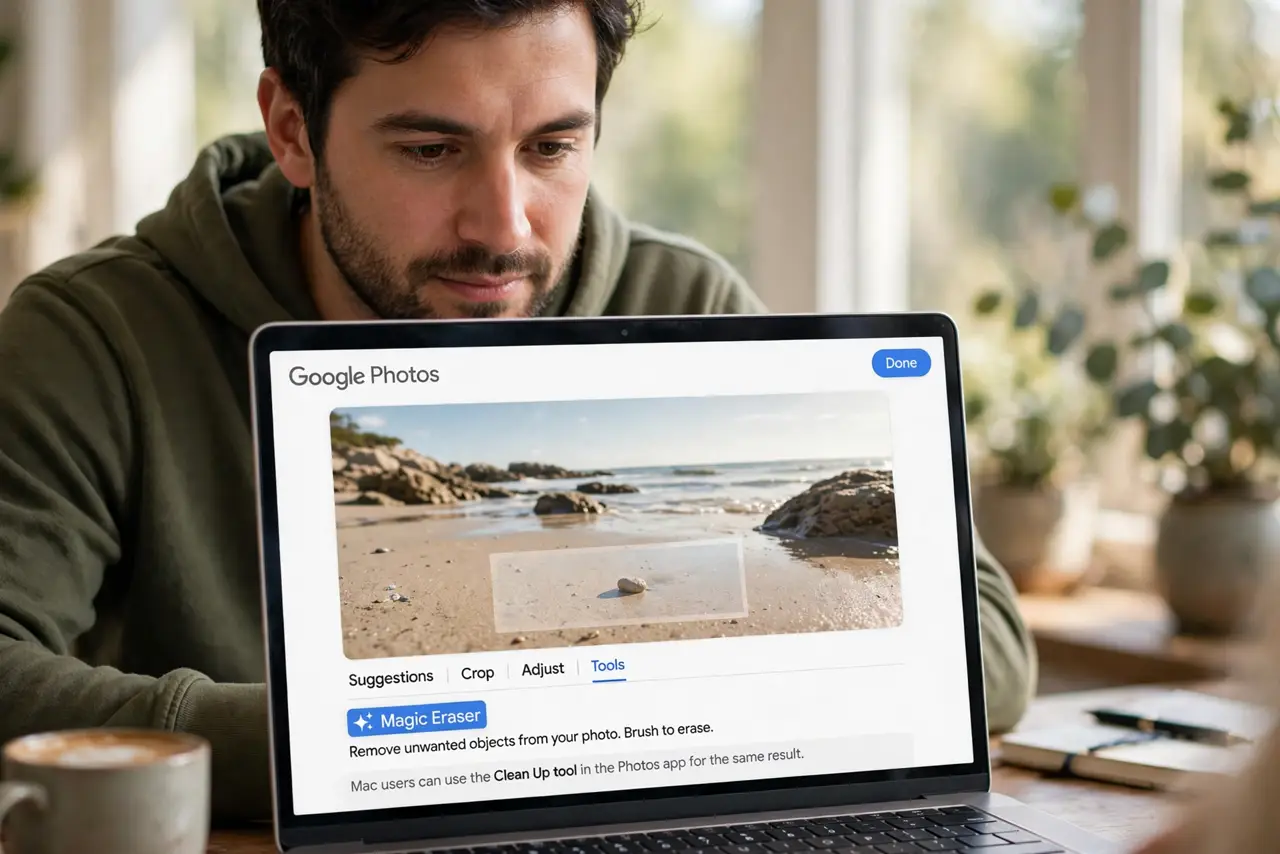
- Open the photo in Google Photos. Find the shot and tap Edit. Magic Eraser lives in the Tools section of the editor — the Mac has the parallel Clean Up tool for the same job.
- Select Magic Eraser. Tap it — the phone may auto-suggest distractions to remove. Accept the suggestions or brush manually for control.
- Brush away the intruders. Paint over tourists, trash cans, stray cars. The AI erases and reconstructs the background from surrounding pixels.
- Zoom for edges. Pinch to 100 percent around tricky edges. Small careful strokes beat big sloppy ones — same as any cleanup tool.
- Try Camouflage for milder fixes. For objects that distract by color rather than presence, Camouflage mutes them instead of removing. Sometimes subtler is better.
- Save a copy for keepers. For important shots, Save copy before heavy edits. Non-destructive is nice; a duplicate is insurance.
What NOT to do
- Do not expect miracles on crowds. Magic Eraser excels on skies and simple backgrounds — dense crowds smear, same as every tool.
- Do not use huge brush strokes. Big brushes pull unrelated pixels and create warps — work small and precise.
- Do not alter documentary photos dishonestly. Removing a tourist is fine; altering evidence or news photos is not.
- Do not forget the original is safe. Edits in Google Photos are non-destructive — Revert is always there, so experiment.
Frequently asked questions
Is Magic Eraser free?
Core erasing is widely available in Google Photos now; some advanced features sit in paid tiers. Check current availability.
Does it work on iPhone?
Yes — Google Photos on iPhone has Magic Eraser too. The feature follows the app, not the phone.
Why does the fill look blurry?
Complex backgrounds challenge the fill. Undo, use a smaller brush, retry — or accept that some removals need a desktop editor.