Share Wi-Fi with a QR Code
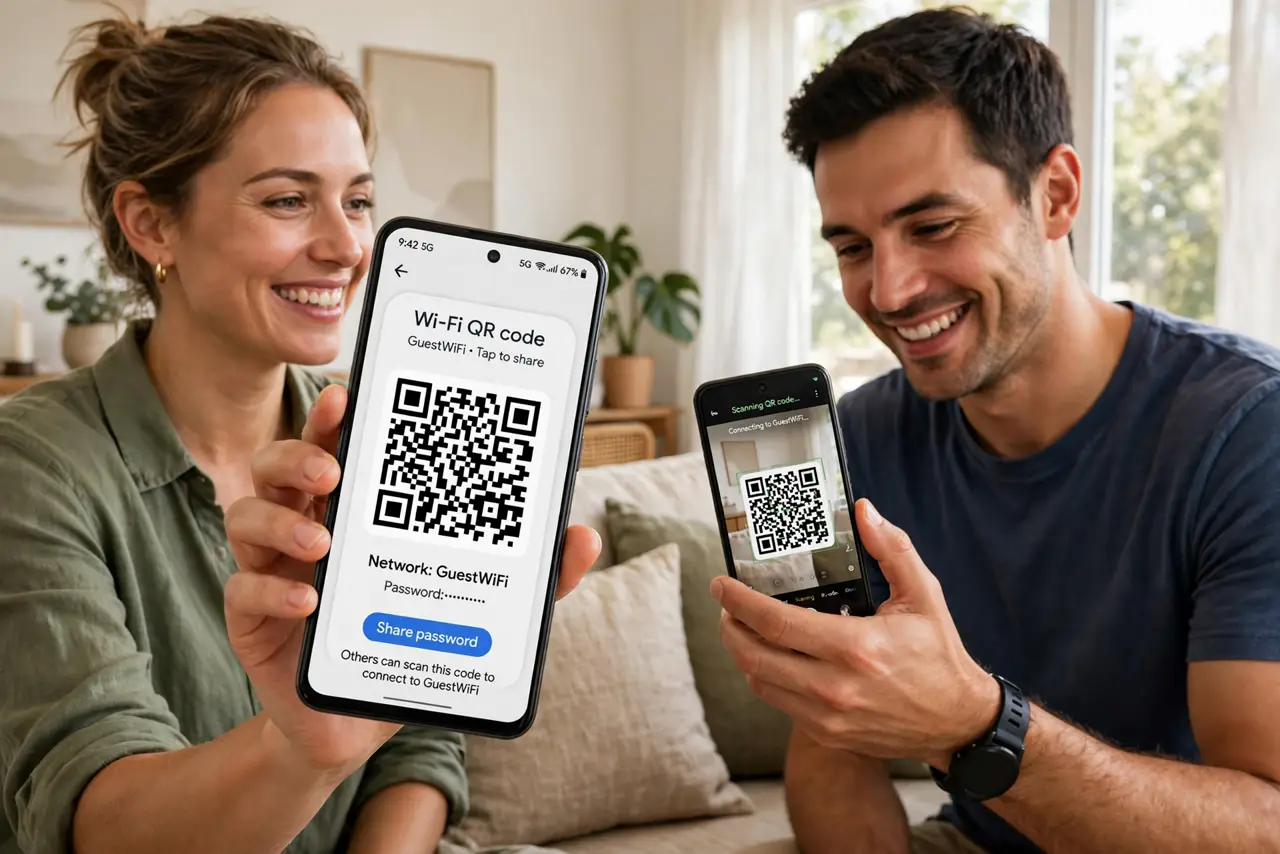
Guests ask for the Wi-Fi password, and you face reading out a 20-character string of gibberish letter by letter. A QR code ends that ritual: guests scan, phones join, nobody types anything. Both Android and iPhone can generate one from the connected network in seconds.
TL;DR / Quick Fix
Instead of dictating your Wi-Fi password, show a QR code guests can scan to join. On Android, open Wi-Fi settings, tap the connected network, and tap Share; on iPhone, create it in Shortcuts. The QR sharing guide shows both platforms — keep the code private per the QR safety notes.
Follow these steps
- Connect to the Wi-Fi network first. The phone generates the code from its current connection. Join the network yourself before trying to share it — you cannot share a network you are not on.
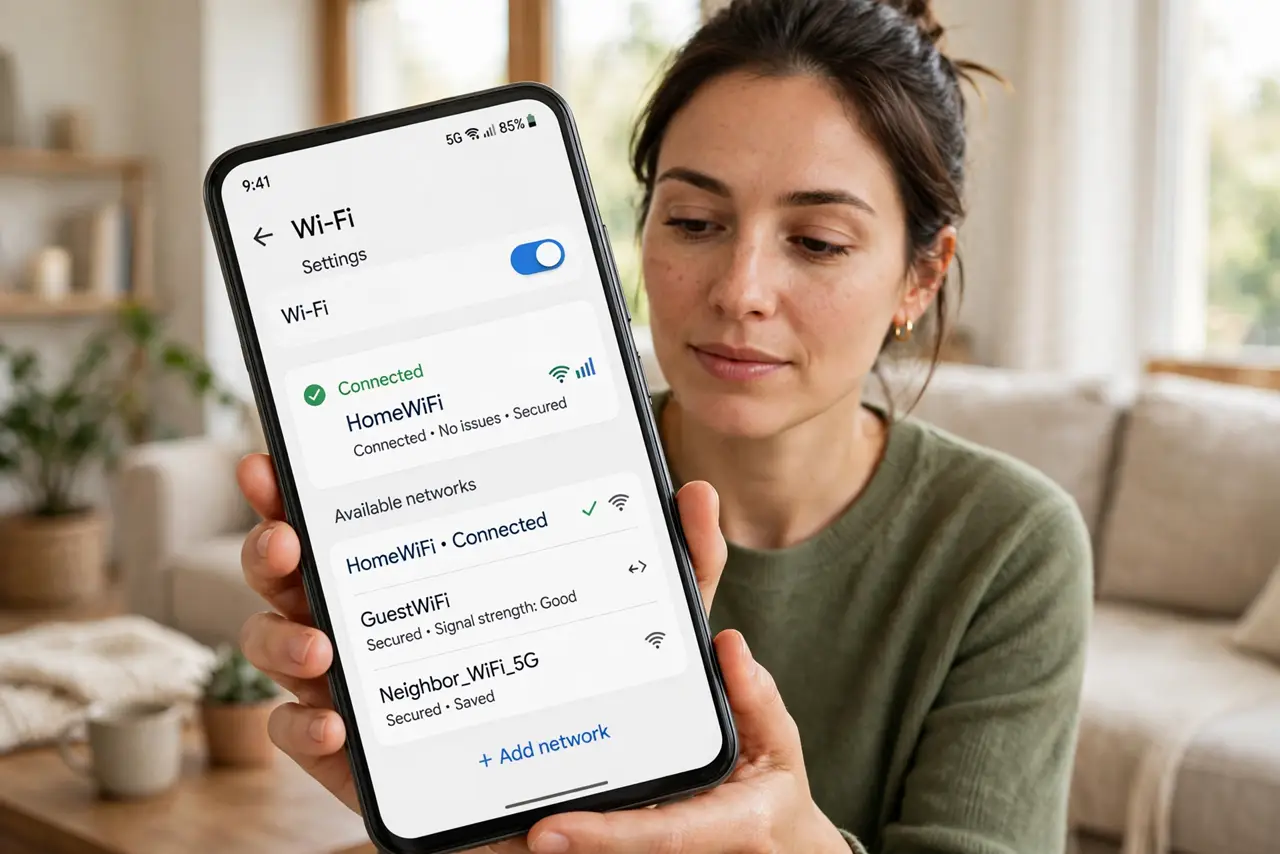
- Open the share option. On Android: Settings, Wi-Fi, tap the connected network (or the gear icon), then Share — authenticate with your PIN or fingerprint. On iPhone, use the Shortcuts app's Wi-Fi QR action.
- Display the QR code big and bright. Hold the phone steady with brightness up. A dim or tiny code scans poorly — full brightness and a steady hand work best.
- Have the guest scan with their camera. Most phone cameras recognize Wi-Fi QR codes automatically and offer a Join button. No special app needed on modern phones.
- Confirm they are actually online. Ask them to load a page. A successful scan that fails to connect usually means the code was generated for the wrong band or a typo in the stored password.
- Revoke or rotate for sensitive networks. For a home network shared widely, consider changing the password afterward or using a guest network. A photographed QR code works forever until the password changes.
What NOT to do
- Do not post your Wi-Fi QR code publicly. A photo of the code is a permanent key to your network until you change the password.
- Do not share the main network when a guest network exists. Guests get internet either way; the guest network keeps your devices isolated.
- Do not generate the code while on VPN or mobile data. The share feature reads the Wi-Fi connection — it needs the actual Wi-Fi active.
- Do not forget the code contains the real password. Anyone who scans it can read the password from their Wi-Fi settings afterward — share accordingly.
Frequently asked questions
Can iPhones scan Wi-Fi QR codes?
Yes — the Camera app recognizes them and offers to join. Generating one needs the Shortcuts app, but scanning is built in.
Does the guest need an app?
No. Modern Android and iPhone cameras handle Wi-Fi QR codes natively — point, tap the prompt, done.
Is sharing via QR code secure?
As secure as sharing the password itself — the code literally contains it. Fine for trusted guests, not for strangers.