Turn On Theft Detection Lock
The nightmare scenario: your phone is snatched from your hand while unlocked — maps open, messages open, everything open. Android's Theft Detection Lock uses motion sensing to recognize a snatch and lock the phone automatically. Here is how to enable it and the companion protections worth turning on too.
TL;DR / Quick Fix
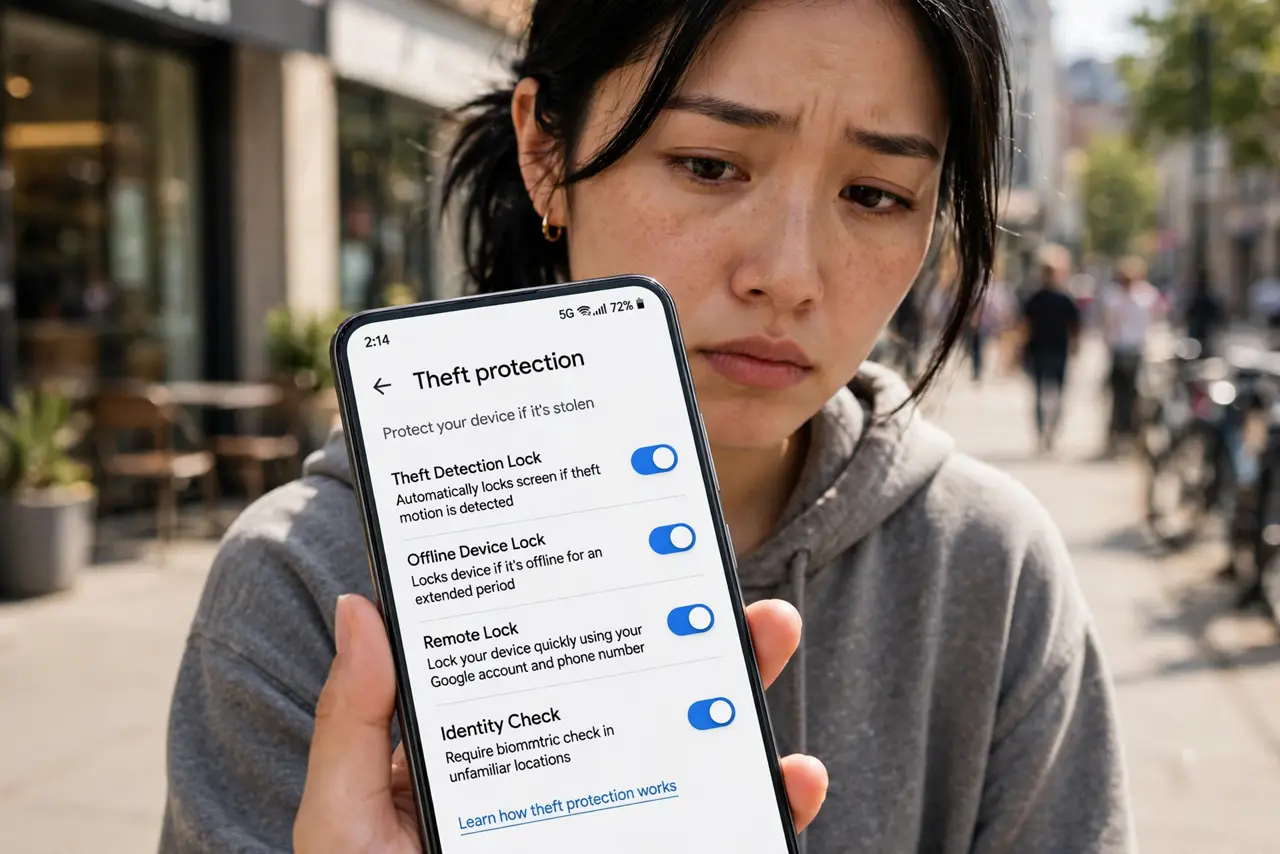
Quick fix: Theft Detection Lock senses a snatch and locks your unlocked phone automatically. Enable it in Settings, Google, Personal safety. Also enable remote lock and offline device lock there, so it stays locked without a network. Test it with a friend so you trust it works.
Follow these steps
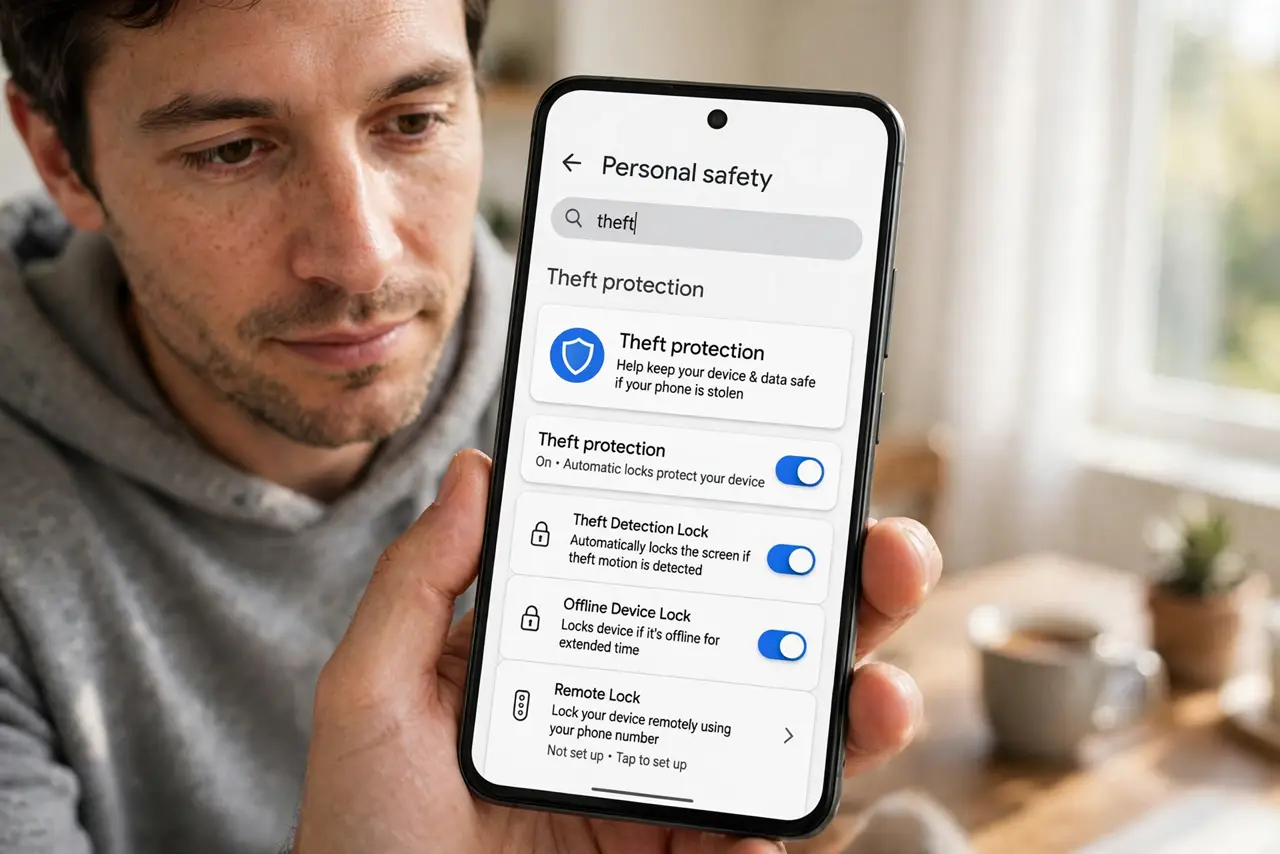
- Find the theft protection settings. On recent Android, go to Settings, then Google, then Personal safety — or search Settings for 'theft'. Makers place it differently, but search finds it everywhere.
- Turn on Theft Detection Lock. Enable the toggle. The phone now watches its motion sensors for the abrupt pattern of a grab-and-run and locks within seconds — faster than any human reaction.
- Enable Offline Device Lock. On the same screen, turn on offline device lock: if the thief immediately enables airplane mode, the phone locks itself anyway. This closes the oldest snatch-thief trick.
- Set up Remote Lock. Enable the remote lock option and memorize how to trigger it — a phone number plus a quick web page locks the phone from any browser. Practice the steps now; see the remote lock guide.
- Test that it actually locks. Hand the phone to a friend and simulate a snatch in a safe place. Watching it lock builds the confidence that the feature is armed — untested security is a rumor.
- Do not rely on it alone. This is one layer. A strong lock screen, encrypted backups, and knowing your recovery options complete the protection — theft lock buys time, the rest secures the data.
What to avoid
- Do not assume it is on by default. On most phones this is opt-in — check the toggle rather than assuming protection.
- Do not test it by actually throwing your phone. The motion trigger is sensitive; a gentle simulated grab with a friend holding it is enough.
- Do not skip the lock-screen basics. Theft detection supplements a strong PIN or biometrics — it does not replace them.
- Do not forget your Google account password. Remote lock and recovery all flow through it — a forgotten password turns protection into a lockout.
Frequently asked questions
Will it lock if I just run with my phone?
No — it looks for the specific abrupt snatch pattern, not general motion. Running, cycling, and workouts do not trigger it.
Does it work without internet?
Yes — the motion detection is on-device. The offline lock companion specifically covers the no-network case.
What if the thief turns the phone off?
A powered-off phone is a locked phone — your data stays encrypted behind the lock screen. The risk window is only while it is on and unlocked, which is what this feature covers.