Audit Your App Permissions Yearly? How To
Apps quietly collect permissions over the year — camera here, contacts there — and most people never look back. A yearly audit takes about fifteen minutes: you review what every app can access and revoke anything that no longer makes sense. This guide walks through the whole check on iPhone and Android.
TL;DR / Quick Fix
Quick fix: once a year, open Settings and review every app's permissions for camera, microphone, location, and contacts. Revoke anything an app does not need for its job, switch location to 'while using the app,' and delete apps you no longer use. Fifteen minutes prevents a year of quiet over-sharing.
Follow these steps
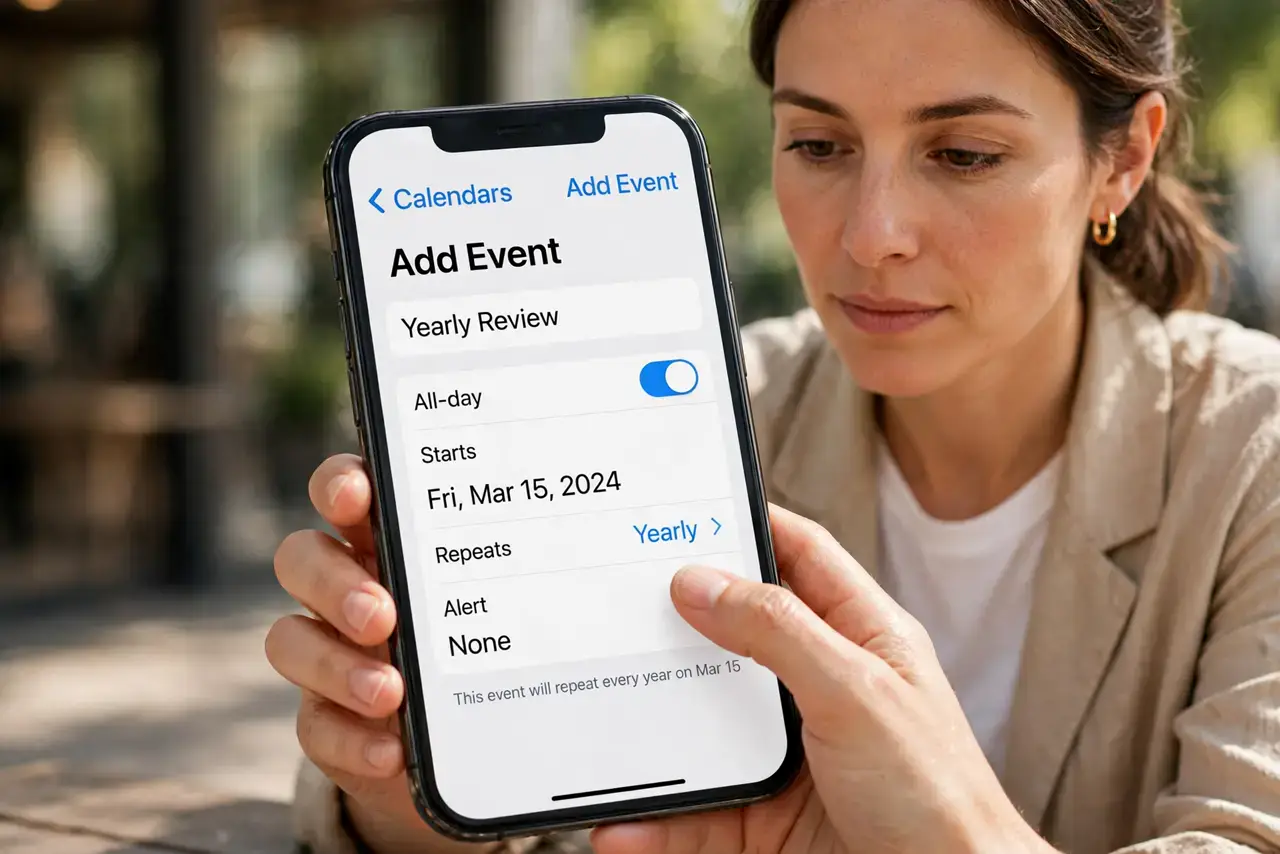
- Pick a yearly date and stick to it. Tie the audit to something memorable, like your birthday or the new year. A fixed date turns it into a habit instead of a vague intention.
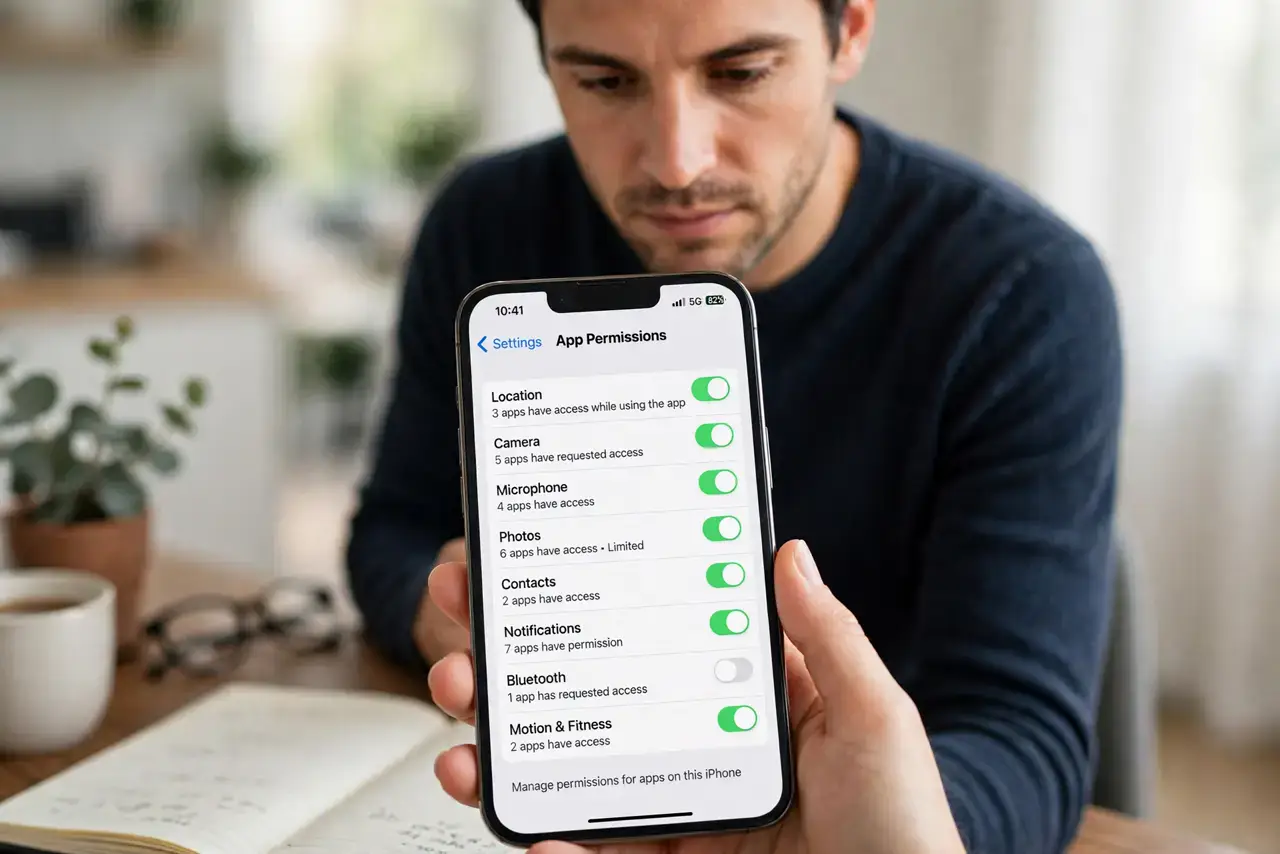
- Open the permission manager. On Android go to Settings, then Privacy, then Permission manager. On iPhone go to Settings, then Privacy and Security, and tap each category like Camera and Microphone.
- Review camera, mic, and location first. These three reveal the most about you. For each app with access, ask: does its job need this sensor? A navigation app needs location; a flashlight does not.
- Downgrade instead of only revoking. Where a full revoke breaks the app, switch to a weaker grant: precise location to approximate, 'always' to 'only while using the app.' You keep the feature with less exposure.
- Delete apps you have not opened in months. Unused apps are pure risk with zero benefit. Deleting them removes their permissions, their data, and their update nagging in one move.
- Note anything odd for next time. If an app had a permission that surprised you, write it down. Next year's audit goes faster when you remember which apps to watch.
What NOT to do
- Do not audit only your most-used apps. The forgotten ones — old games, free utilities — are the ones most likely to hold permissions they should not.
- Do not revoke everything at once without testing. Removing a permission your banking app needs for check deposit will just frustrate you; revoke, test, adjust.
- Do not skip location 'always' grants. Background location is the most revealing permission of all, so scrutinize every app that holds it.
- Do not treat the audit as one-and-done after an update. Major OS updates can reset or add permissions, so run a quick check after those too, since updates can creep.
Frequently asked questions
How long does a permission audit take?
About fifteen minutes for a typical phone. Most apps need no changes, so you spend the time on the handful that surprise you.
Will revoking permissions break my apps?
Sometimes, but the fix is instant: the app will ask again the next time it truly needs it. You lose nothing by saying no now and yes later.
Should I audit my tablet and old phone too?
Yes. Any signed-in device with your accounts deserves the same fifteen minutes, since old devices often hold stale, over-broad permissions.