Move Authenticator to a New Phone? How To
You got a new phone and your authenticator codes did not come with it. Moving two-factor to a new device is easy if you do it before wiping the old phone. This guide shows the safe transfer order.
TL;DR / Quick Fix
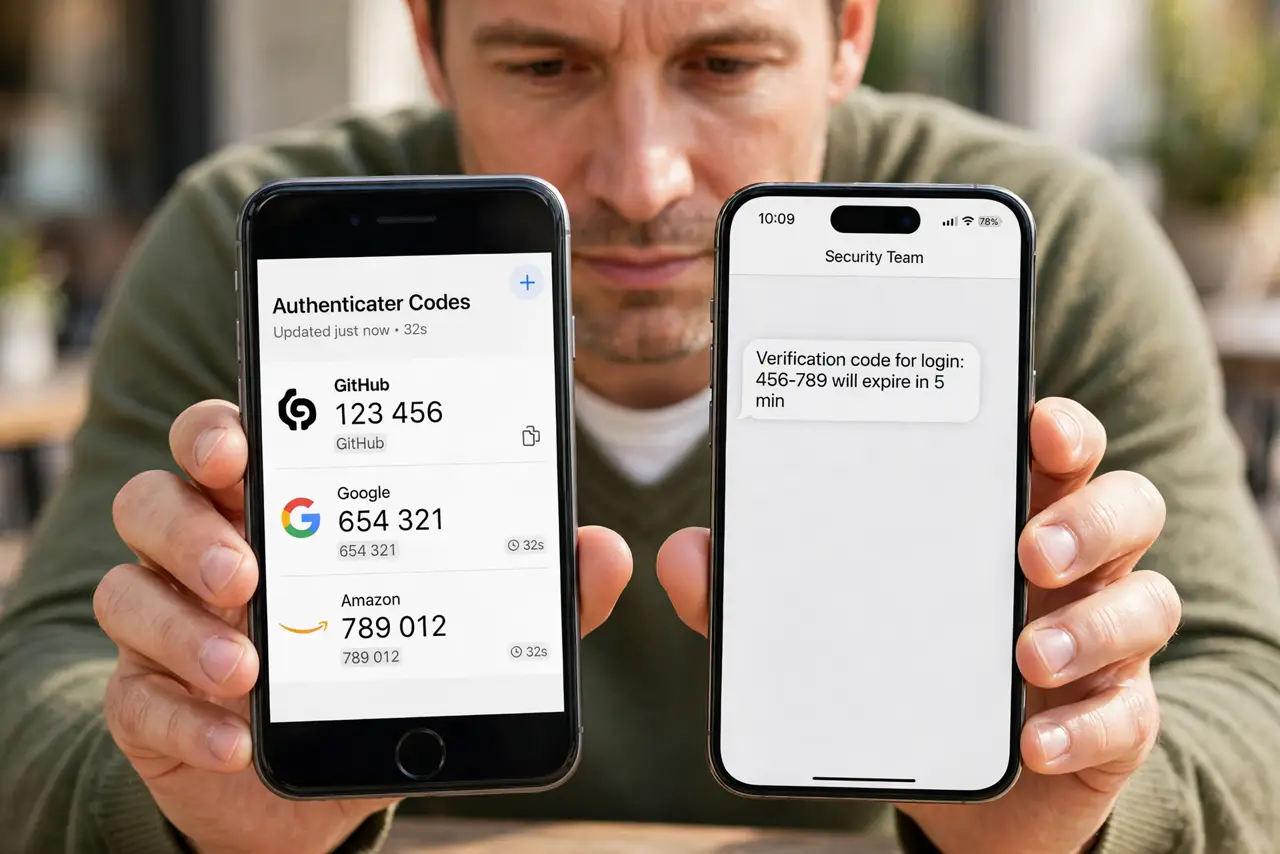
Quick fix: before wiping the old phone, turn on cloud backup in your authenticator app, then sign into the same app on the new phone and confirm your codes appear. Test one login, then wipe the old phone. If the old phone is gone, use backup codes or account recovery.
Follow these steps
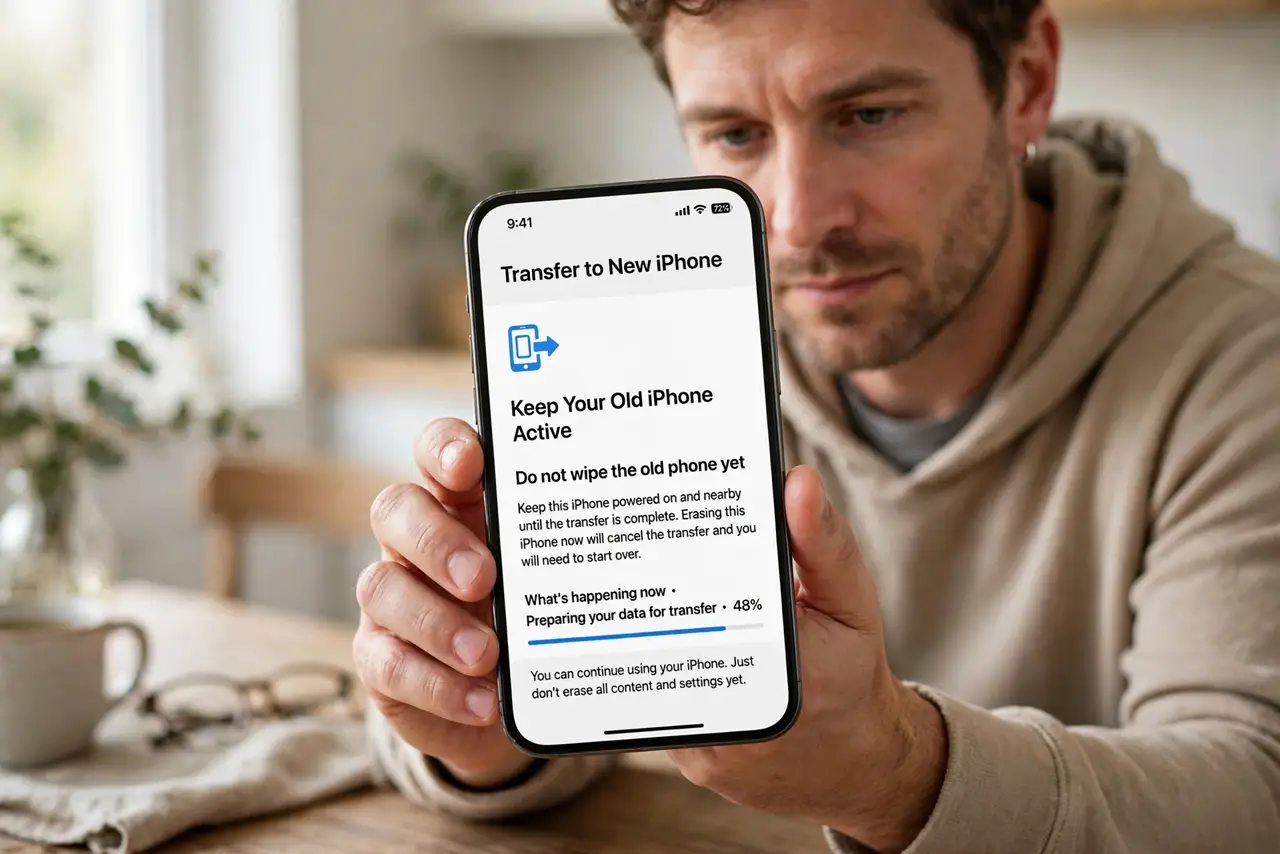
- Do not wipe the old phone yet. Keep the old phone working until the transfer is fully done. Wiping first is the number-one way people lock themselves out.
- Turn on cloud backup in the authenticator app. Open the app's settings on the old phone and enable cloud backup or sync. Wait for it to finish syncing before touching the new phone.
- Install the same app on the new phone. Download the same authenticator app and sign in with the same cloud account. Your codes should sync down automatically.
- Check that every code appears. Compare the account list on both phones. If any code is missing, re-add that account manually with its QR code before wiping anything.
- Test one login with the new phone. Sign out and back into one low-stakes account using a code from the new phone. A successful test proves the transfer worked.
- Wipe the old phone last. Only now erase the old phone, and remove it from your accounts' device lists. Old codes on a sold or traded phone are a needless risk.
What NOT to do
- Do not factory-reset the old phone first. The codes live on it, and resetting without a transfer deletes them.
- Do not assume codes transfer with a phone backup. Some authenticator apps exclude codes from regular backups unless cloud sync is on.
- Do not scan old QR screenshots to re-add accounts. If the site rotated the secret, the old QR code generates wrong codes.
- Do not sell the old phone while codes are still on it. Wipe it only after confirming every code works on the new phone.
Frequently asked questions
What if I already wiped the old phone?
Then you are in lost-phone recovery territory: use backup codes or each account's recovery flow to get back in, then set up the app fresh.
Do I need the old phone at all?
Not if cloud sync was already on — just sign into the app on the new phone. If sync was off, you need the old phone or your backup codes.
Can I use the authenticator on both phones?
Yes, and it is a fine temporary safety net during the switch. Remove the old phone from your accounts once the new one is confirmed working.