Cloud vs Local Backups?
Which backup should you trust — the cloud or an external drive on your desk? Each one fails in exactly the way the other survives: the cloud survives fires and theft but needs internet; the local drive is fast and private but dies in the same disaster as your computer. The honest answer is both, but if you must pick one, this guide helps you choose. Either way, automate it — a backup you remember to run is a backup that will not happen.
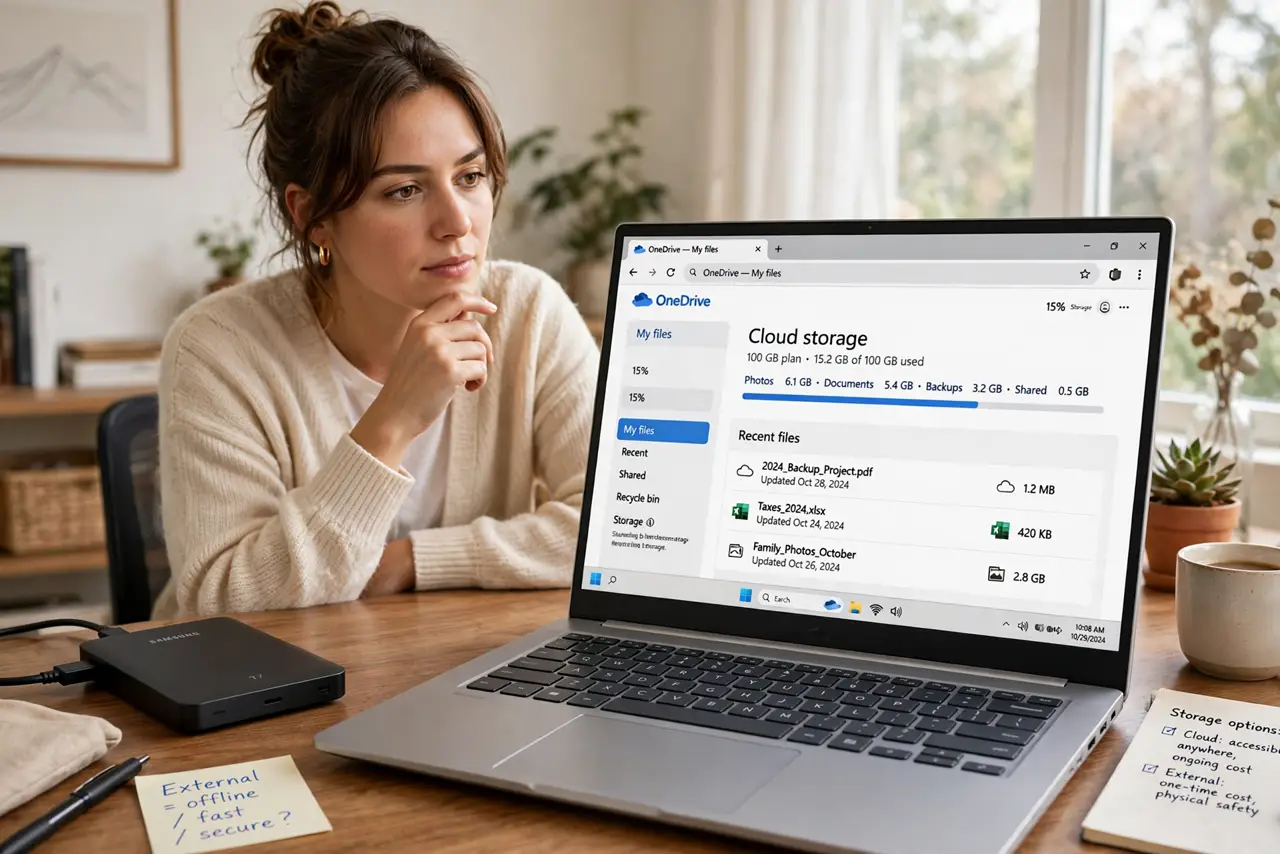
TL;DR / Quick Fix
Quick fix: use both if you can — cloud backup protects against theft, fire, and drive failure; a local drive gives fast restores and works offline. If you must choose one, pick cloud for irreplaceable files like photos, local for huge files and fast recovery. Automate whichever you choose.
Follow these steps
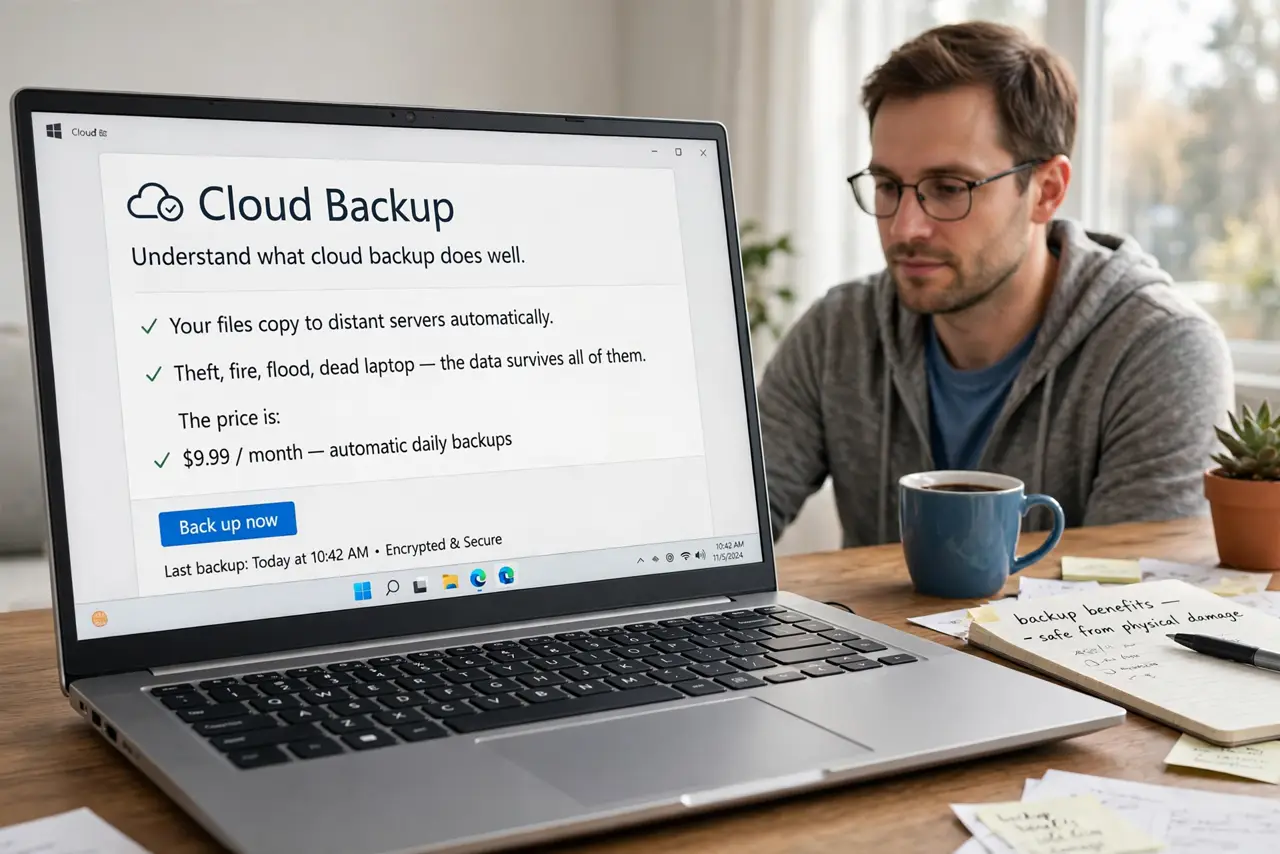
- Understand what cloud backup does well. Your files copy to distant servers automatically. Theft, fire, flood, dead laptop — the data survives all of them. The price is a subscription and an internet connection for restores.
- Understand what local backup does well. An external drive gives fast, free-after-purchase backups with no internet needed and no third party holding your files. The weakness: it sits next to the computer it protects.
- Know how each one fails. Cloud fails when the internet is down or the subscription lapses. Local fails in fires, thefts, and when the drive itself dies. Each covers the other's blind spot — that is the whole argument for both.
- Match the choice to the files. Irreplaceable photos and documents deserve the cloud's disaster protection. Huge video projects and full-system images favor the speed and capacity of a local drive.
- Count the real costs. Cloud is a forever subscription that grows with your data; local is a one-time drive purchase you replace every few years. Budget either way — free is not an option that works.
- Automate whichever you pick. The best backup type is the one that actually runs. Turn on the schedule, verify the first backup, and test a restore — the 3-2-1 rule is the gold standard if you want both.
What NOT to do
- Do not trust a synced folder as your only backup. Sync mirrors deletions and ransomware to the cloud instantly — versioned backup keeps history; sync does not.
- Do not keep the only local backup next to the PC forever. A backup drive that never leaves the desk dies in the same fire — rotate it or add cloud.
- Do not let the cloud subscription lapse silently. An expired backup plan protects nothing; put the renewal somewhere you will see it.
- Do not choose based on price alone. The cheapest option you never verify is worth less than either done properly.
Frequently asked questions
Can I just use both?
Yes — and you should if you can. Cloud for disaster protection, local for speed: together they are the 3-2-1 rule in practice.
Is my data private in the cloud?
Reputable providers encrypt in transit and at rest. For sensitive files, encrypt before uploading and keep the key yourself.
How much cloud storage do I need?
Enough for the irreplaceable: documents, photos, key projects. System images and video archives can stay local-only.