What Is Band Steering?
Your laptop sits ten feet from the router yet clings to the slow 2.4GHz band while the fast 5GHz band idles — because years ago you gave the bands separate names and the laptop picked one forever. Band steering is the router feature that fixes this: with one network name for both bands, the router nudges capable devices toward 5GHz automatically. It is usually on by default — and usually blamed for problems it did not cause.
TL;DR / Quick Fix
Quick fix: band steering nudges capable devices from crowded 2.4GHz to faster 5GHz automatically — one network name, the router decides. Leave it on unless a smart gadget refuses to connect; then split the bands temporarily for setup. Most weirdness blamed on steering is really a weak signal.
Follow these steps
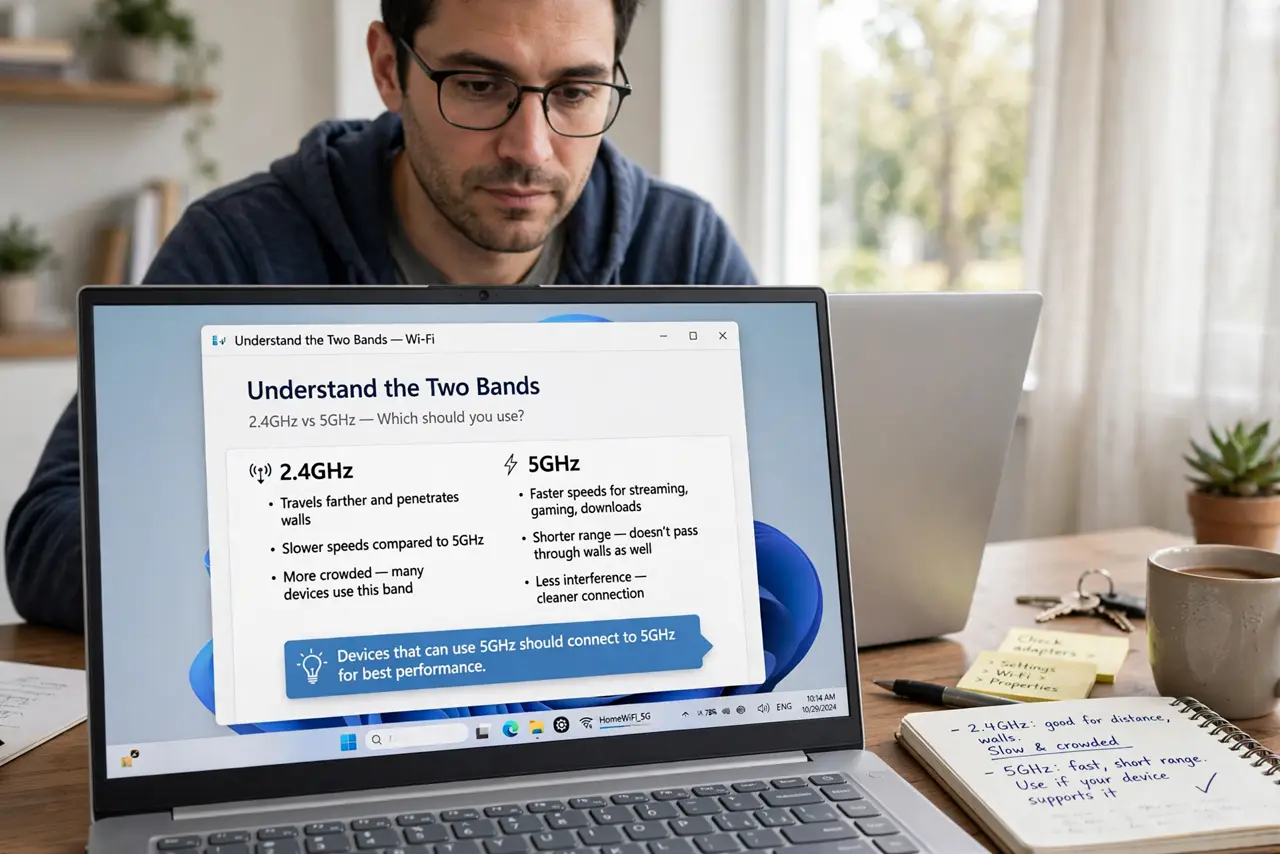
- Understand the two bands. 2.4GHz travels far and penetrates walls but is slow and crowded; 5GHz is fast with shorter range. Devices that can use 5GHz should — the problem is they do not always choose wisely on their own.
- Learn what steering does. With one network name covering both bands, the router encourages 5GHz-capable devices to connect there — delaying 2.4GHz responses so the device tries 5GHz first. It is a nudge, not a lock; devices can still end up on 2.4GHz.
- Leave it on by default. For most homes, steering improves the average: phones and laptops land on fast 5GHz, while distant smart plugs settle on far-reaching 2.4GHz. Disabling it to give bands separate names is a step backward for everything except fussy gadgets.
- Handle the fussy gadget exception. Some smart-home devices only understand 2.4GHz and get confused during setup when both bands share a name. The fix: temporarily split the bands to set the gadget up, then rejoin them — do not leave them split forever.
- Tune it alongside transmit power. Steering works best when the bands are balanced — if 2.4GHz shouts far louder than 5GHz, devices cling to it regardless of nudges. Lowering transmit power on 2.4GHz makes steering dramatically more effective.
- Know when steering is not the problem. Devices stuck on 2.4GHz despite steering usually have a weak 5GHz signal — the router is correctly keeping them where they work. Blaming steering for a coverage problem leads to disabling the helper and keeping the problem.
What NOT to do
- Do not permanently split bands to fix one gadget. Temporary split for setup, then rejoin — permanent splits defeat steering for every device, forever.
- Do not disable steering because a forum told you to. It is the default because it helps most networks; disable only for a diagnosed, specific reason.
- Do not expect steering to fix weak 5GHz coverage. If 5GHz barely reaches the bedroom, no steering setting will make devices use it there — that is a placement problem.
- Do not confuse band steering with airtime fairness. Steering picks the band; airtime fairness manages how devices share it — different features, different jobs.
Frequently asked questions
Should I use one network name or two?
One name with steering on, for most people. Two names only if you enjoy manually managing which device uses which band — almost nobody does, happily.
Why does my phone still use 2.4GHz?
Usually weak 5GHz signal at that spot, or a sticky client. Check signal strength first; steering can only nudge toward a band the device can actually hear well.
Does band steering slow anything down?
The steering handshake adds a fraction of a second at connect time — imperceptible. It does not throttle or slow connected devices.