Update BIOS Safely
BIOS updates have a scary reputation: one power flicker mid-flash and the motherboard is a brick. Modern boards are far more forgiving — with crash-free recovery features — but the fear exists because the stakes are real. This guide updates safely, step by careful step.
TL;DR / Quick Fix
Quick fix: update BIOS only when needed — for a new CPU or a real bug — never on a whim. Download the file from the motherboard maker's site, stay on wired power, and do not touch anything during the flash. A UPS removes the biggest risk: power loss mid-update.
Follow these steps
- Decide whether you actually need it. Update for a new CPU, a security fix, or a bug you actually have — not for fun. 'If it ain't broke' is genuinely good BIOS advice.
- Download from the motherboard maker only. Get the BIOS file from the official support page for your exact board model. Third-party BIOS files are how bricks happen.
- Read the changelog and instructions. The notes tell you what's fixed and any special steps — some updates must be applied in sequence. Five minutes of reading prevents hours of regret.
- Back up settings and use wired power. Note or screenshot your BIOS settings, plug into wall power (a UPS is ideal), and close everything. Laptops: charger in, battery charged.
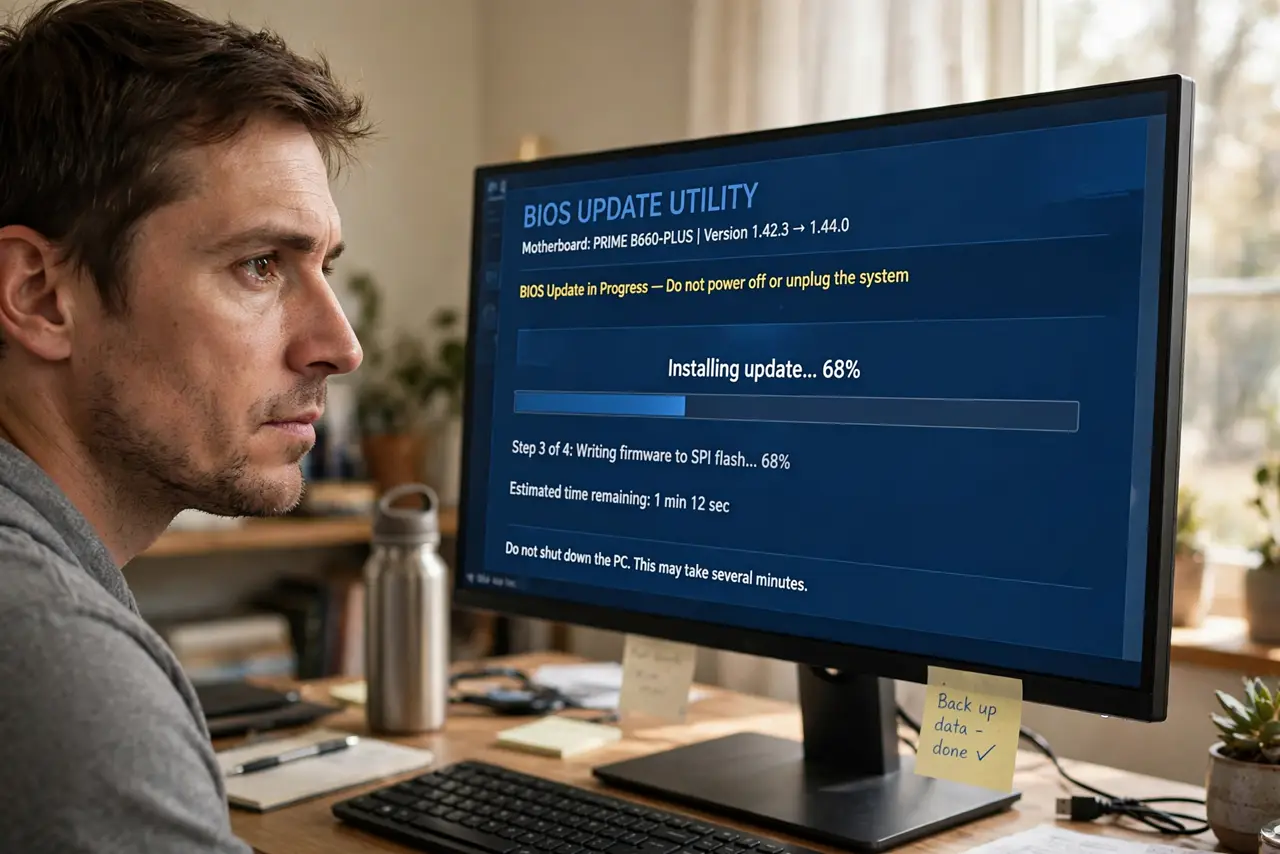
- Flash and do not touch anything. Start the update from the BIOS's own flash tool and walk away. No reboots, no power buttons, no 'it's taking long, let me restart' — patience is the whole technique.
- Verify and reconfigure. After the reboot, confirm the new version, then restore your settings. If the board supports it, enable Secure Boot properly while you are in there — you are already in the right menu.

What NOT to do
- Do not update during a storm. Power loss mid-flash is the classic brick scenario — wait for calm weather or use a UPS.
- Do not flash the wrong board's file. One letter off in the model number can mean an incompatible image — triple-check.
- Do not interrupt a 'stuck' update. Some flashes sit at one percentage for many minutes; restarting mid-write is what actually bricks boards.
- Do not update from within Windows unless the maker says to. The BIOS's built-in flash tool is the safest path.
Frequently asked questions
How long does a BIOS update take?
Usually 2-10 minutes of actual flashing. If it sits longer, wait — some boards take their time verifying.
Will I lose my settings?
Often yes — updates can reset to defaults. That is why you screenshot settings first.
What if the power goes out mid-update?
Modern boards with BIOS Flashback or dual BIOS can recover via USB. Older boards may need professional recovery — hence the UPS advice.