Separate Work and Personal Browsing
You just posted a personal rant from the work account. Or joined a client call logged into your personal email. Mixing work and personal browsing in one browser profile is how these happen — one set of cookies, one history, one identity crisis. Browser profiles give each life its own sealed container. Setup takes five minutes.
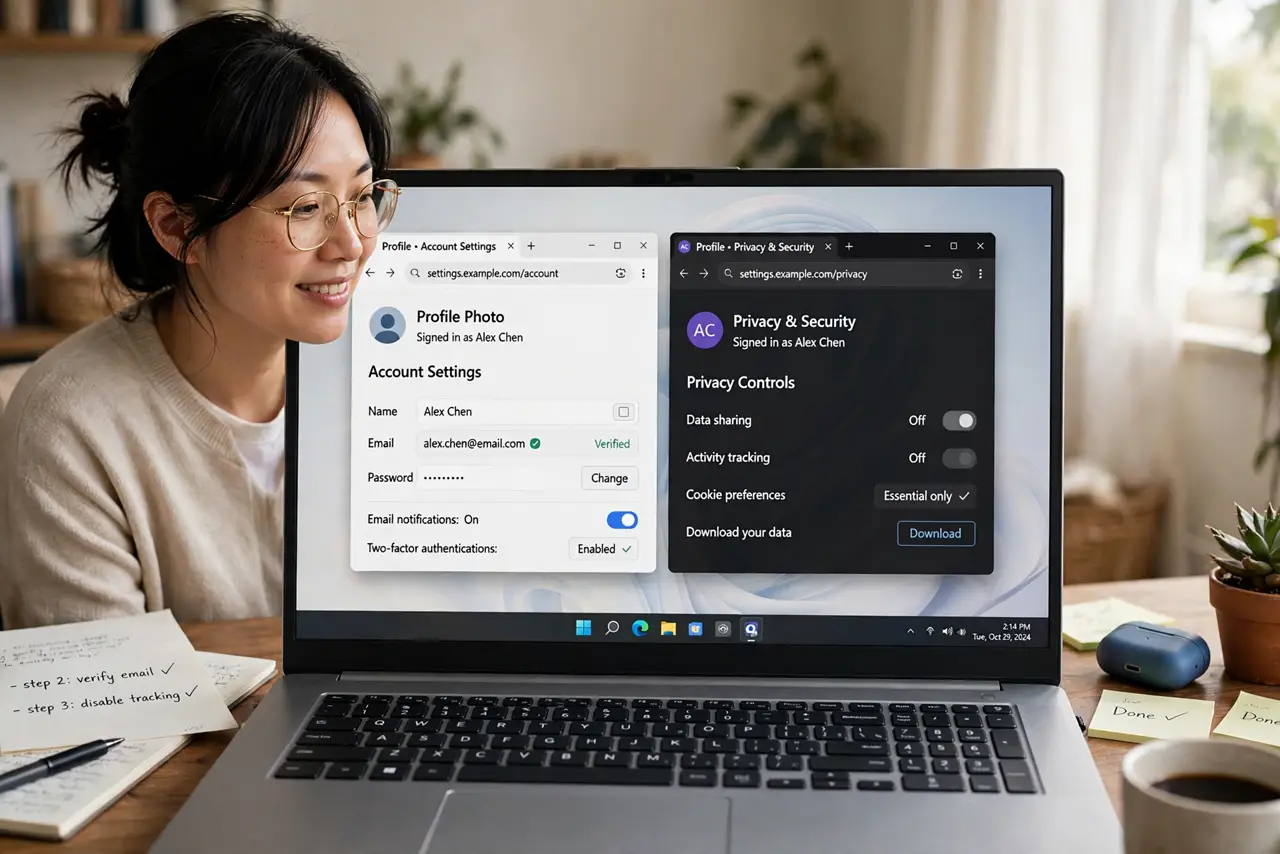
TL;DR / Quick Fix
Quick fix: browser profiles keep work and personal apart — separate histories, logins, bookmarks, and cookies in one browser. In Chrome or Edge: profile icon > Add. Use one profile per context and color-code them. No more mixing up accounts — work stays work, personal stays personal.
Follow these steps
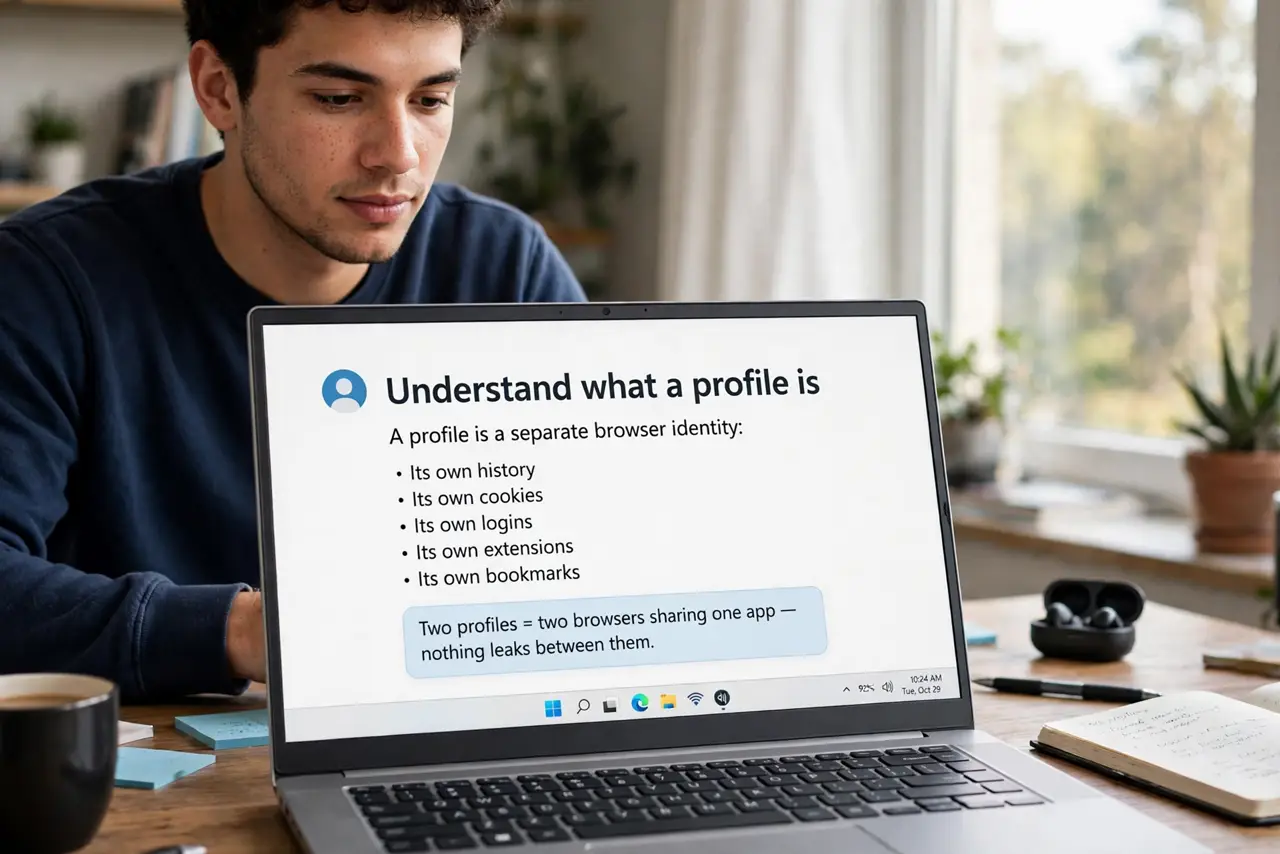
- Understand what a profile is. A profile is a separate browser identity: its own history, cookies, logins, extensions, and bookmarks. Two profiles = two browsers sharing one app — nothing leaks between them.
- Create your profiles. Chrome/Edge: click the profile icon (top right) > Add > name it and pick a color/theme. Firefox: about:profiles > Create. Make Work and Personal at minimum.
- Sign into the right accounts in each. Work profile: work Google, work tools. Personal: personal everything. The browser remembers per profile — logging in once per profile ends the daily login dance.
- Color-code and name clearly. Give Work a blue theme and Personal a green one, with clear names. The visual difference is what stops the oops, wrong account post — make them unmistakable.
- Set per-profile defaults. Work profile: work homepage, work bookmarks bar, work extensions. Personal: yours. Each profile can even have its own default search engine and startup pages.
- Use separate windows, pinned per context. Pin the Work window to one virtual desktop and Personal to another. Muscle memory takes over — you stop thinking about which is which because they are always in their places.
What NOT to do
- Do not use one profile with two Google accounts. Account-switching inside one profile still shares cookies and history — profiles are the real separation.
- Do not sync both profiles to the same sync account carelessly. Sync is per profile — keep work sync on the work account, personal on personal, never crossed.
- Do not install every extension in both profiles. Work extensions in Work, personal in Personal — fewer extensions also means faster browsing per profile.
- Do not forget which profile you are in. Glance at the profile icon before anything sensitive — the color theme is your seatbelt.
Frequently asked questions
Are profiles the same as incognito?
No — incognito forgets everything on close; profiles remember everything separately. Profiles are for persistent separation, incognito for temporary privacy.
Can I run both profiles at once?
Yes — each profile opens its own window, and they run simultaneously. That is the point: work and personal side by side, never mixed.
Do profiles share passwords?
Only if you sync both to the same account — which defeats the purpose. Keep sync accounts separate per profile and passwords stay separated too.