Block Ads with DNS
Ads follow you across every device — the phone, the laptop, the smart TV — and installing a blocker on each one is whack-a-mole. DNS-based ad blocking flips it around: change one setting on your router, and every device on your network stops loading ads and trackers. No software, no subscriptions, and it even covers gadgets that can't run blockers.
TL;DR / Quick Fix
Quick fix: ad-blocking DNS filters ads for every device on your network — point your router's DNS at a filtering provider. It blocks many ads and trackers free, with nothing to install. It will not stop YouTube video ads, so pair it with a browser ad blocker for full coverage.
Follow these steps
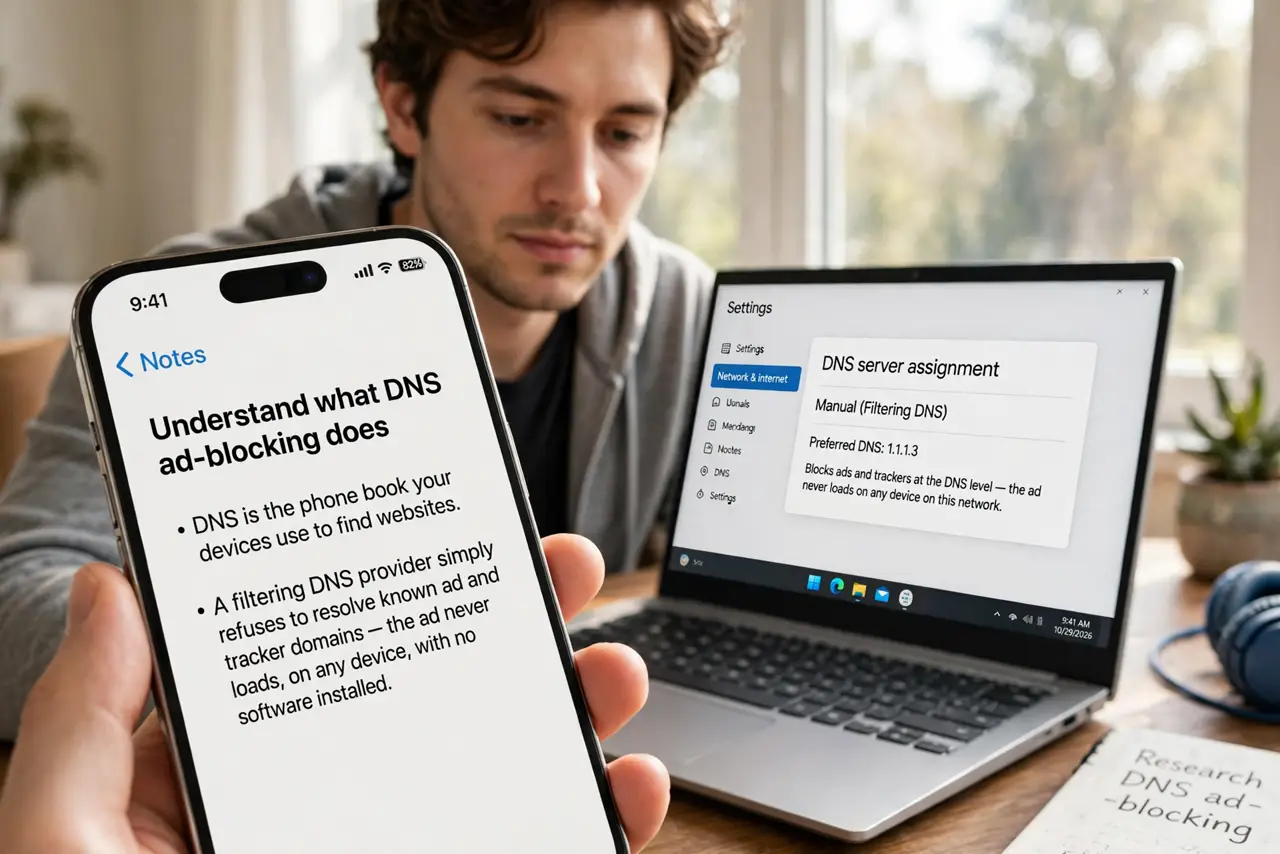
- Understand what DNS ad-blocking does. DNS is the phone book your devices use to find websites. A filtering DNS provider simply refuses to resolve known ad and tracker domains — the ad never loads, on any device, with no software installed.
- Pick a filtering provider. Several reputable providers offer free ad-blocking DNS addresses. Choose one with a clear privacy policy — you are trusting them with your browsing lookups, so reputation matters.
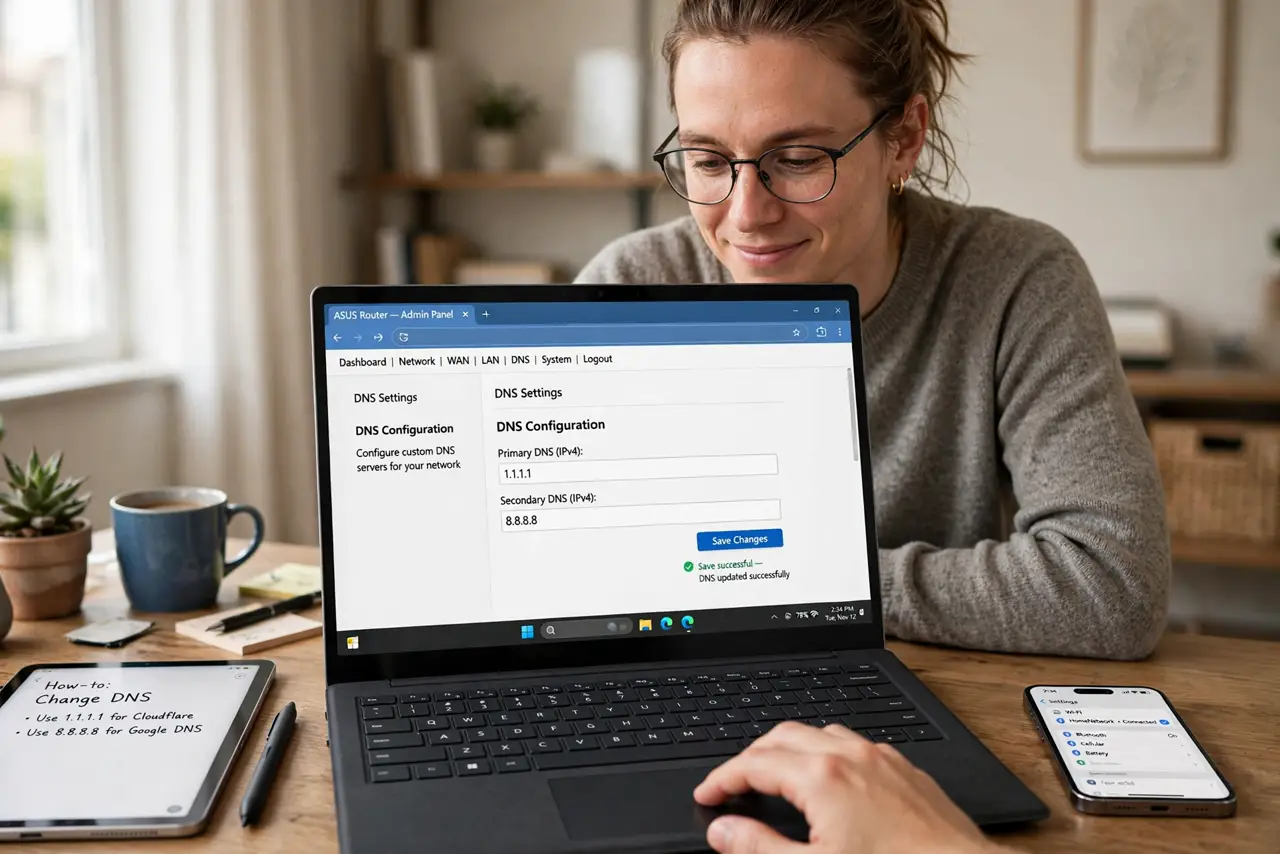
- Set it on the router for whole-network coverage. Log in to your router, find the DNS settings (usually under Internet or WAN), and enter the provider's addresses. Every device on your network is covered at once — the router vs device guide explains the tradeoff.
- Or set it per device. On phones and laptops, you can set DNS in the network settings instead. Better when you cannot touch the router (rentals, dorms) — see Android private DNS for the phone path and its quirks.
- Test that it is working. Visit the provider's test page or just browse — ad-heavy sites should look noticeably cleaner. If nothing changes, the device may be using hardcoded DNS (some apps bypass your settings).
- Pair with a browser blocker. DNS cannot block YouTube video ads or ads served from the site's own domain. A browser ad blocker covers what DNS misses — together they are the complete setup. If a bank site breaks, check the ad-blocker bank issue.
What NOT to do
- Do not expect it to block everything. YouTube video ads, sponsored posts, and first-party promos sail through DNS filtering — it is a layer, not a wall.
- Do not use a shady free DNS provider. Your DNS sees every site you visit — a provider with no reputation or privacy policy is worse than ads.
- Do not forget the router login after changing DNS. If something breaks, you will need to get back in and revert — keep the original addresses noted.
- Do not assume it protects privacy fully. DNS filtering blocks trackers, but your ISP still sees connections — it is ad-blocking, not a VPN.
Frequently asked questions
Is DNS ad-blocking free?
The reputable filtering providers offer it free for personal use. You are the product nowhere here — they typically run it as a public service or freestyle model.
Will it slow down my internet?
Usually the opposite — blocking ad domains means fewer connections. If a provider's servers are far from you, the DNS speed guide explains the tradeoff.
Can I use it on iPhone?
Yes — via a DNS profile or an app from the provider. iOS also supports encrypted DNS profiles, which combine filtering with encrypted DNS privacy.