Export Your Calendar? How To
You are switching calendar apps, changing jobs, or just want a backup of years of events. Exporting your calendar downloads everything as a portable file you can import anywhere or keep as an archive. It is the calendar equivalent of packing a suitcase: everything comes with you. Here is how to export cleanly.
TL;DR / Quick Fix
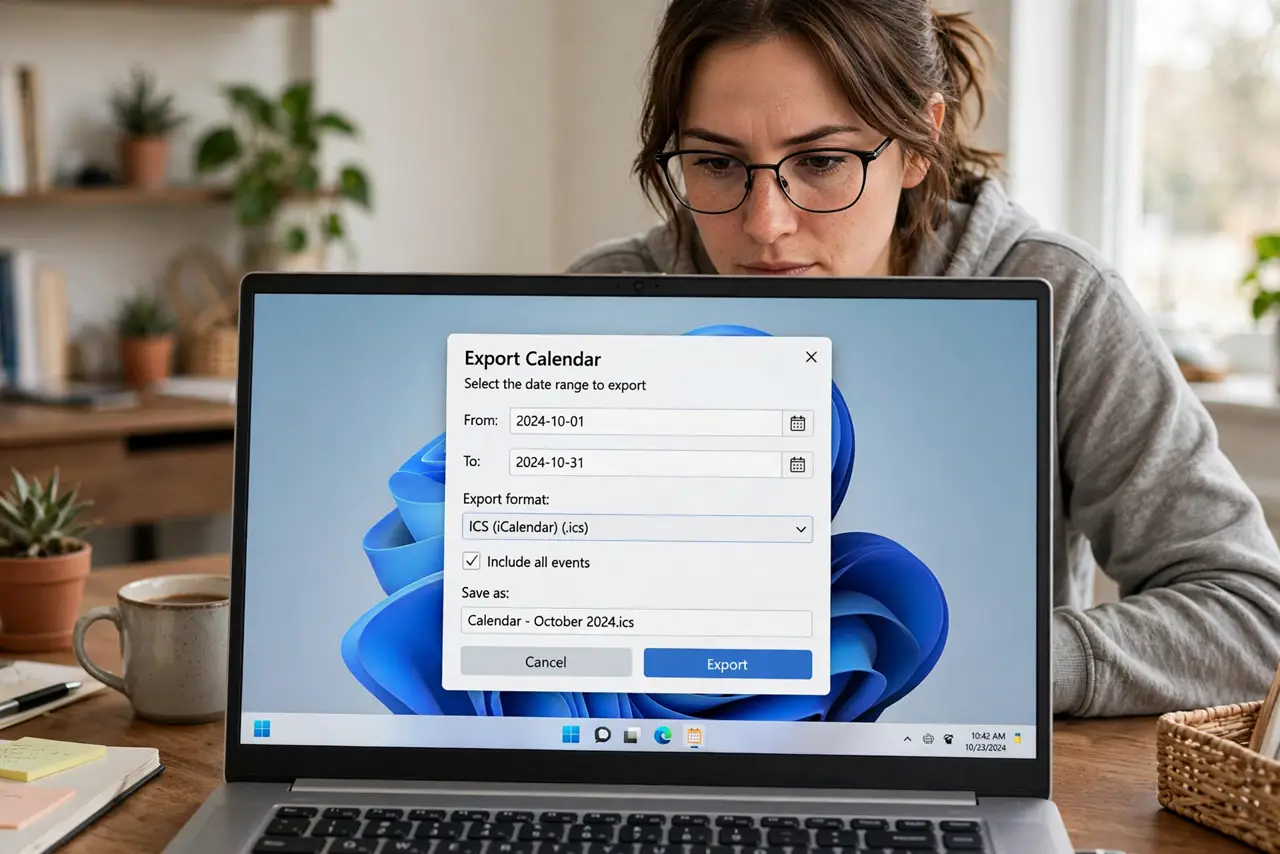
Quick fix: exporting your calendar downloads its events as an ICS file for backup or moving elsewhere. In your calendar app choose Export, pick the calendar and date range, and save the file. Import that file into the new calendar. Exported copies are snapshots — they will not update themselves.
Follow these steps
- Open the export option. In your calendar app settings, find Export or 'Export calendar.' It usually sits near the import and subscribe options.
- Choose which calendar to export. If you have several, export them one at a time. Separate files keep work and personal events from mixing in the new home.
- Pick a date range if offered. Some apps let you export a range instead of everything. A focused range keeps the file small and the import fast.
- Save the ICS file. Download the file to somewhere findable. The .ics format is universal — every major calendar app reads it.
- Import it where it needs to go. In the new calendar, use Import and select the file. See Import an ICS File for the step-by-step.
- Verify, then clean up the old one. Check that events arrived with correct times before deleting the source calendar. Exported copies are snapshots — see subscribing by URL if you need a live feed instead.
What NOT to do
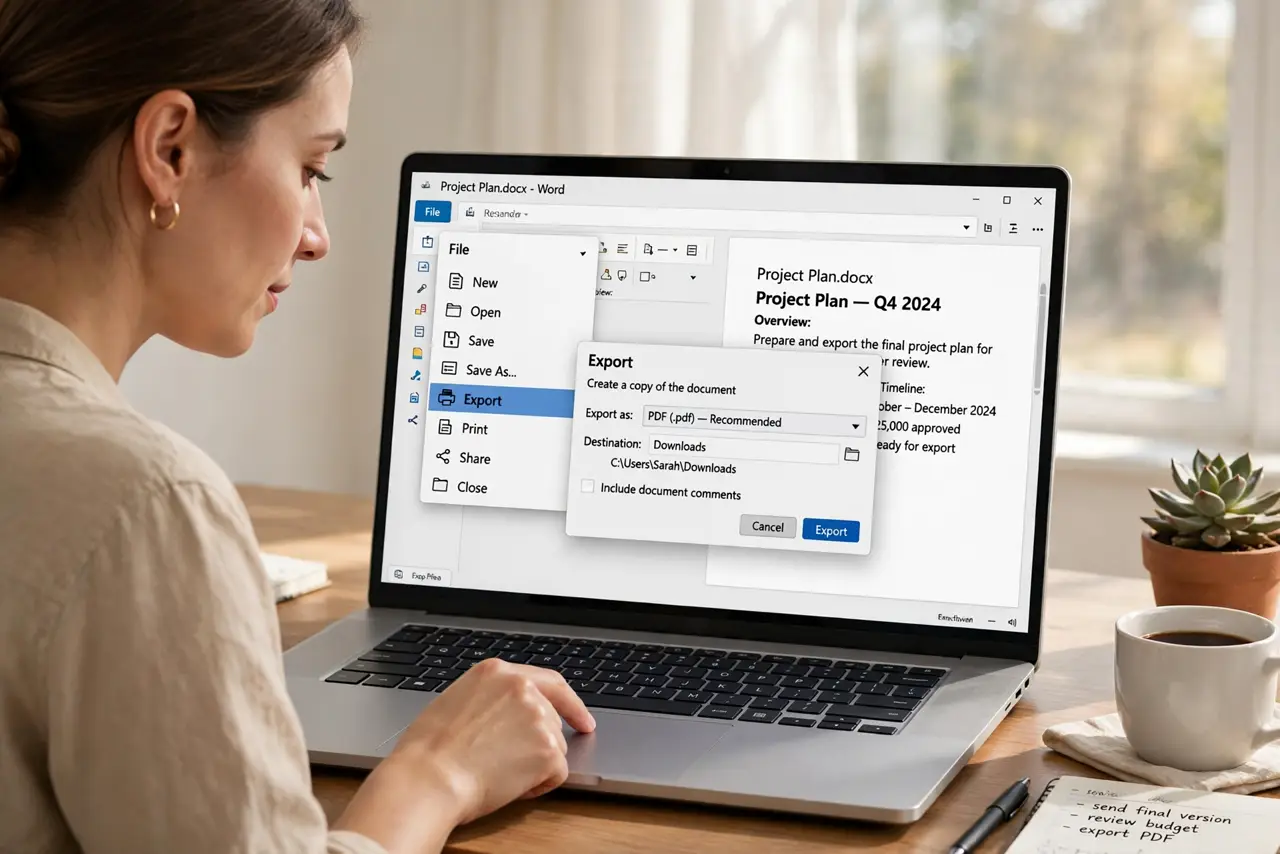
- Do not export and delete in the same minute. Import first, verify the events arrived correctly, then remove the original.
- Do not email the ICS file to yourself over insecure channels if it holds sensitive events. It is a plain-text file anyone can read.
- Do not expect the export to stay current. It is frozen at export time — new events on the old calendar will not follow.
- Do not export a subscribed calendar and call it a backup. You are just snapshotting someone else's feed — subscribe again in the new app instead.
Frequently asked questions
What format does the export use?
Almost always ICS (.ics), the universal calendar format. Some apps also offer CSV for spreadsheet-style event lists.
Can I export just one event?
Most apps export whole calendars, not single events. For one event, forward it as an invite or copy its details manually.
Why are some events missing from the export?
Check the date range — limited ranges skip older events. Also confirm you exported the right calendar, not a different one.