Print a Month View
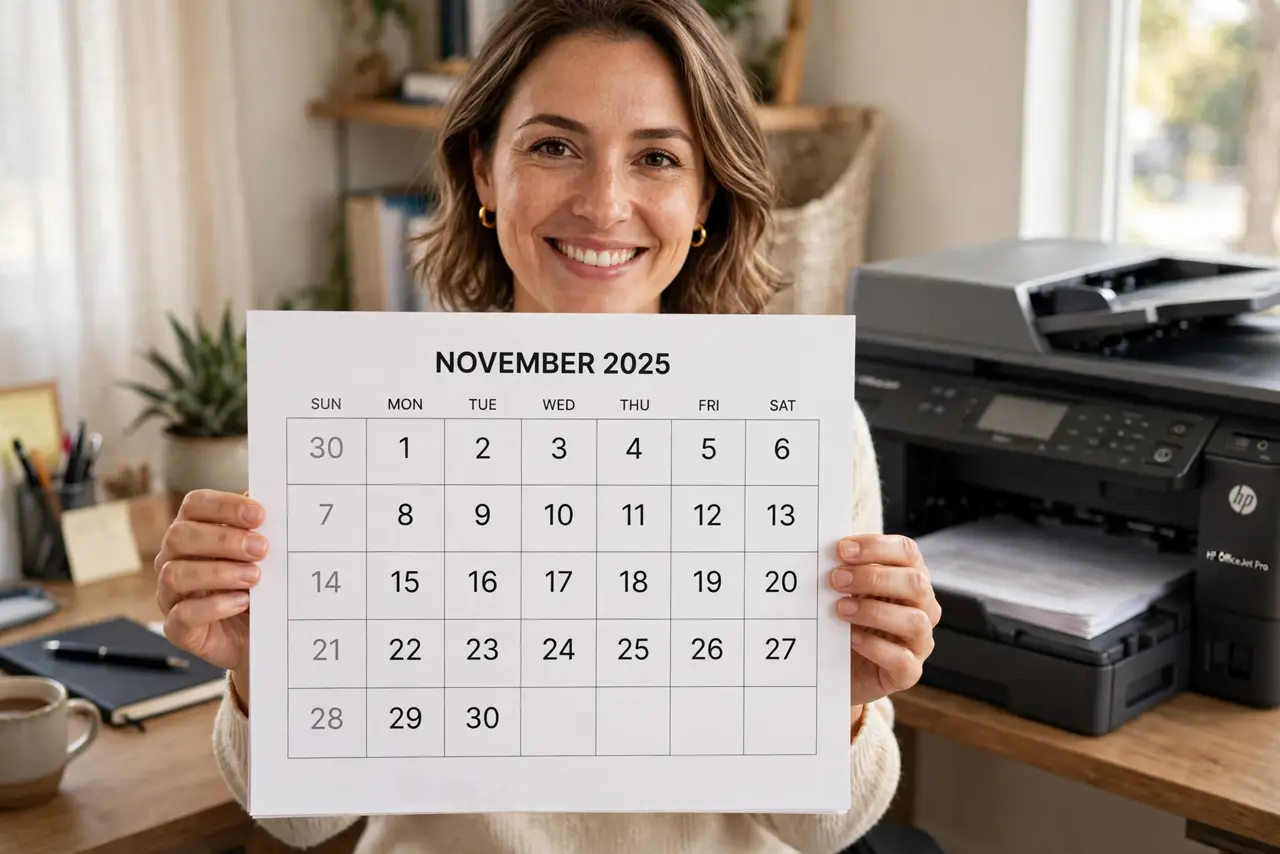
A paper month on the fridge still beats an app for some households — and for wall planning in offices. Google Calendar prints clean month views, but the defaults waste ink and cut events. Here is how to get a good print.
TL;DR / Quick Fix
Quick fix: in Google Calendar open Settings > Print, choose the month range, and print from the preview — uncheck calendars you don't want on paper first. Use landscape and black-and-white to save ink. What you see in the print preview is what you get; fix overlaps there, not after.
Follow these steps
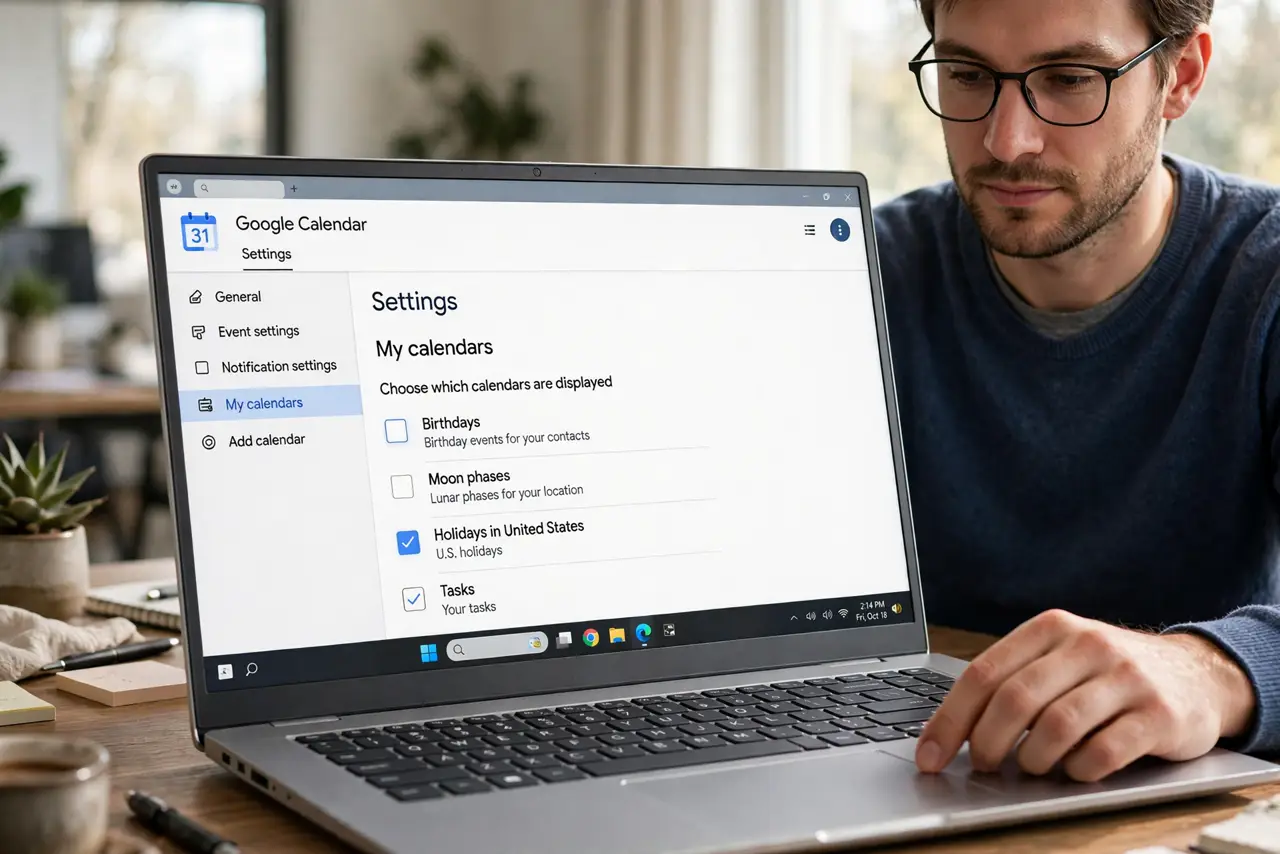
- Choose what appears. Uncheck calendars you do not want printed — birthdays, moon phases, shared noise. Paper has no toggle; curate first.
- Open Print settings. Settings — the gear — then Print. Pick the date range — one month, or a custom span for a project wall.
- Check the preview. The preview shows exactly what prints. Look for cut-off event titles and overlapping blocks — fix in the calendar, then re-preview.
- Go landscape, black-and-white. Landscape fits the week grid; black-and-white saves color ink. Event colors become shades of gray — acceptable on paper.
- Print or save as PDF. Print to paper for the fridge, or Save as PDF for sharing. The PDF is also your archive of the plan.
- Reprint monthly. A printed month decays fast. Reprint on the first of the month — five minutes keeps the wall truthful.
What NOT to do
- Do not print with ten calendars on. The page becomes unreadable confetti.
- Do not print without checking the preview. Cut-off titles are the classic print regret.
- Do not print event details you would not pin to a wall. Paper on a fridge is public — keep private events off.
- Do not treat the printout as the calendar. Changes happen in the app; the paper is a snapshot.
Frequently asked questions
Can I print just one calendar?
Yes — uncheck the others before opening Print. Only visible calendars print.
Why are event titles cut off?
Long titles wrap poorly in small day boxes. Shorten titles or print fewer weeks per page via a custom range.
Can I print a week or agenda instead?
Yes — the Print dialog offers day, week, month, and agenda layouts. Agenda prints as a clean list.