Change Screen Resolution on Windows Correctly
The wrong screen resolution can make text huge, tiny, or blurry, and it can make windows look stretched. Windows usually picks a good resolution by itself, but a new monitor, a cable change, or an accidental setting can change it. Choosing the recommended resolution usually fixes it in a minute.
TL;DR / Quick Fix
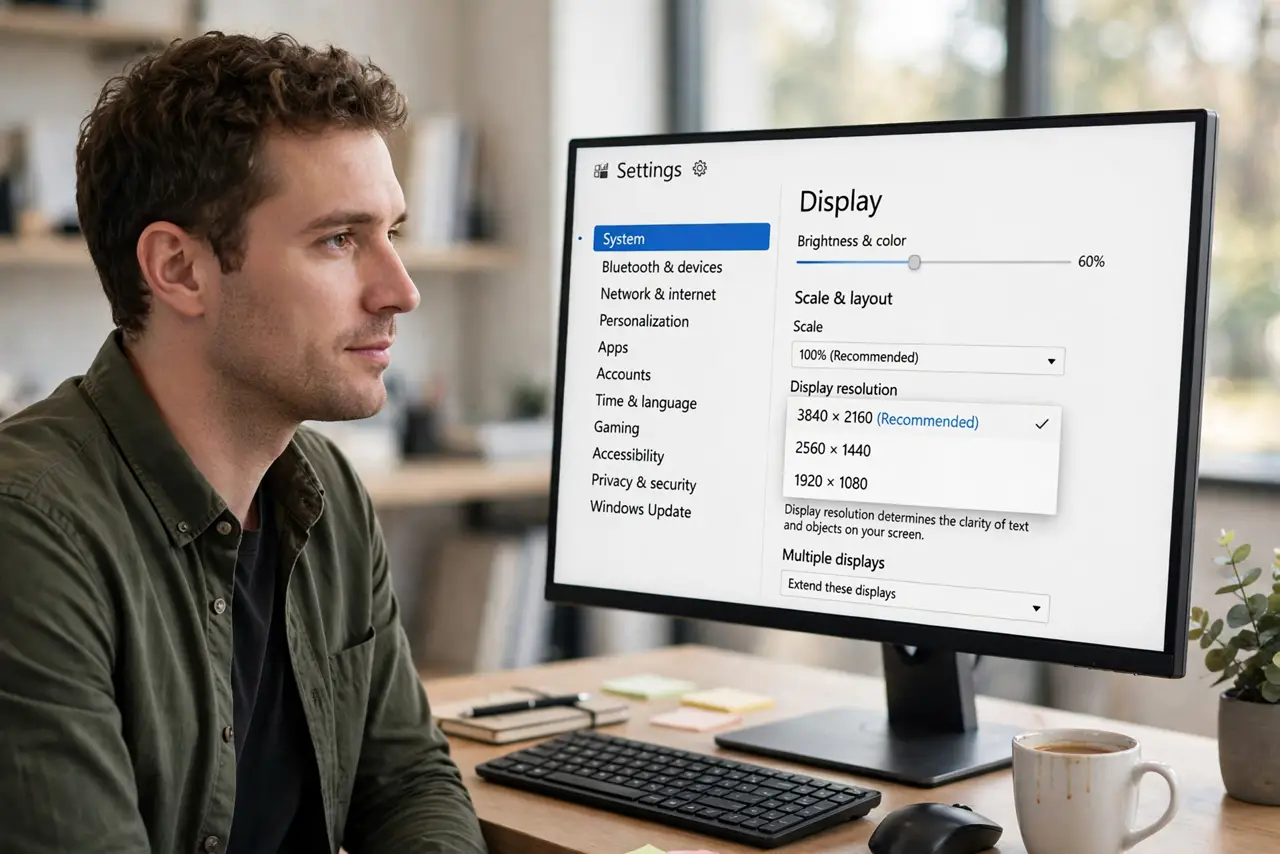
Quick fix: open Settings, then System, then Display, and choose the resolution marked Recommended. Set Scale to 100 percent first, then try 125 percent only if text is too small. Click Keep changes, and check that circles look round, not stretched.
Follow these steps
- Open Display settings. Right-click an empty part of the desktop and choose Display settings. You can also open Settings, then System, then Display. If you have two monitors, select the monitor that looks wrong first.
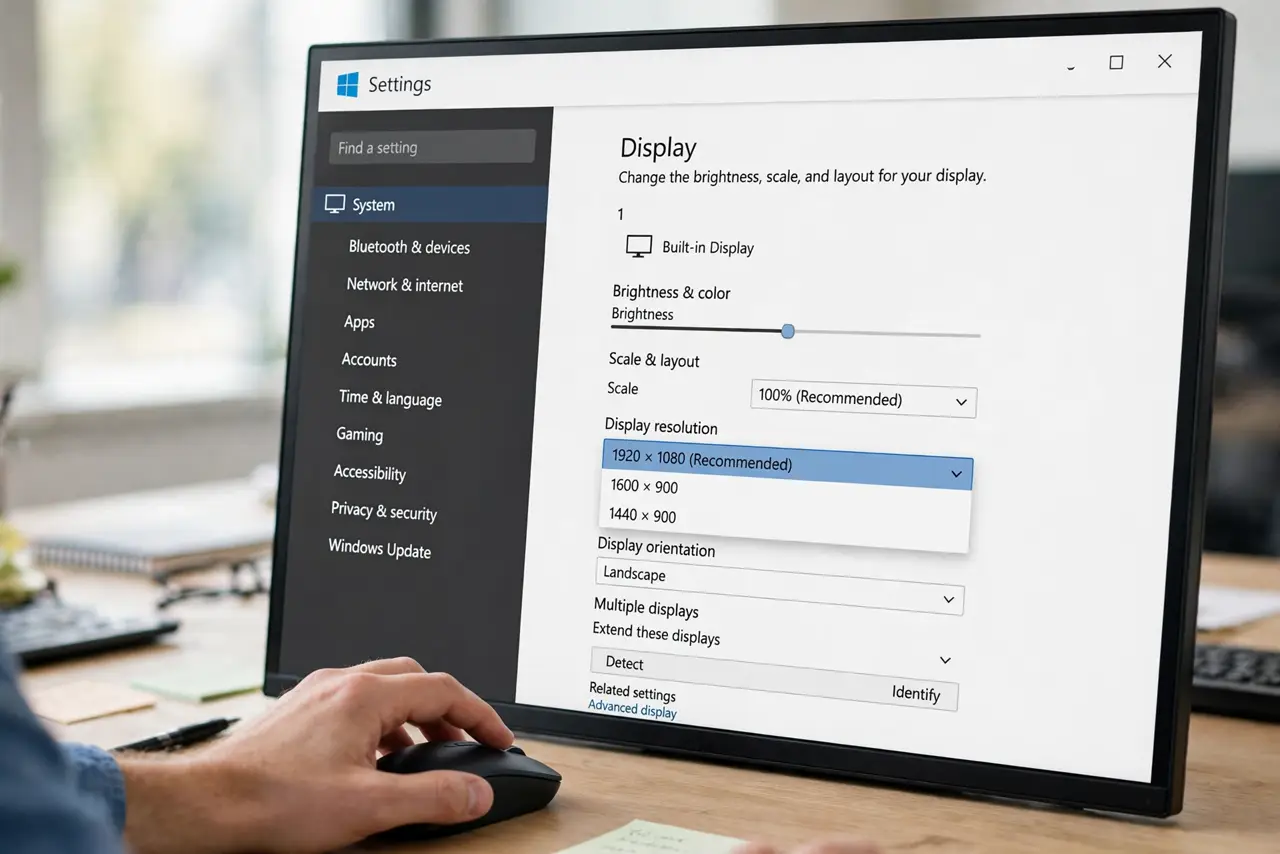
- Choose the Recommended resolution. Find Display resolution and choose the option marked Recommended. That option matches your monitor's native resolution in most cases. Avoid a lower resolution unless a specific app needs it, because it can look blurry.
- Set Scale, then check text size. Find Scale and start at 100 percent. If text is too small to read comfortably, try 125 percent. Do not set Scale to a very high value at the same time as a low resolution, because windows can become too large to use.
- Keep the change. Click Keep changes when Windows asks. If you miss the countdown, Windows returns to the previous setting, so choose the resolution again. Check a photo and a document, not only the desktop icons.
- Check for stretched shapes. Open a photo of a circle or a round logo. If circles look like ovals, the resolution or aspect ratio is wrong. Return to the Recommended resolution and check again.
- Check the cable if the right option is missing. If the Recommended resolution is missing or capped, check that the monitor cable is fully plugged in at both ends. A loose or very old cable can limit the options Windows can offer.
What NOT to do
- Do not pick the highest number just because it looks best. A resolution above your monitor's native resolution can look blurry or be unavailable, so use Recommended first.
- Do not set Scale and resolution both to extremes. That combination can make windows too large, buttons hard to reach, and settings hard to undo.
- Do not change display driver settings you do not understand. Driver panels can override Windows settings, so return to Windows Display settings first.
- Do not assume the monitor is faulty if text is blurry. Check resolution and Scale first, because those settings are the most common cause.
Frequently asked questions
What resolution should I choose?
In most cases, the resolution marked Recommended in Settings, then System, then Display. It matches your monitor's native resolution.
Why does text look blurry after I change resolution?
A non-native resolution can blur text. Return to Recommended, then adjust Scale only, not resolution, for larger text.
What if my monitor only offers low resolutions?
Check the cable is fully connected and try another port if you have one. If it stays capped, the cable or monitor input may be the limit.