Use a Clipboard Manager
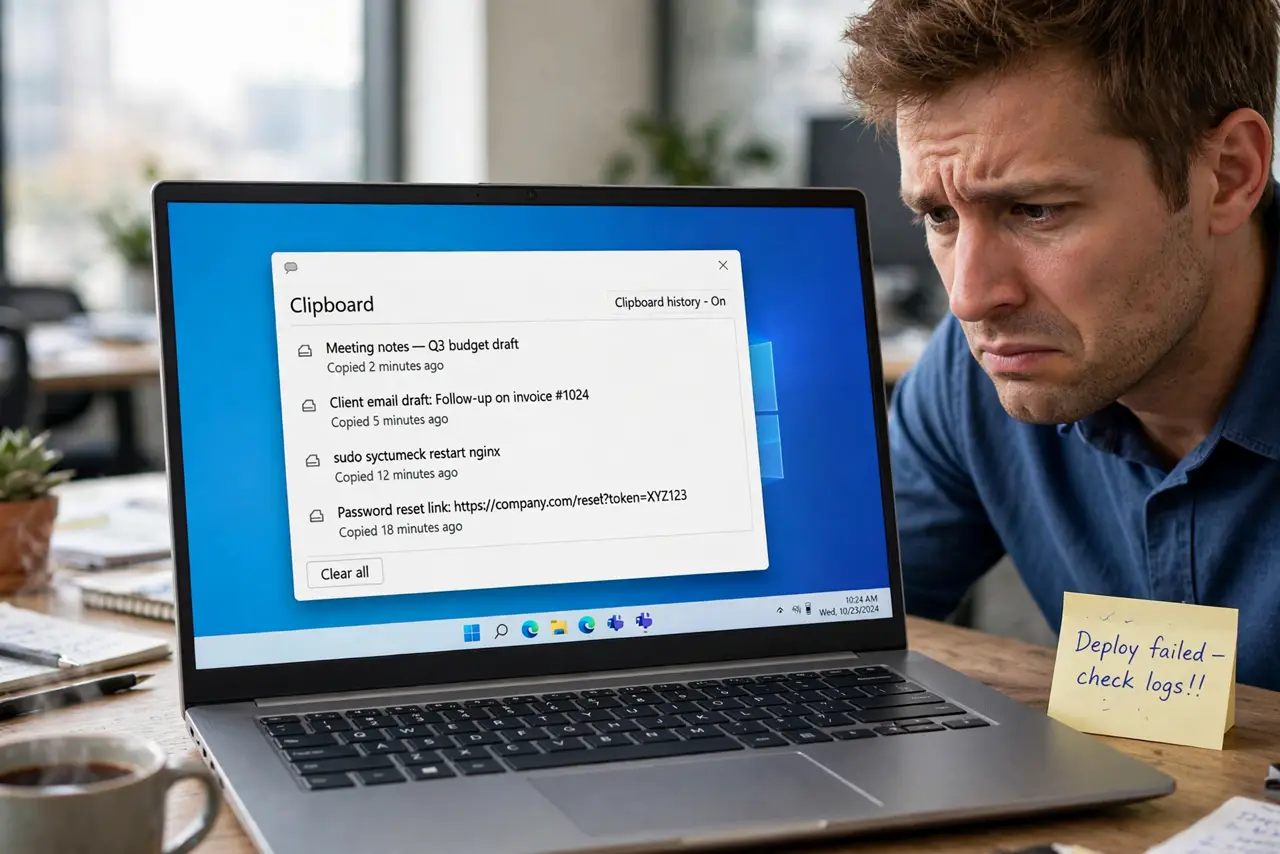
You copy something, copy something else, and the first thing is gone forever. Your computer's clipboard holds exactly one item — a clipboard manager keeps a history of everything you copied, searchable and one click away. It is a quiet superpower for anyone who copies and pastes.
TL;DR / Quick Fix
Quick fix: install a clipboard manager (Windows has one built in — press Win+V), and your copied items stay in a searchable history instead of vanishing. Pin frequent items for instant access. Clear sensitive copies like passwords when you are done.
Follow these steps
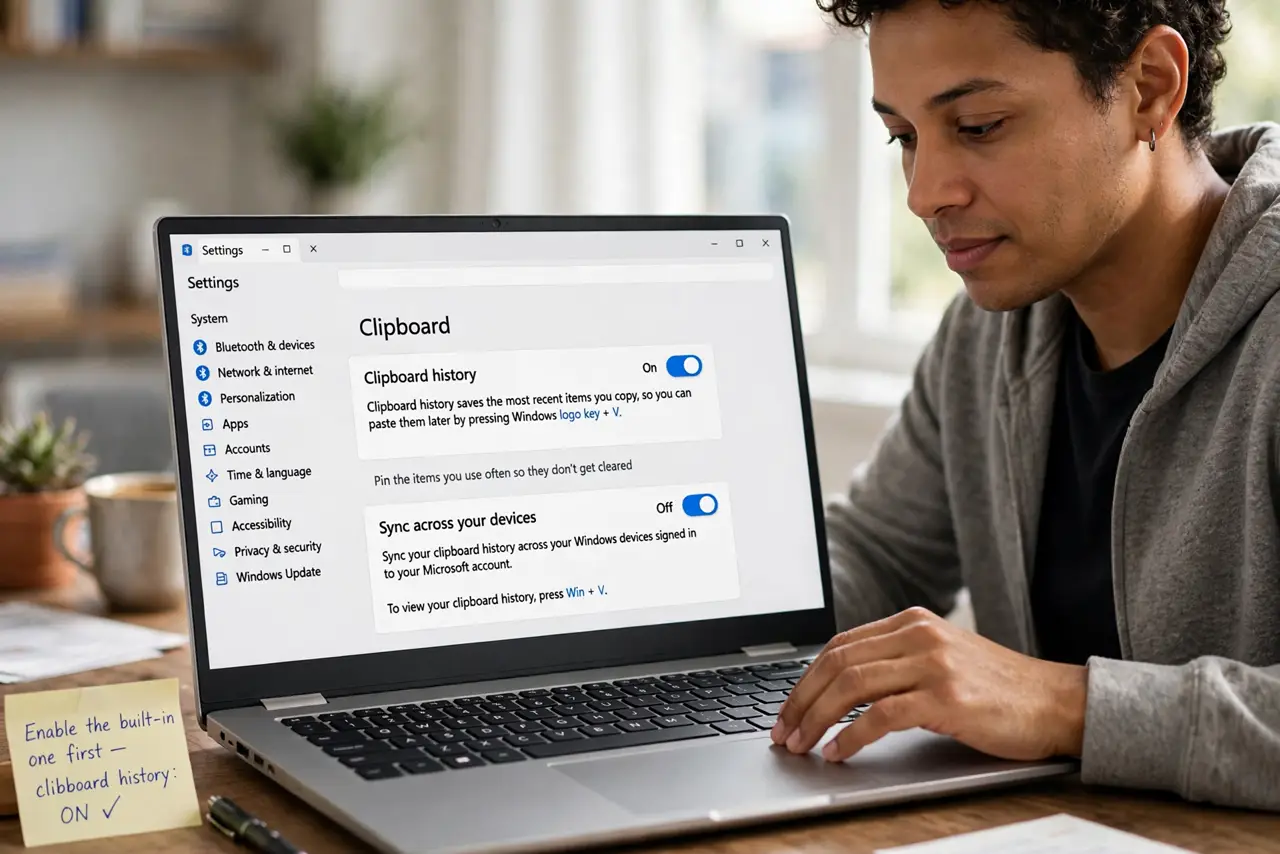
- Enable the built-in one first. Windows: press Win+V and turn on clipboard history. Mac: no built-in history — pick a reputable third-party manager. Check the manager safety notes before installing anything.
- Learn the summon shortcut. Win+V on Windows; whatever hotkey your Mac manager uses. The history popup should feel as instant as paste itself.
- Pin your frequent items. Email signature, address, common replies — pin them so they never scroll away. Pinned items are the real productivity win.
- Search the history. Managers keep dozens or hundreds of entries searchable. That link you copied Tuesday is two keystrokes away.
- Clear sensitive copies. Passwords and card numbers linger in history — clear them after use, or set the manager to ignore password fields. See why sensitive copies matter.
- Sync thoughtfully. Some managers sync history across devices. Convenient — but think twice before syncing sensitive clips to every device you own.
What NOT to do
- Do not copy passwords without a cleanup plan. History remembers what you forget — clear it or exclude sensitive apps.
- Do not install sketchy clipboard apps. They see everything you copy — stick to reputable, reviewed tools.
- Do not let history grow forever. Cap the history size so ancient clips do not pile up indefinitely.
- Do not paste blindly from history. Check what is selected — pasting the wrong old clip into chat is a rite of passage worth skipping.
Frequently asked questions
Is a clipboard manager safe?
Reputable ones are — but they inherently see everything you copy, so choose carefully and clear sensitive items.
Does it slow down my computer?
No — clipboard history is tiny. Even hundreds of entries use negligible resources.
Can I sync clipboard across devices?
Some managers offer it. Handy, but weigh the convenience against spreading sensitive clips everywhere.