Clone Your Drive
You bought a bigger SSD and now face the dreaded part: moving everything — Windows, apps, settings, files — without reinstalling the universe. Drive cloning copies your entire drive bit-for-bit to the new one, so you swap the hardware and boot up like nothing happened. Here is the safe way to do it.
TL;DR / Quick Fix
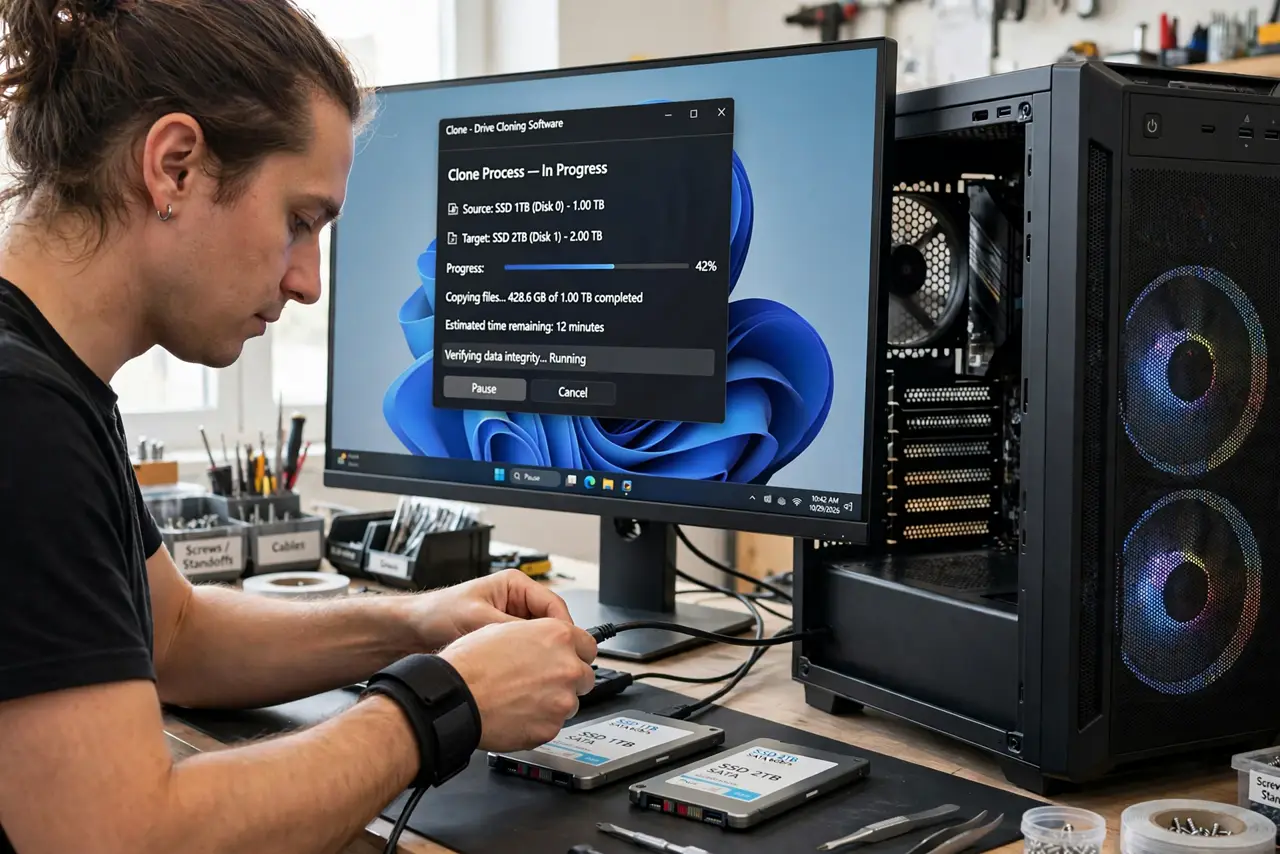
Quick fix: cloning copies your drive to the new SSD as-is — OS, apps, and files included. Connect the new drive via USB adapter or a slot, run the maker's cloning tool, verify source and destination, then swap the drives and boot. Keep the old drive a week as fallback.
Follow these steps
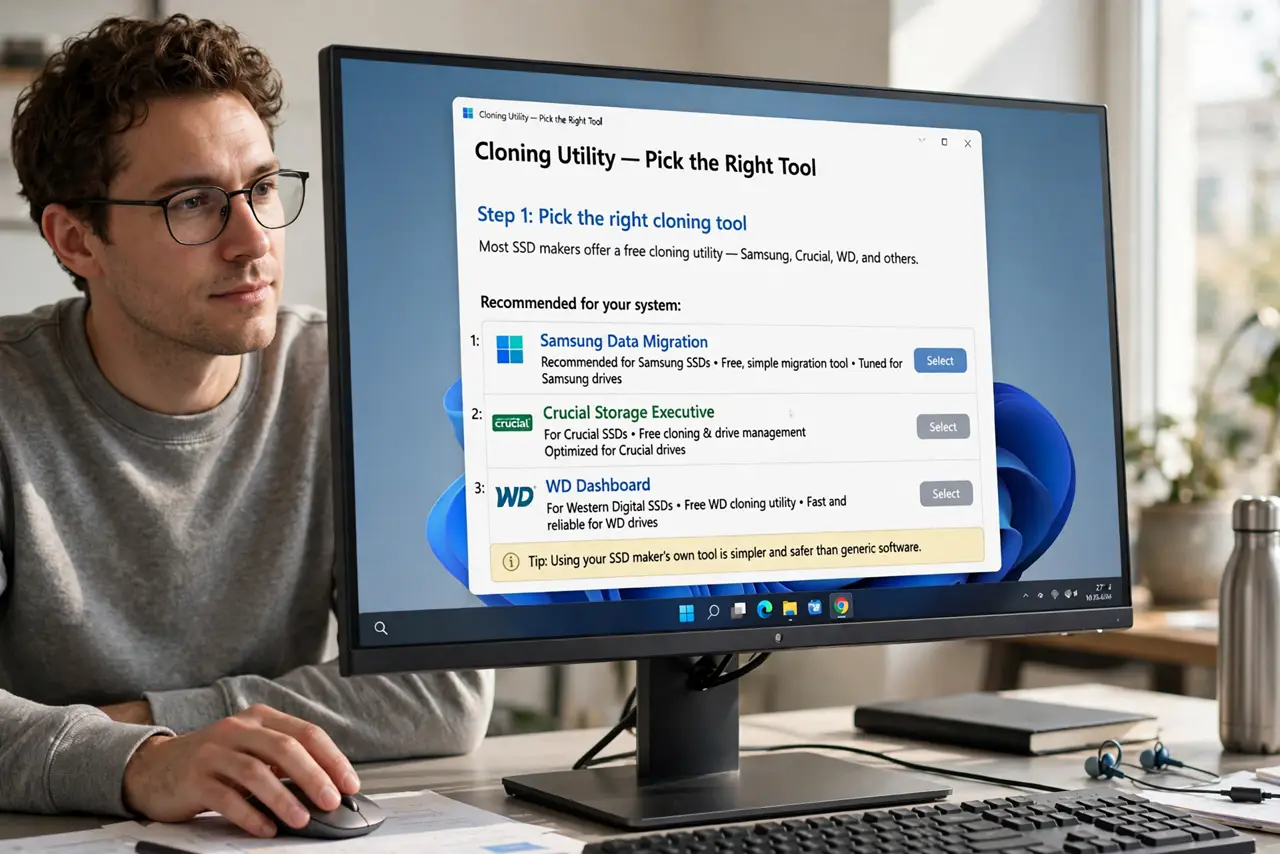
- Pick the right cloning tool. Most SSD makers offer a free cloning utility — Samsung, Crucial, WD, and others. These are tuned for their drives and simpler than generic tools; see the clone to SSD walkthrough.
- Connect the new drive first. Use a USB-to-SATA/NVMe adapter or a spare internal slot. The new drive must be visible to the system before cloning software can target it.
- Triple-check source and destination. This is the one dangerous step: cloning overwrites the destination completely. Confirm which drive is old and which is new — by size, model, and connection — before starting.
- Start the clone and wait. A full drive takes a while — often an hour or more over USB. Let it finish uninterrupted; do not use the PC heavily mid-clone.
- Swap the drives and boot. Power down, physically replace the old drive with the new one, and boot. If the system starts normally, the clone worked — check that your files and apps are all present.
- Keep the old drive as a fallback. Do not wipe the old drive for at least a week. If anything is missing or odd, you can boot from the old drive or re-clone — your safety net costs nothing to keep.
What to avoid
- Do not clone onto a smaller drive. The destination must fit the used space — cloning 500GB of data onto a 480GB drive fails.
- Do not mix up source and destination. One wrong click wipes your working drive — verify by model name and size, twice.
- Do not interrupt a clone in progress. A half-cloned drive is unusable; let the process finish even if it is slow.
- Do not wipe the old drive on day one. Keep it a week minimum — silent clone errors surface when you actually use the new drive daily.
Frequently asked questions
Will cloning copy Windows activation?
Yes — activation is tied to the hardware, and the license data clones along. Swapping only the drive does not trigger reactivation.
Do I need to reinstall programs after cloning?
No. That is the point of cloning — every program, setting, and file comes over exactly as it was.
Can I clone a larger drive to a smaller SSD?
Only if the used space fits. Shrink partitions first if needed, and verify the used space is well under the new drive's capacity.