Computer Powers On but Shows No Display? Fix It
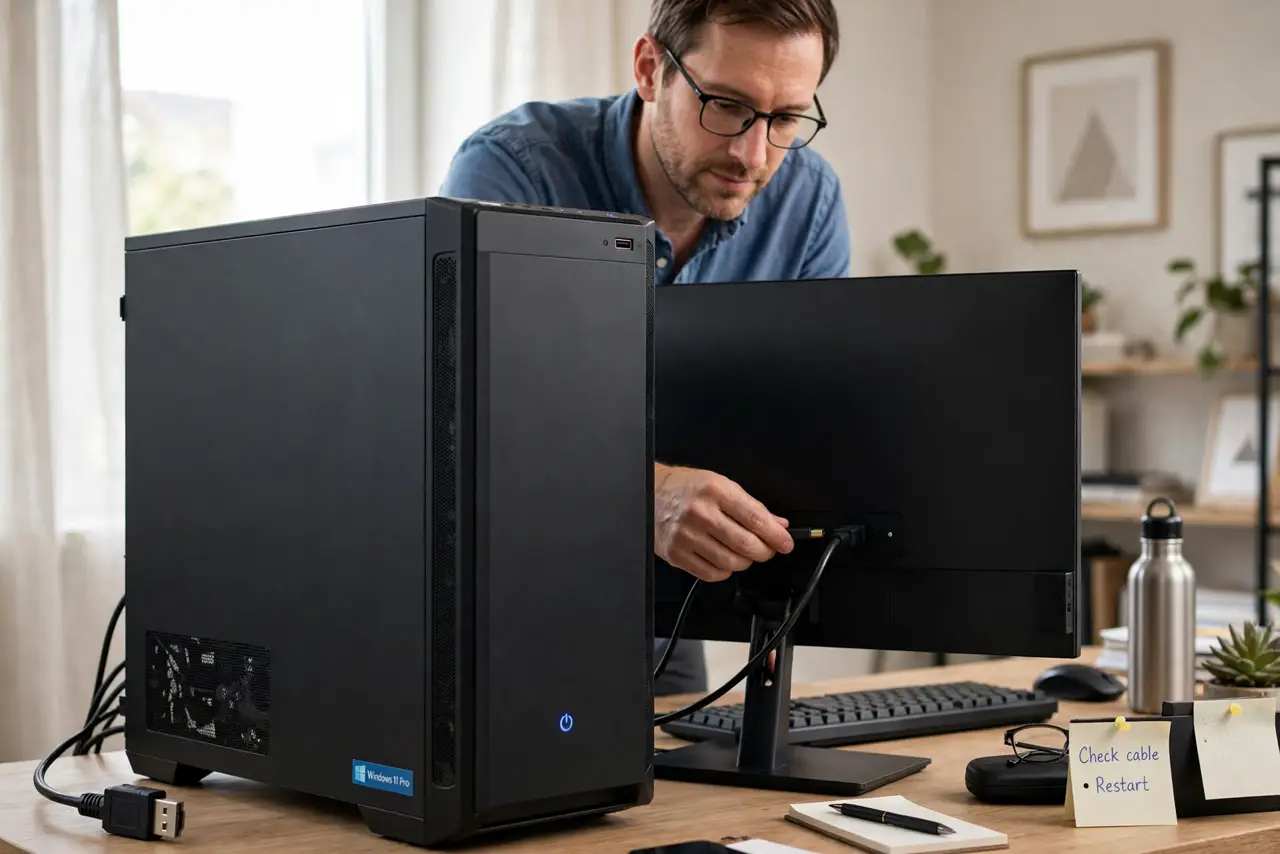
Fans spinning with a black screen is frustrating, because the PC sounds alive while showing nothing. The fault is often the monitor, the cable, or a loose part, not a dead computer. Work from the screen backward to the PC, and use the no signal after moving checks if the PC was recently moved.
TL;DR / Quick Fix
Quick fix: Check the monitor power and input first. Test the cable and the port. Then work through the remaining steps in order, checking one change at a time, and stop for a technician if you see damage, swelling, or a burning smell.
Follow these steps
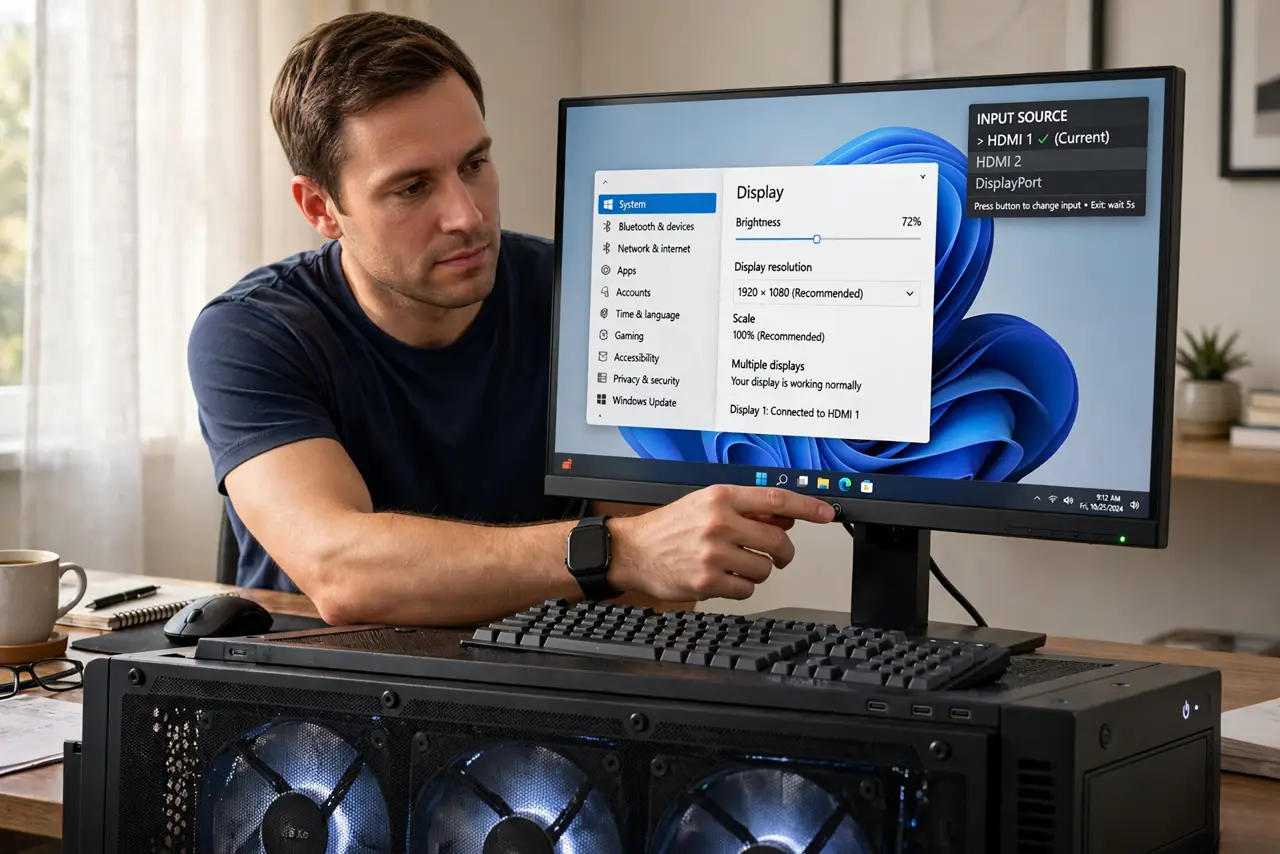
- Check the monitor power and input first. Confirm the monitor power light is on, and press the monitor input button to cycle to the input your cable uses. A monitor on the wrong input shows nothing even when the PC is fine.
- Test the cable and the port. Push the video cable firmly in at both ends, and if you can, try a different cable and a different port. Cables fail quietly, and a port test rules them out fast.
- Try a different monitor or TV if you can. Connect the PC to a TV or a borrowed monitor. A picture there proves the PC works and the original monitor or its cable is at fault.
- Listen for beeps and watch the lights. Note any beep pattern and whether the keyboard lights respond. Beeps are error codes, and a responding keyboard means the PC is further along than a black screen suggests.
- Reseat memory safely if the PC was moved. Unplug the PC, ground yourself, and reseat the memory sticks until the clips click. A loose stick after a move is a common cause of fans with no display.
- Check the graphics card seating on a desktop. Unplug the PC, open the side panel, and press the graphics card firmly into its slot until the clip clicks, with the power cables fully seated. A card nudged loose during a move shows exactly this fault.
What NOT to do
- Do not assume the PC is dead and buy a replacement. A monitor, cable, or loose part is far more common, and far cheaper to rule out.
- Do not force video cables into the wrong port. A cable that does not fit is telling you it belongs elsewhere, and forcing it can bend pins.
- Do not open the PC while it is plugged in. Unplug it first, and press the power button to drain leftover charge before touching parts inside.
- Do not reseat parts with bare hands after walking on carpet. Ground yourself on the case first, or static can damage the parts you are trying to fix.
Frequently asked questions
Fans spin, so is the PC working?
Not necessarily. Fans prove power reaches the board, but the PC still needs memory, graphics, and a working display path to show a picture.
Why does the monitor say no signal?
No signal means the monitor gets no picture from the PC, which can be the cable, the port, the graphics card, or a loose memory stick.
What if a TV shows a picture but the monitor does not?
The monitor or its cable is at fault. Test the monitor cable and input settings before suspecting the PC again.