Desktop Fan Runs at Full Speed Always? Fix It
A fan stuck at full speed means the PC thinks it is hot, the fan control is broken, or a heavy app never lets the PC idle. Full-speed fans are loud and wear out faster, so find whether heat, dust, or settings are the cause. A fan that rattles rather than roars needs the fan rattle checks instead.
TL;DR / Quick Fix
Quick fix: Check temperatures before changing anything. Close heavy apps and watch the fan. Then work through the remaining steps in order, checking one change at a time, and stop for a technician if you see damage, swelling, or a burning smell.
Follow these steps
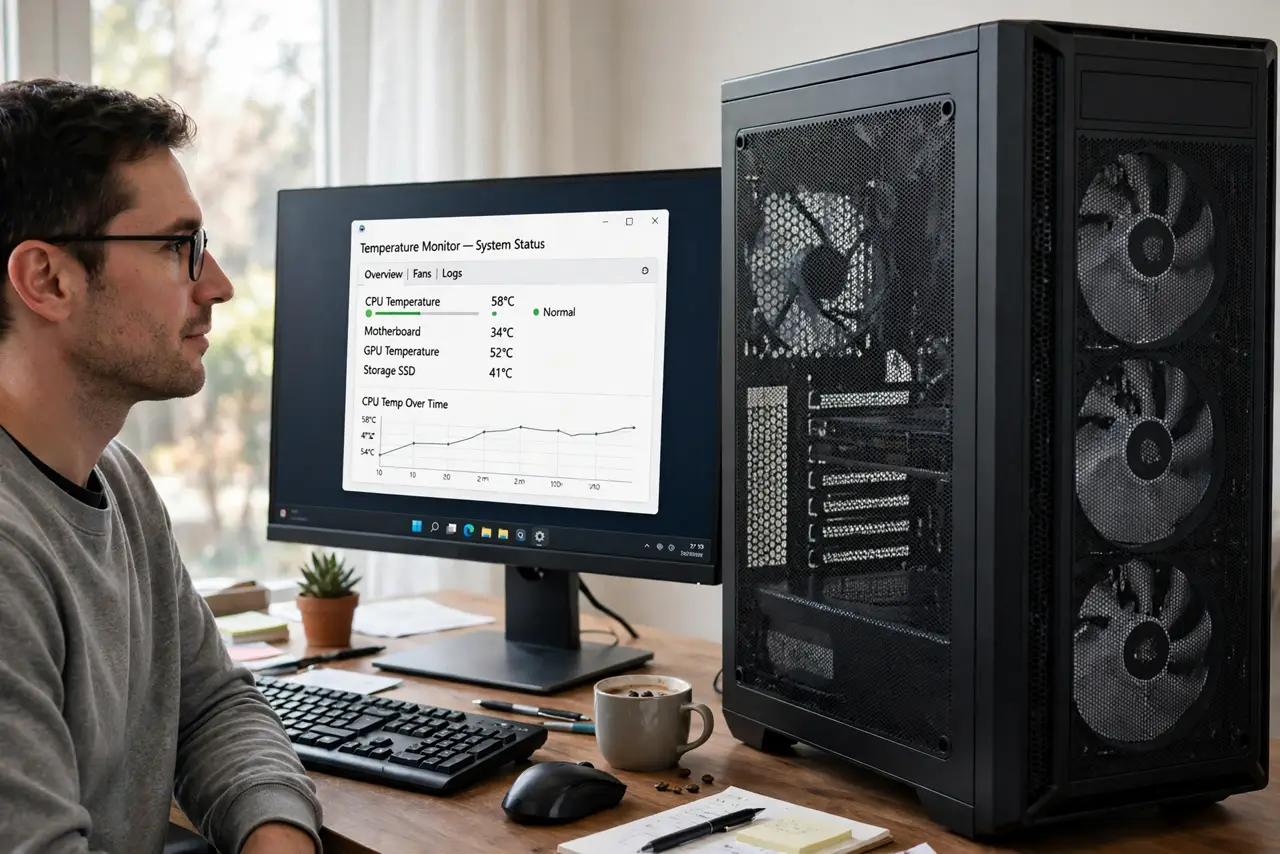
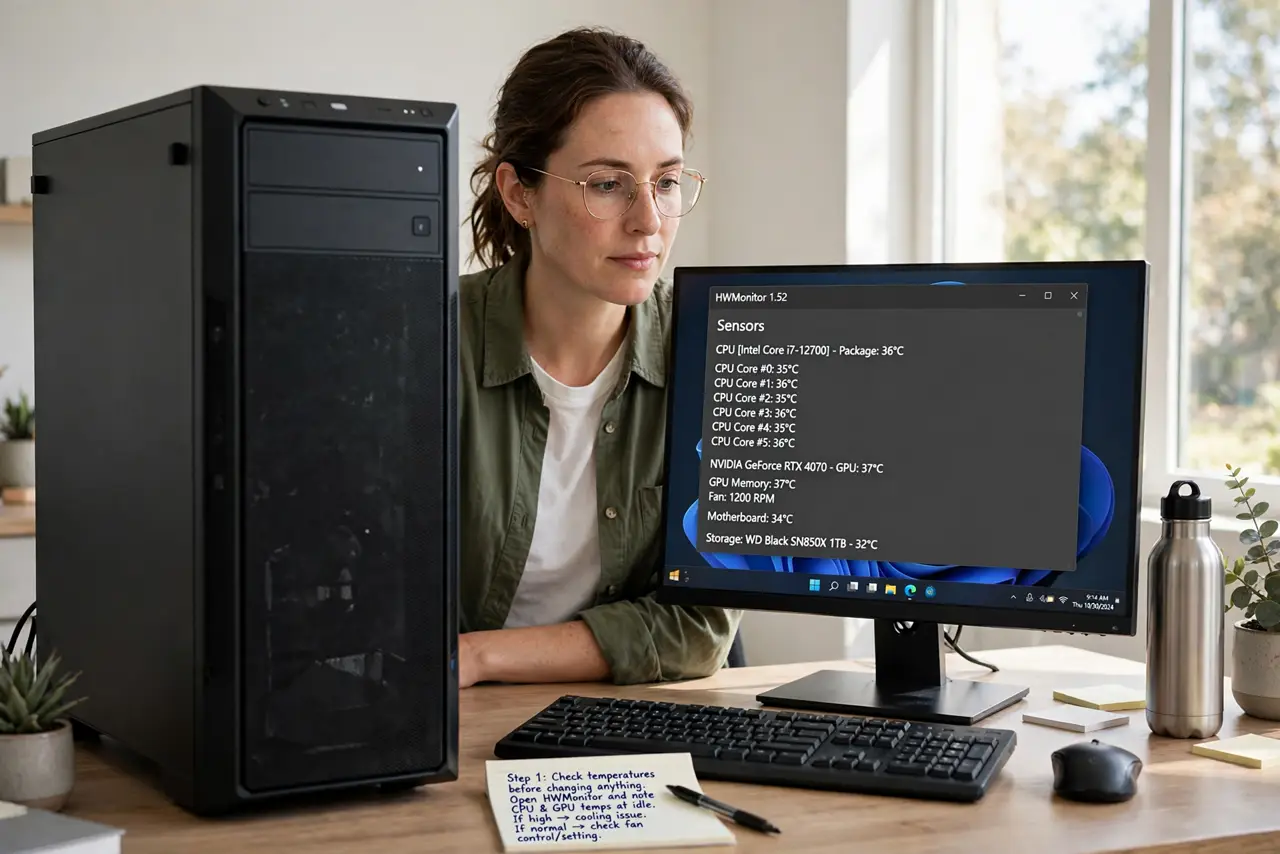
- Check temperatures before changing anything. Open a temperature monitor or BIOS setup and note CPU and graphics temperatures at idle. High idle temperatures point to cooling, while normal temperatures point to fan control or a stuck setting.
- Close heavy apps and watch the fan. Close games, video rendering, and browser tabs with video, then wait a few minutes. If the fan slows, a heavy app was keeping it loud, not a hardware fault.
- Clear dust from vents and fans. Unplug the PC, open the side panel, and clear dust from vents, heatsinks, and fan blades with short, upright bursts of compressed air, holding fans still. Dust insulates heat and forces fans to full speed.
- Check the fan curve in BIOS setup. Enter BIOS setup and look for fan control or a fan curve. If the curve is set to full speed, or the fan header is set to full power, restore a normal curve or the default setting.
- Check the fan is plugged into the right header. With the PC unplugged, check the fan cable sits fully in a fan header on the board, not a pump or full-power header. A fan on a full-power header runs at full speed no matter the temperature.
- Test with a different fan if you can. If temperatures are normal and settings are right, swap in a known-good fan of the same size. A fan whose speed sensor failed can report wrongly and run at full speed forever.
What NOT to do
- Do not stop a full-speed fan to make a PC quiet. A fan at full speed is cooling something, and stopping it risks heat damage within minutes.
- Do not set a flat low fan curve to silence a hot PC. A quiet PC that overheats will throttle, crash, or damage parts, so fix the heat first.
- Do not block vents to reduce fan noise. Blocked vents trap heat and force fans faster, which is the opposite of the quiet you want.
- Do not change BIOS fan settings you do not understand. Note the original setting before you change anything, so you can restore it if the fan behaves worse.
Frequently asked questions
Why is my fan loud even when I do nothing?
Either the PC is actually hot from dust or blocked vents, or the fan control is stuck at full speed. Temperature readings separate those two causes.
Can dust really force full-speed fans?
Yes. Dust on heatsinks traps heat, so temperatures rise and the fan control answers with full speed to compensate.
What if temperatures are normal but the fan still roars?
The fan header, curve, or speed sensor is likely at fault. Check the header and curve, then test a different fan.