Desktop Files Keep Moving? Stop It
When desktop icons shuffle after every restart, the cause is usually auto arrange, a resolution change, or a second monitor that changes the layout. A few settings lock the icons where you put them.
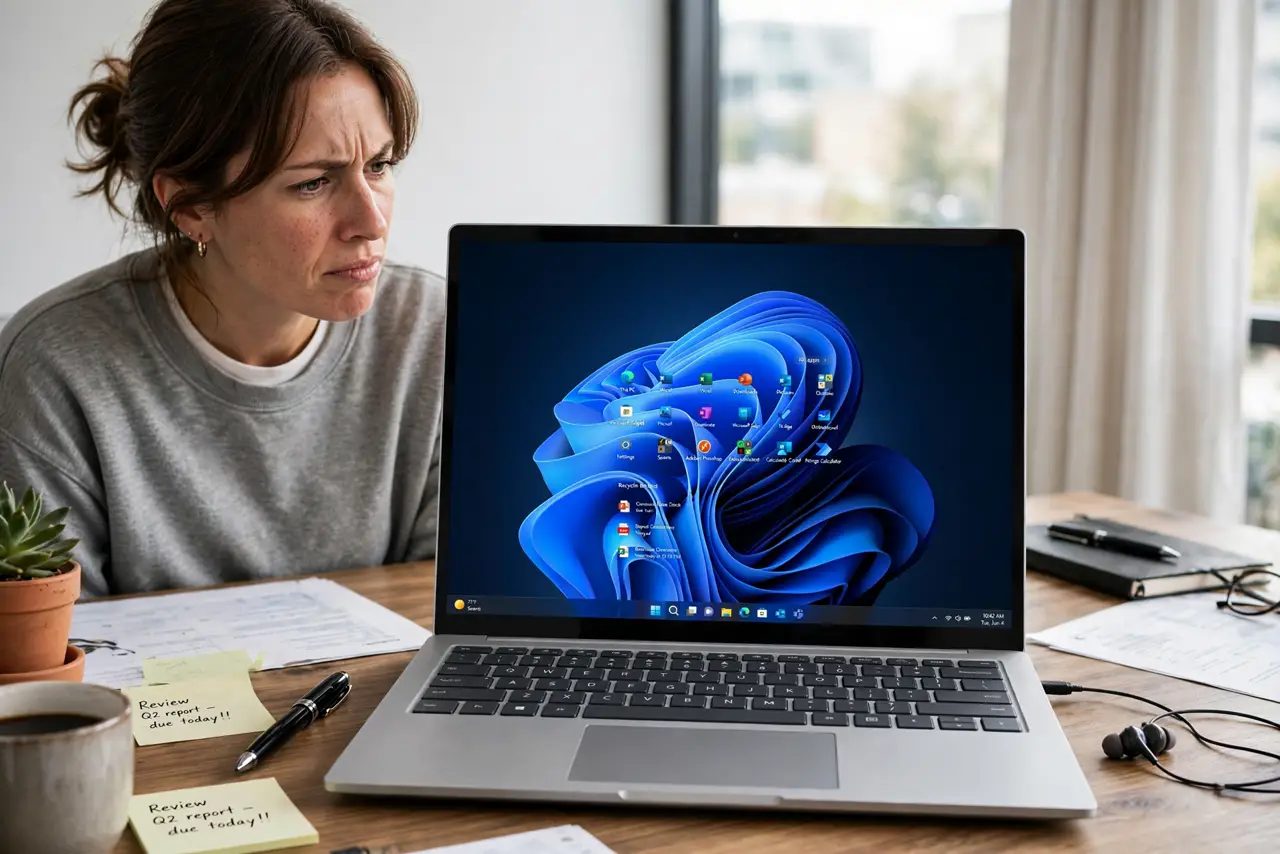
TL;DR / Quick Fix
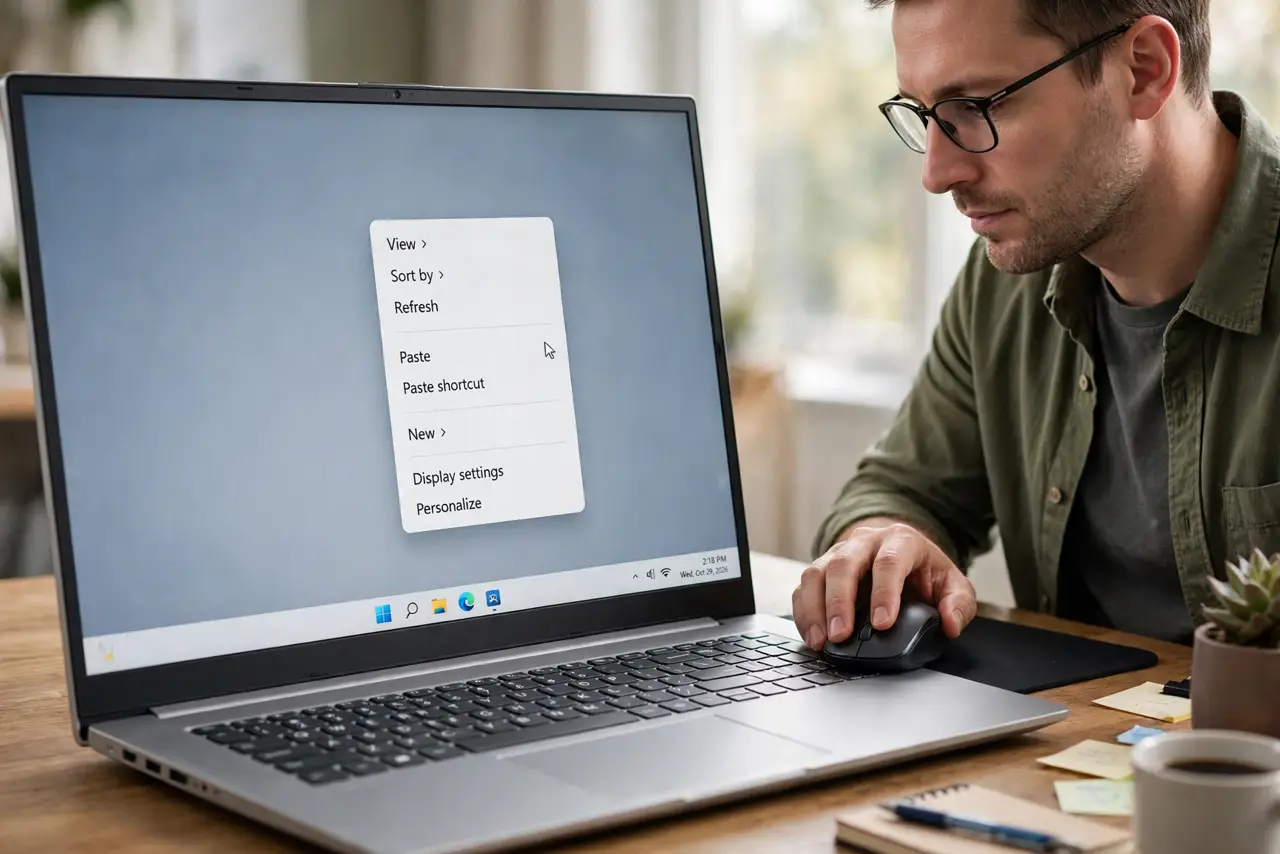
Quick fix: right-click the desktop, point to View, and uncheck Auto arrange icons, then check Align icons to grid. Arrange the icons once, restart, and see if they stay. If a second monitor is involved, arrange them with all monitors connected.
Follow these steps
- Turn off Auto arrange icons. Right-click an empty part of the desktop, point to View, and uncheck Auto arrange icons. With it on, Windows re-sorts icons on its own after changes.
- Keep Align icons to grid on. In the same View menu, check Align icons to grid. This keeps icons in neat rows, so they do not land in odd spots after a move.
- Arrange icons with all monitors connected. If you use a second monitor, arrange the desktop with both monitors on and connected. Arranging with one monitor off can shuffle icons when it reconnects.
- Check the resolution after a change. If icons move after a game or a projector, check Display settings. A resolution change shrinks the desktop, and Windows reflows icons to fit the smaller area.
- Restart and check the layout. Arrange the icons, restart the computer, and check the desktop. If they stayed, the setting fixed it. If they moved, note what changed, such as a monitor or resolution.
- Use folders for groups of files. Group related files into a desktop folder instead of leaving dozens loose. Fewer loose icons means fewer icons to shuffle, and the desktop stays readable.
What NOT to do
- Do not delete desktop files to stop them moving. Deleting does not fix layout settings, and it risks losing files you need.
- Do not change resolution at random to test the layout. A wrong resolution makes text blurry and can shuffle icons further, so return to the recommended resolution.
- Do not install a desktop organizer from a pop-up. Windows already has the arrange settings, and extra tools can change more than the layout.
- Do not drag icons while a second monitor is disconnecting. Wait until the display settles, or the icons may land on the wrong screen.
Frequently asked questions
Why do icons move after I connect a projector?
The projector changes the resolution or adds a screen, so Windows reflows the desktop. Arrange icons after the display settles, with all screens connected.
Will turning off Auto arrange break anything?
No. It only stops Windows from re-sorting icons. You can still drag icons anywhere, and Align to grid keeps them tidy.
Should I keep files on the desktop at all?
Fewer is better. Keep shortcuts and current work on the desktop, and store the rest in Documents or project folders.