Set a Digital Legacy Contact for Your Accounts
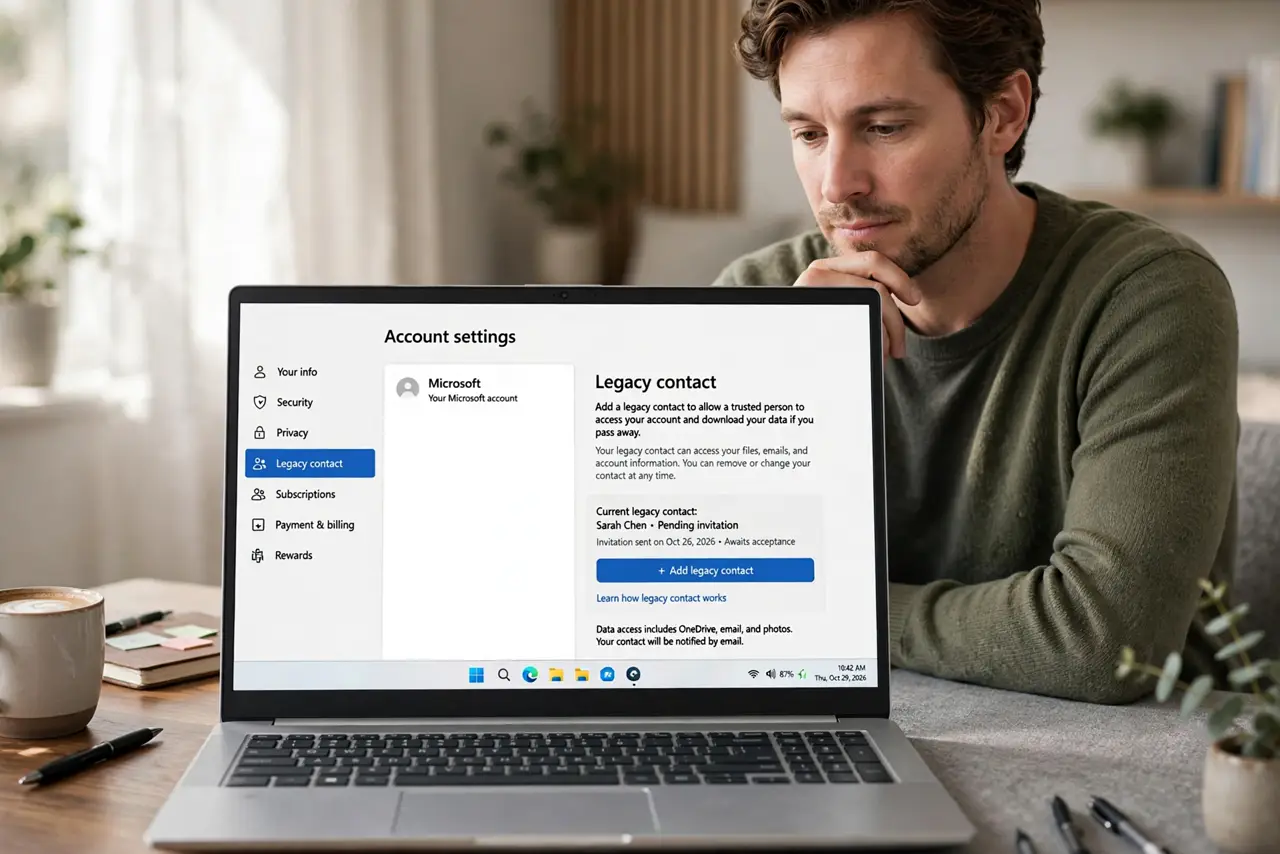
When someone dies, their photos, messages, and accounts can lock forever behind passwords nobody knows. Big platforms now offer legacy contacts — a chosen person who can access or close the account after death.
TL;DR / Quick Fix
Quick fix: open the legacy or memorialization settings on your main accounts, choose one trusted person, and tell them they are your contact. Then write down which accounts have the setting, store that note safely, and review it yearly without fail.
Follow these steps
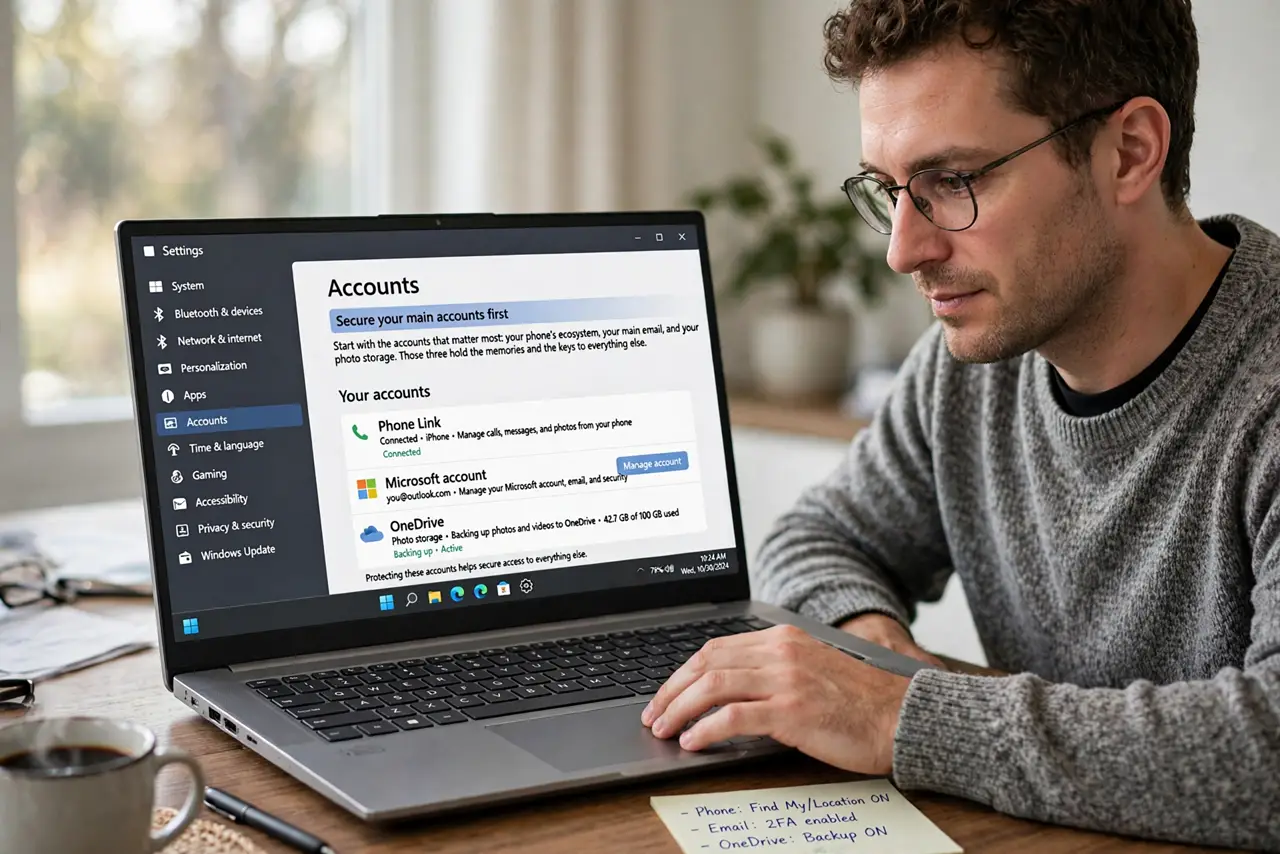
- Set it on your main accounts first. Start with the accounts that matter most: your phone's ecosystem, your main email, and your photo storage. Those three hold the memories and the keys to everything else.
- Choose one trusted person. Pick someone organized and calm, and ask them first. The role involves paperwork and waiting periods, so willingness matters as much as trust.
- Tell them they are your contact. Explain what the role involves and where your note of accounts lives. A contact who does not know they were chosen cannot act when the time comes.
- Write down which accounts are covered. Keep a simple list of accounts with legacy settings and where to find each one. The list saves your contact from hunting through every service you ever used.
- Pair it with emergency password access. A legacy contact handles the platforms; emergency password access handles the logins. Together they cover both sides of your digital life.
- Review the choice once a year. Revisit the contact and the account list yearly. People move, relationships change, and new accounts join the list while old ones close.
What NOT to do
- Do not assume family can just log in as you. Logging in as a deceased person can violate terms of service, while the legacy contact path is the legal route.
- Do not leave the choice unspoken. An unannounced legacy contact may never find the setting, and the accounts stay locked anyway.
- Do not put the account list in an obvious place. The list is sensitive, so store it with your will or in your password manager's emergency notes, not on the fridge.
- Do not forget photo storage. Families mourn lost photos most, so make sure your photo account is on the legacy list.
Frequently asked questions
What can a legacy contact actually do?
It depends on the platform: usually download photos, read messages, or close the account, but rarely post as you or read everything.
Is this the same as emergency password access?
No. Emergency access covers your password vault while you are alive; a legacy contact covers platform accounts after death.
What if a platform has no legacy option?
Note its support process for deceased users in your account list, since most big services have one even without a named contact feature.