Disable UPnP on Gadgets
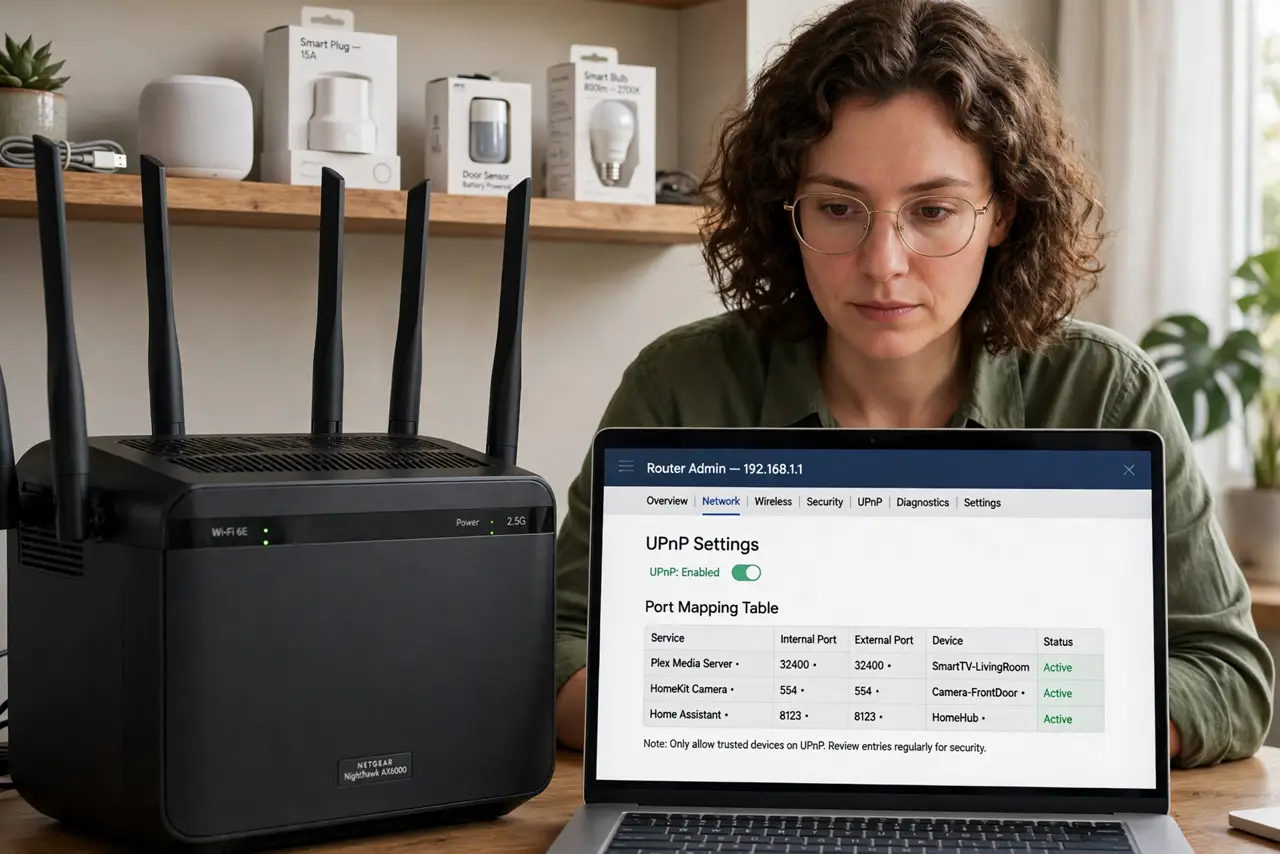
Your smart gadgets quietly ask your router to open doors to the internet — that is UPnP, Universal Plug and Play, and it was designed for convenience in a friendlier era. The problem: any malware on any device can use UPnP to punch holes in your firewall with no password and no asking. Disabling it closes an entire class of silent exposure, and most gadgets work fine without it. Combine with a separate smart-home network for defense in depth.
TL;DR / Quick Fix
Quick fix: disable UPnP on your router and smart gadgets to stop them from silently opening ports to the internet — log in to your router's admin page, find the UPnP toggle, and switch it off. Most gadgets work fine without it. If something breaks, re-enable it temporarily, then investigate.
Follow these steps
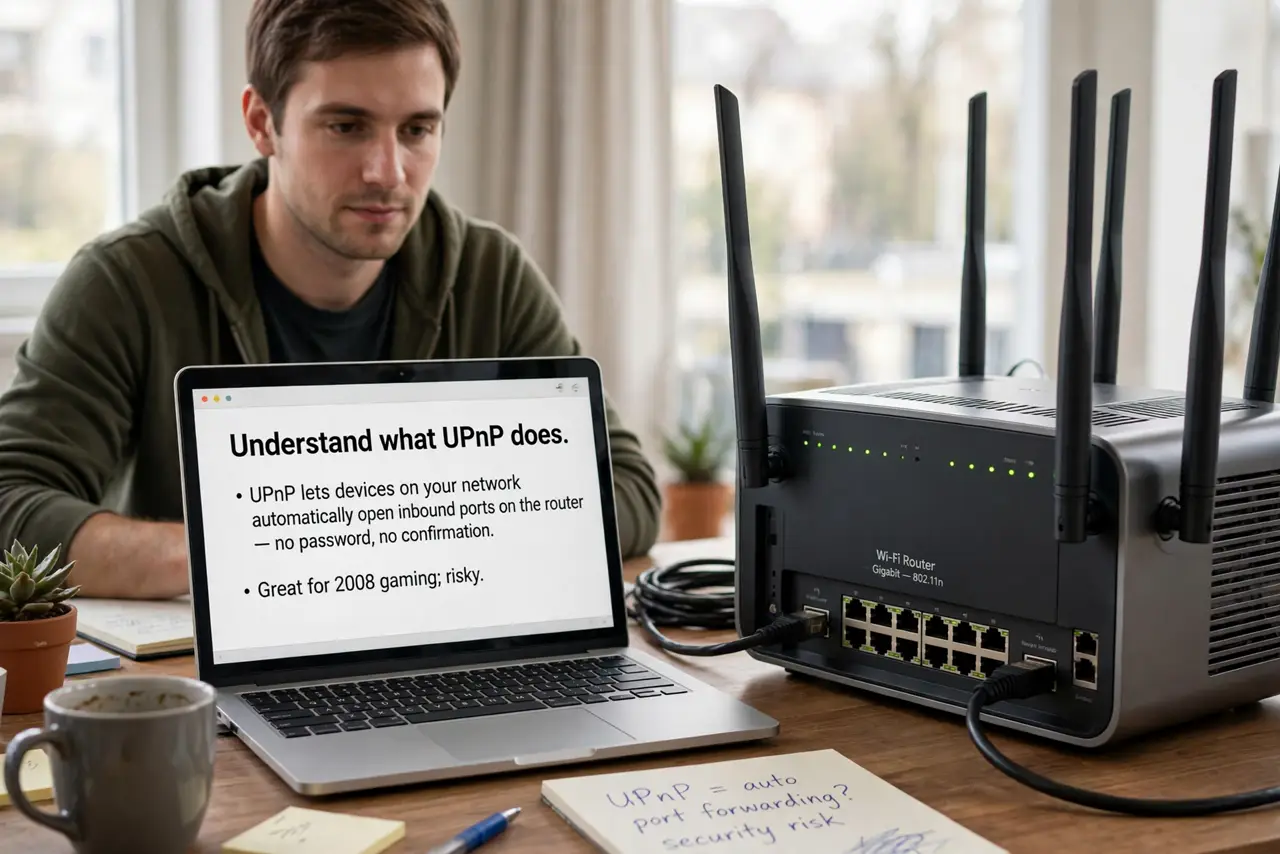
- Understand what UPnP does. UPnP lets devices on your network automatically open inbound ports on the router — no password, no confirmation. Great for 2008 gaming; risky now that every cheap gadget is a potential malware host.
- Log in to your router's admin page. Usually at an address like 192.168.1.1 in a browser — the login is on the router's sticker (and if it is still the default, change it first; see default password changes).
- Find and disable the UPnP toggle. It hides under Advanced, NAT, or WAN settings depending on the brand. Switch it off and save — the router may reboot, which is normal.
- Test your gadgets for a day. Use everything normally: cameras, doorbell, game console, smart TV. Most modern gadgets use cloud relays that need no open ports and will not notice the change.
- Handle the exceptions manually. If one thing breaks (often older game consoles or self-hosted services), give just that device a manual port-forwarding rule — one deliberate hole beats a hundred automatic ones.
- Check for UPnP on the gadgets too. Some cameras and NAS boxes run their own UPnP clients that re-request ports. Look in each gadget's network settings and disable its UPnP/PnP options as well.
What NOT to do
- Do not leave UPnP on 'because everything works.' Working and secure are different things — convenience is exactly what attackers exploit.
- Do not forward ports you do not understand. A manual rule for a known service is fine; opening ranges 'to make it work' recreates the UPnP problem by hand.
- Do not assume new routers are safe by default. Many still ship with UPnP enabled — check yours regardless of age.
- Do not disable it and never test. An untested change becomes a mystery outage weeks later — verify everything within a day.
Frequently asked questions
Will disabling UPnP break online gaming?
Sometimes for older consoles or peer-to-peer games, which may report a strict NAT type. Modern games mostly use relays that work fine — and one manual rule fixes the stubborn cases.
Is UPnP the same as port forwarding?
Related but different: port forwarding is a manual rule you create; UPnP is devices creating those rules themselves, silently. Disabling UPnP keeps manual forwarding available.
Do I need to do this on every gadget?
The router toggle is the big one — it stops all automatic port opening at the gate. Gadget-side toggles are belt-and-braces for devices that keep asking.