DisplayPort No Signal After Sleep? Fix It
DisplayPort after sleep is a known annoyance: the PC wakes, but the monitor stays dark or says no signal until you unplug something. The cause is often the monitor, cable, or a sleep link setting, not a broken graphics card. Work from wake-up steps to settings, and test a full restart only after the simple fixes. An HDMI port that never works needs the HDMI port checks instead.
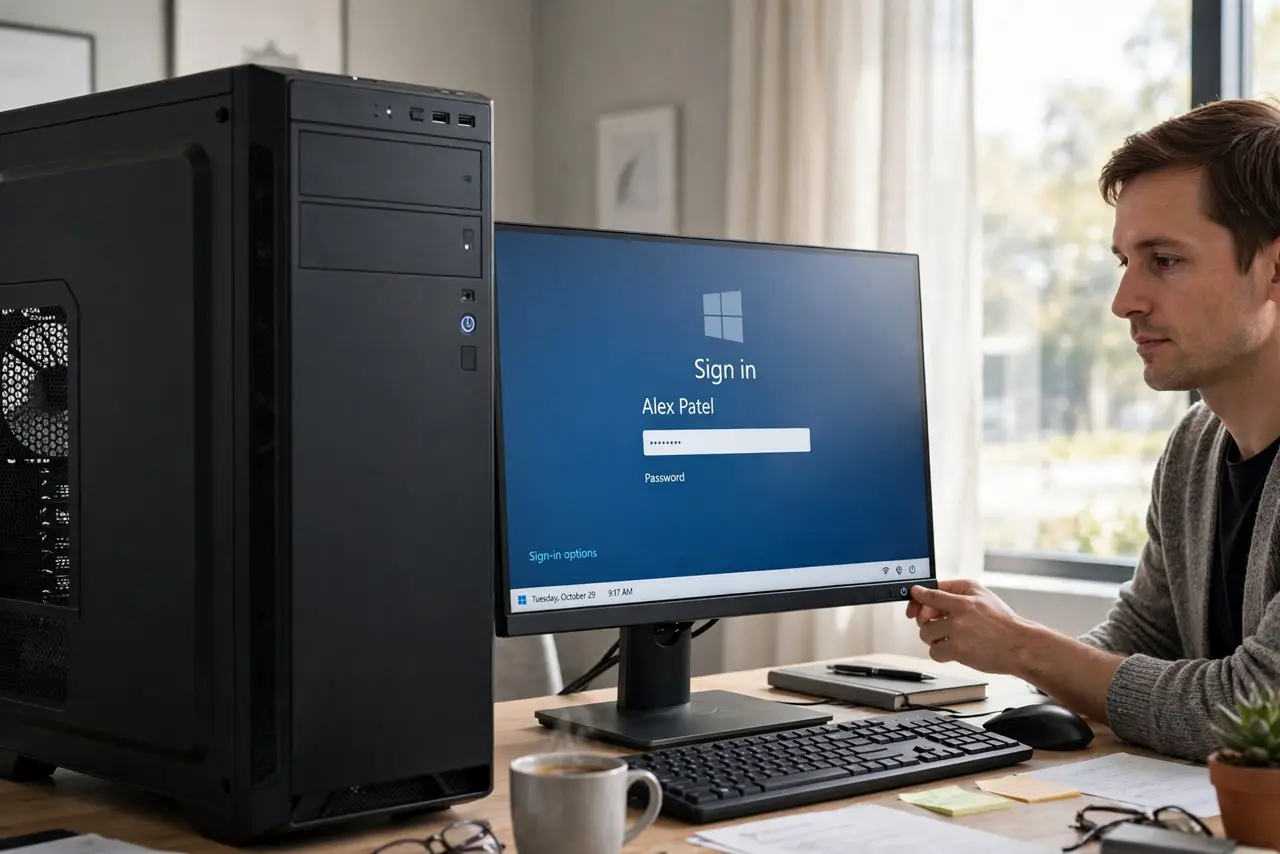
TL;DR / Quick Fix
Quick fix: Wake the monitor with its own power button. Wake the PC with the keyboard, not just the mouse. Then work through the remaining steps in order, checking one change at a time, and stop for a technician if you see damage, swelling, or a burning smell.
Follow these steps
- Wake the monitor with its own power button. Press the monitor power button off and on once, then wait a few seconds. A monitor that slept deeply sometimes needs its own wake signal before it looks for a DisplayPort signal again.
- Wake the PC with the keyboard, not just the mouse. Press a keyboard key or the PC power button briefly. Some PCs ignore mouse movement after deep sleep, so the PC may still be asleep while you blame the monitor.
- Reseat the DisplayPort cable at both ends. Unplug the DisplayPort cable at the monitor and the PC, then push it firmly back in until it clicks. DisplayPort plugs need a full click, and a half-seated plug fails after sleep.
- Try a different DisplayPort cable. Swap to a spare DisplayPort cable and test another sleep cycle. Cables vary in quality, and a marginal cable can work at boot but fail after the link sleeps.
- Turn off monitor deep sleep if the menu offers it. In the monitor on-screen menu, look for deep sleep or power saving options and turn deep sleep off. A monitor in deep sleep may not wake on a DisplayPort signal at all.
- Change the PC sleep settings as a workaround. In power settings, set the PC to a lighter sleep or to never sleep the display link if the option exists, and test one sleep cycle. If the fault vanishes, the sleep link setting was the cause.
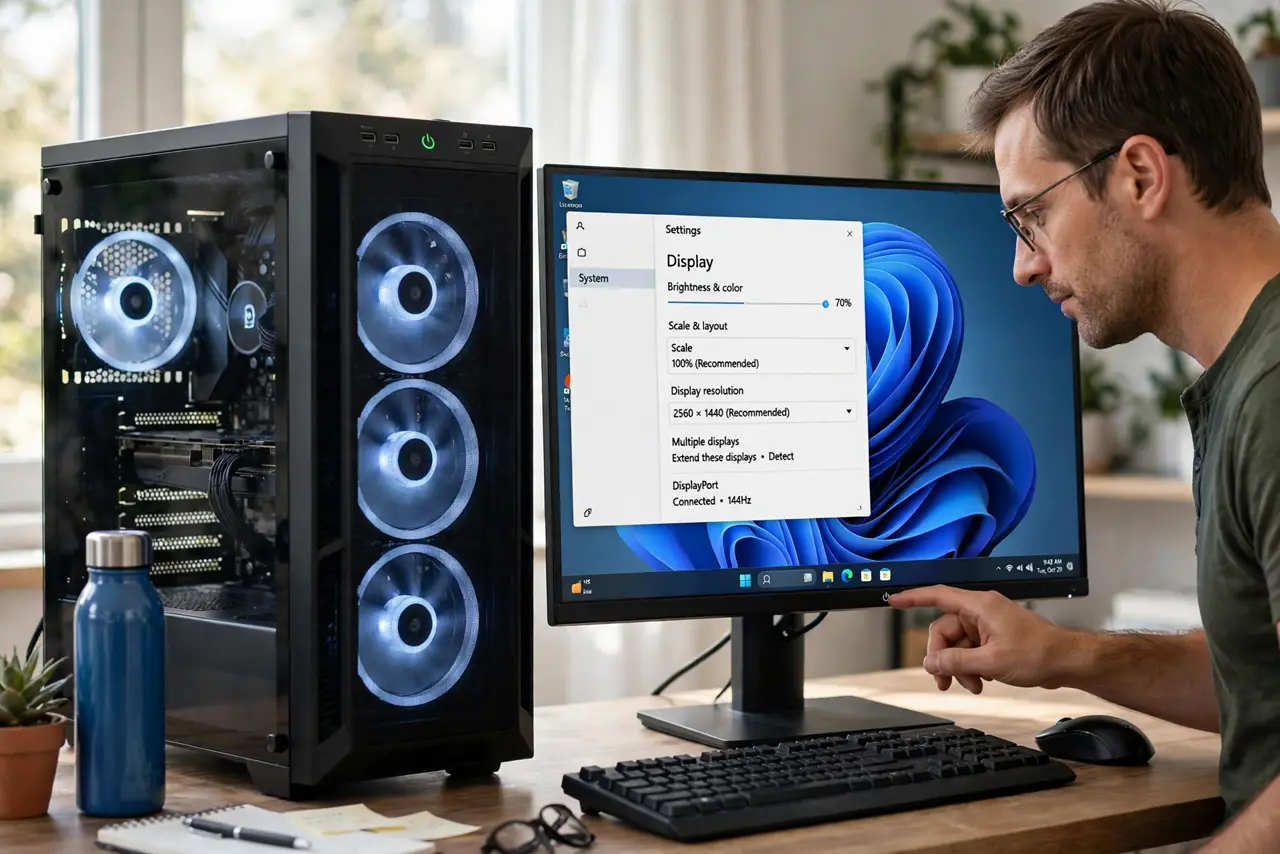
What NOT to do
- Do not force a DisplayPort plug in or out. The plug has a locking tab, so press the release before pulling, or you can damage the port.
- Do not restart the PC repeatedly to fix a sleep display fault. Repeated forced restarts risk file damage, while a monitor power cycle is the safe first test.
- Do not buy a new graphics card for a sleep-only fault. A card that works at boot but fails after sleep points to cable, monitor, or settings, not to a dead card.
- Do not turn off sleep entirely as a first step. Sleep saves power and wear, so fix the link fault first and use no-sleep only as a last workaround.
Frequently asked questions
Why does DisplayPort fail after sleep but work at boot?
The display link powers down during sleep and must renegotiate on wake. A marginal cable, a deep-sleeping monitor, or a link setting can break that renegotiation.
Is my monitor broken if it wakes after a power cycle?
No. A monitor that wakes with its own power button is working, but its deep sleep setting or the cable link is the problem to fix.
What if a new cable does not help?
Turn off monitor deep sleep and test the PC sleep setting next. If both fail, test the monitor on another PC to separate monitor from PC faults.