One-Cable Docking Station Setup Checks
A docking station promises one cable for power, monitors, and accessories — but the dream only works if the cable, the port, and the power all line up. These checks catch the usual mismatches before they waste your afternoon.
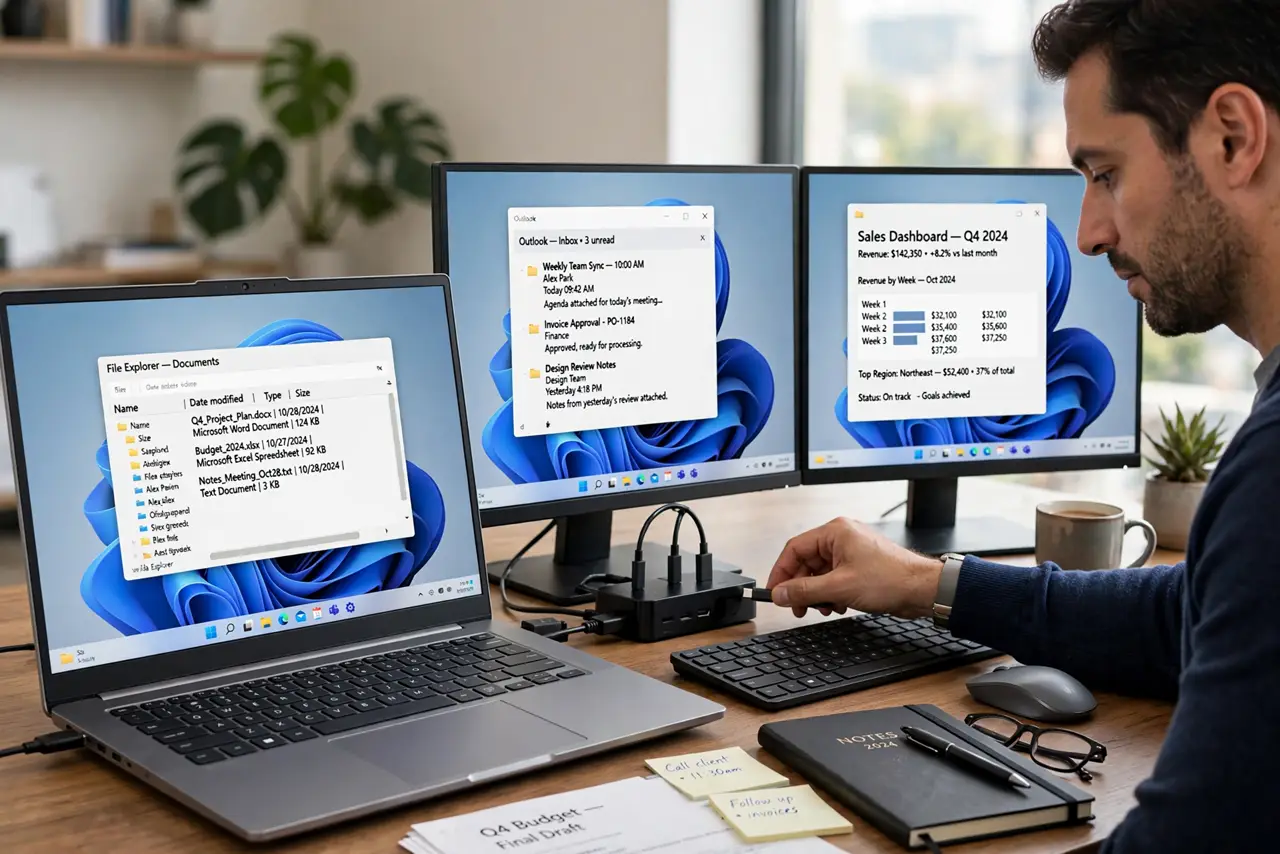
TL;DR / Quick Fix
Quick fix: plug the dock's own power adapter in first, then connect the laptop with the cable that came with the dock. Check that the laptop port supports video output, update the dock firmware, and test each monitor one at a time.
Follow these steps
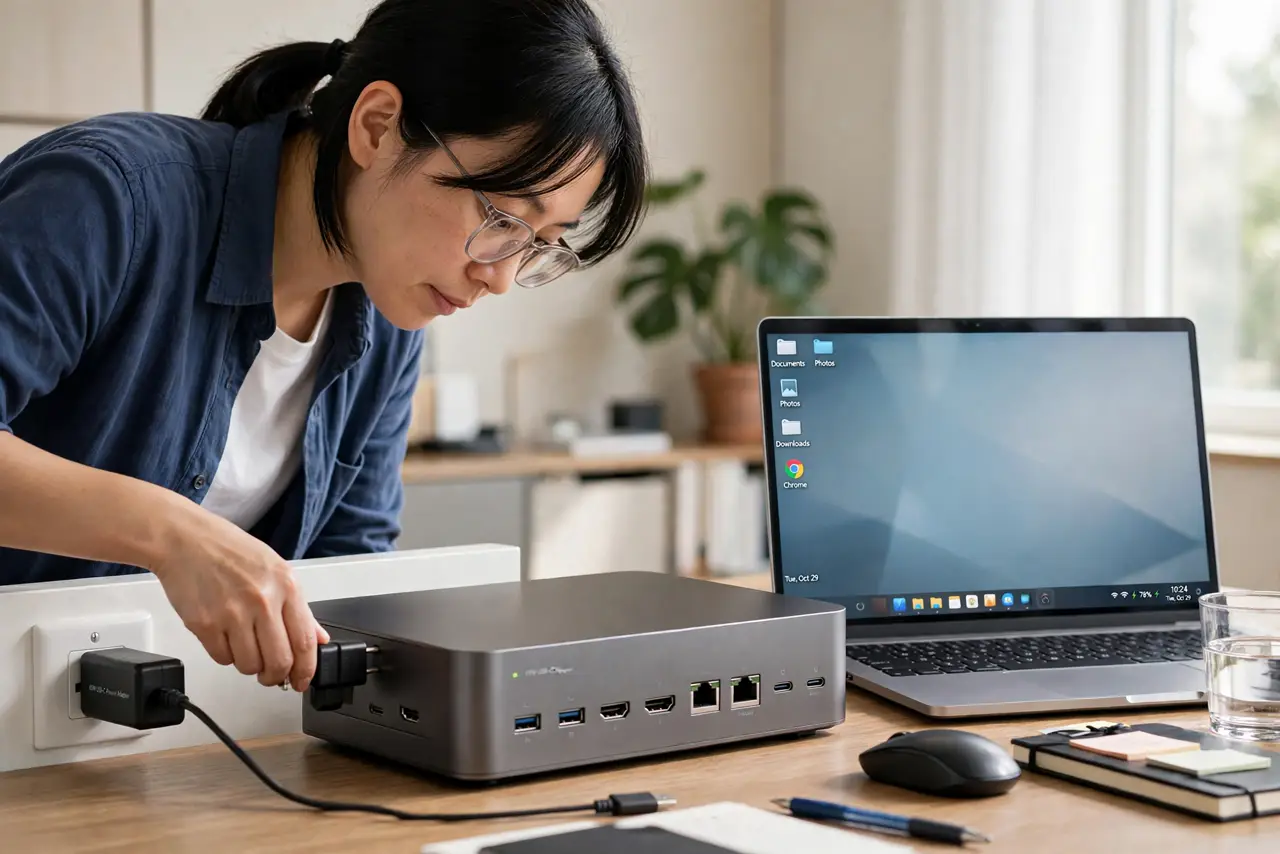
- Power the dock with its own adapter. Plug the dock's power brick into the wall before connecting anything else. A dock running on laptop power alone cannot drive monitors and charge the laptop.
- Use the cable that came with the dock. Connect the laptop with the dock's included cable. Random USB-C cables may carry power but no video, which is the most common one-cable failure.
- Confirm the laptop port supports video. Check that the laptop's USB-C port carries DisplayPort video — look for a DisplayPort or Thunderbolt symbol. A charge-only port will never drive a monitor through the dock.
- Update the dock firmware. Install the dock maker's firmware update utility and apply any update. Firmware fixes cover exactly these symptoms: dead monitors, flicker, and missing USB devices.
- Test one monitor at a time. Connect a single monitor first and confirm it works, then add the second. If the second breaks the first, the dock or the laptop has hit its display limit.
- Check the power budget. Confirm the dock's power delivery wattage covers your laptop's charger rating. An underpowered dock charges slowly or not at all while driving displays — compare with the hub wattage guide if the numbers look odd.
What NOT to do
- Do not assume every USB-C port does everything. Ports differ in video, power, and speed, so the port choice decides what the dock can do.
- Do not skip the dock's power adapter to save an outlet. An unpowered dock is the top cause of one-cable setups that half-work.
- Do not update firmware mid-workday. A firmware update can drop every connected device for minutes, so run it when you can spare the desk.
- Do not blame the monitors first. Test each monitor directly on the laptop before suspecting the screens, since the dock and cable fail far more often.
Frequently asked questions
Why does my dock charge but show no monitor?
Usually the cable lacks video support or the laptop port is charge-only. Use the dock's included cable on a video-capable port.
Can one cable really do everything?
Yes, when the cable, port, dock power, and laptop all support it. One weak link breaks the whole chain.
Do I need a Thunderbolt dock?
Only for multiple high-resolution monitors or very fast storage. A plain USB-C dock covers one monitor and office peripherals fine.