Restore an Old Version
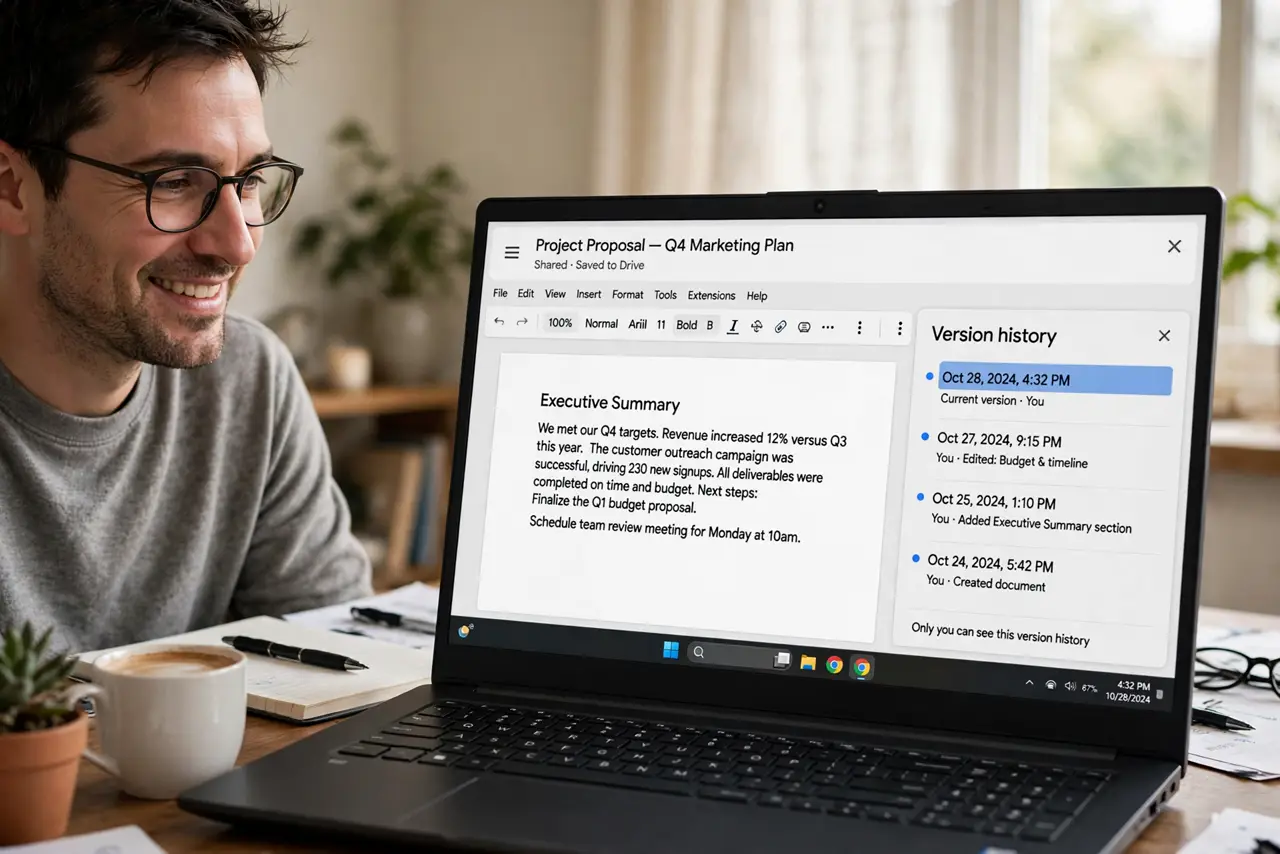
Someone rewrote your section, or you deleted a paragraph last Tuesday that you need back today. Google Docs saves a version history automatically — every edit, with who made it and when — and you can preview any version and restore it. Restoring never destroys anything: your current text becomes a version too.
TL;DR / Quick Fix
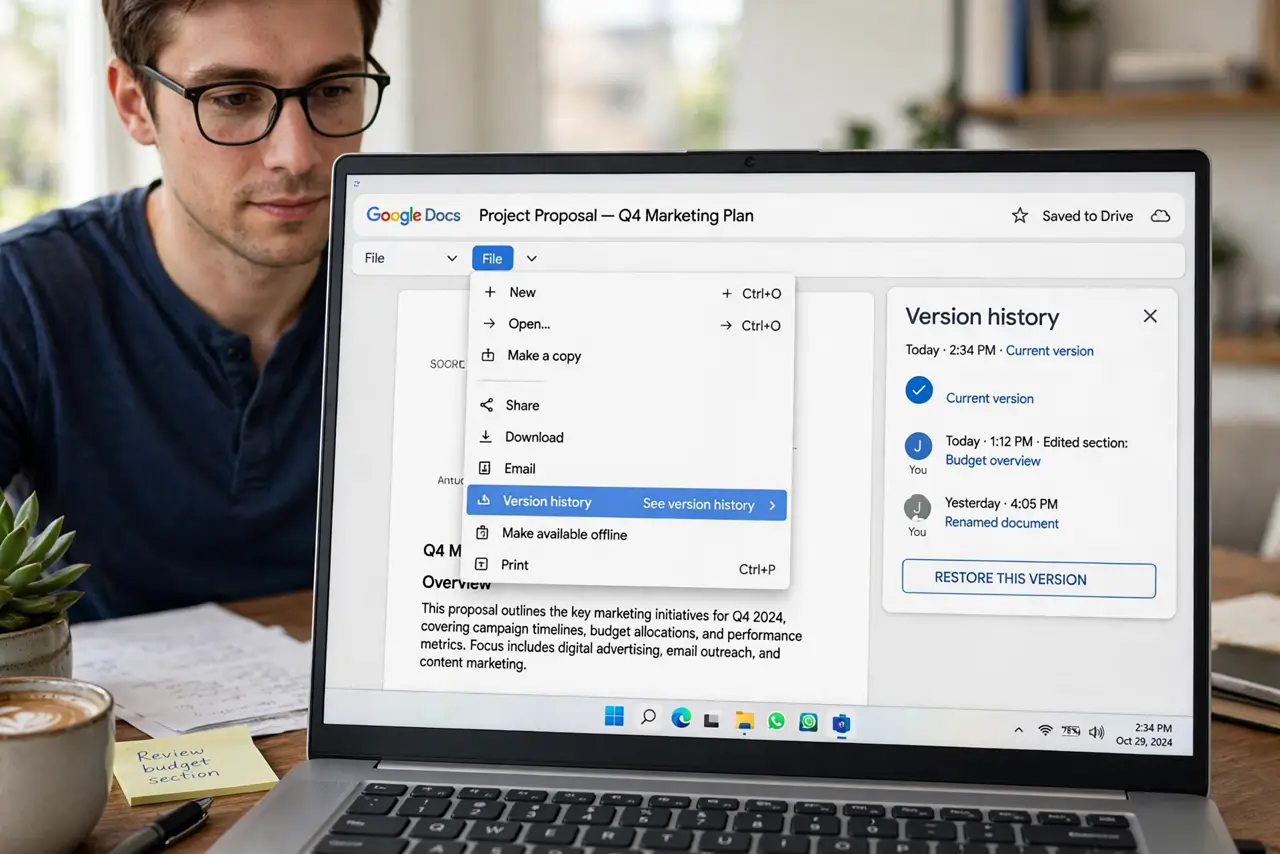
Open the document and go to File > Version history > See version history to browse saved versions with timestamps and editors. Click a version to preview, then Restore this version at the top. Your current text becomes a new version first, so nothing is lost.
Follow these steps
- Open File > Version history > See version history. The history panel opens on the right, listing versions by date and time with the editor's name on each.
- Find the version you need. Click through timestamps — the document preview updates to show the text as it was. Look for the edit session before the unwanted change.
- Preview before restoring. Read the previewed version carefully. Restoring replaces the current text, so confirm this is the version you want.
- Click Restore this version. The button at the top of the panel confirms the restore. Docs saves your current text as a fresh version first — nothing is destroyed.
- Name important versions going forward. Use File > Version history > Name current version to label milestones like 'Final draft'. Named versions are easy to find later — see named versions.
- Tell collaborators what you did. If others edit the doc, a quick note prevents confusion when the text jumps backward. They can still find their edits in history.
What NOT to do
- Do not restore blindly on a shared document. You may wipe a colleague's recent work — check the latest versions first and warn them.
- Do not confuse restoring with undo. Undo (Ctrl+Z) reverses your recent keystrokes; version restore jumps the whole document to a past state.
- Do not expect versions older than the document's history limit. Very old minor edits get collapsed over time — name milestones you care about.
- Do not restore when you only need one paragraph. Copy the paragraph from the previewed version and paste it into the current text instead.
Frequently asked questions
Will restoring delete the versions after it?
No. Restoring creates a new version containing the old text — the full history stays intact, so you can restore forward again.
Can I restore a version someone else made?
Yes, if you have edit access. The history shows every editor's versions, and anyone with edit rights can restore any of them.
How far back does version history go?
Effectively the life of the document for practical purposes, though tiny intermediate saves get consolidated. Name the versions that matter.