Double Spacing? How To
Your teacher or publisher wants double spacing, and your document is single-spaced — or the reverse. In Google Docs it is one menu, but the setting hides under line spacing, and there is a catch: extra space after paragraphs can fake the look of double spacing while the setting says otherwise. Here is how to set it properly and check it.
TL;DR / Quick Fix
Quick fix: select your text, then Format, Line and paragraph spacing, and choose Double. To check it is really double and not extra paragraph space, open the same menu and set the spacing after paragraphs to zero. Custom values like 2.15 also live in that menu under Custom spacing.
Follow these steps
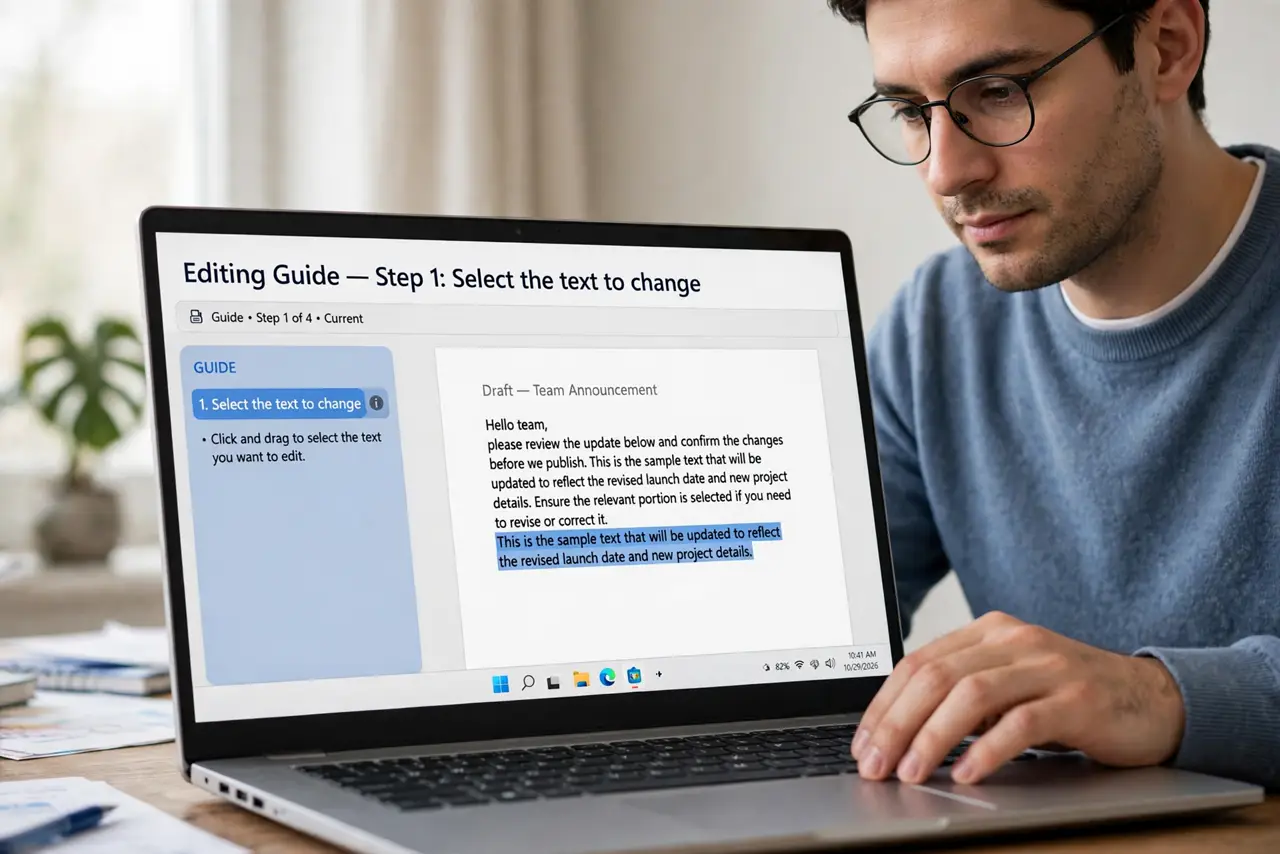
- Select the text to change. Press Ctrl+A (Cmd+A on Mac) for the whole document, or drag to select part of it. With no selection, the setting applies only where the cursor sits.
- Open the line spacing menu. Go to Format > Line & paragraph spacing. The toolbar's line-spacing icon opens the same menu — either route works.
- Choose Double. Click 'Double' in the list. The text reflows immediately — if nothing changes, your selection missed the text.
- Zero out the space after paragraphs. In the same menu, check the paragraph spacing values. Extra space after paragraphs mimics double spacing visually; set it to 0 so the setting is honest.
- Use Custom spacing for in-between values. Need 1.5 or 2.15? Choose 'Custom spacing' in the same menu and type the exact number — common for theses and manuscripts.
- Check the whole document. Scroll through: pasted text often carries its own spacing. Select all and reapply Double to normalize strays — especially in a bibliography, where double spacing pairs with a hanging indent.
What NOT to do
- Do not fake double spacing with blank lines. Pressing Enter between every line wrecks editing, page counts, and translation later.
- Do not confuse line spacing with paragraph spacing. 'Space after paragraph' adds gaps between paragraphs, not between lines — both can be on at once.
- Do not set it per paragraph when you need it everywhere. Select all first, or the next pasted paragraph reverts to single.
- Do not eyeball it. 'Looks double' is not double — open the menu and confirm the setting, especially for school submissions.
Frequently asked questions
How do I double space in Google Docs?
Select the text, then Format > Line & paragraph spacing > Double. For the entire document, select all first with Ctrl+A (Cmd+A on Mac).
Why does my document still look single-spaced?
Either the text was not selected when you applied it, or pasted text brought its own formatting. Select all and reapply Double.
What is the difference between double spacing and space after paragraphs?
Double spacing doubles the gap between every line. Space after paragraphs adds a gap only between paragraphs. Academic formatting usually wants the first — set the second to zero to be sure.