Download as PDF? How To
You need to send the document somewhere it will look exactly the same — email, print shop, application portal. A PDF freezes your layout: fonts, spacing, page breaks, all locked. In Google Docs it is two clicks, but a couple of settings decide whether the result looks professional or broken.
TL;DR / Quick Fix
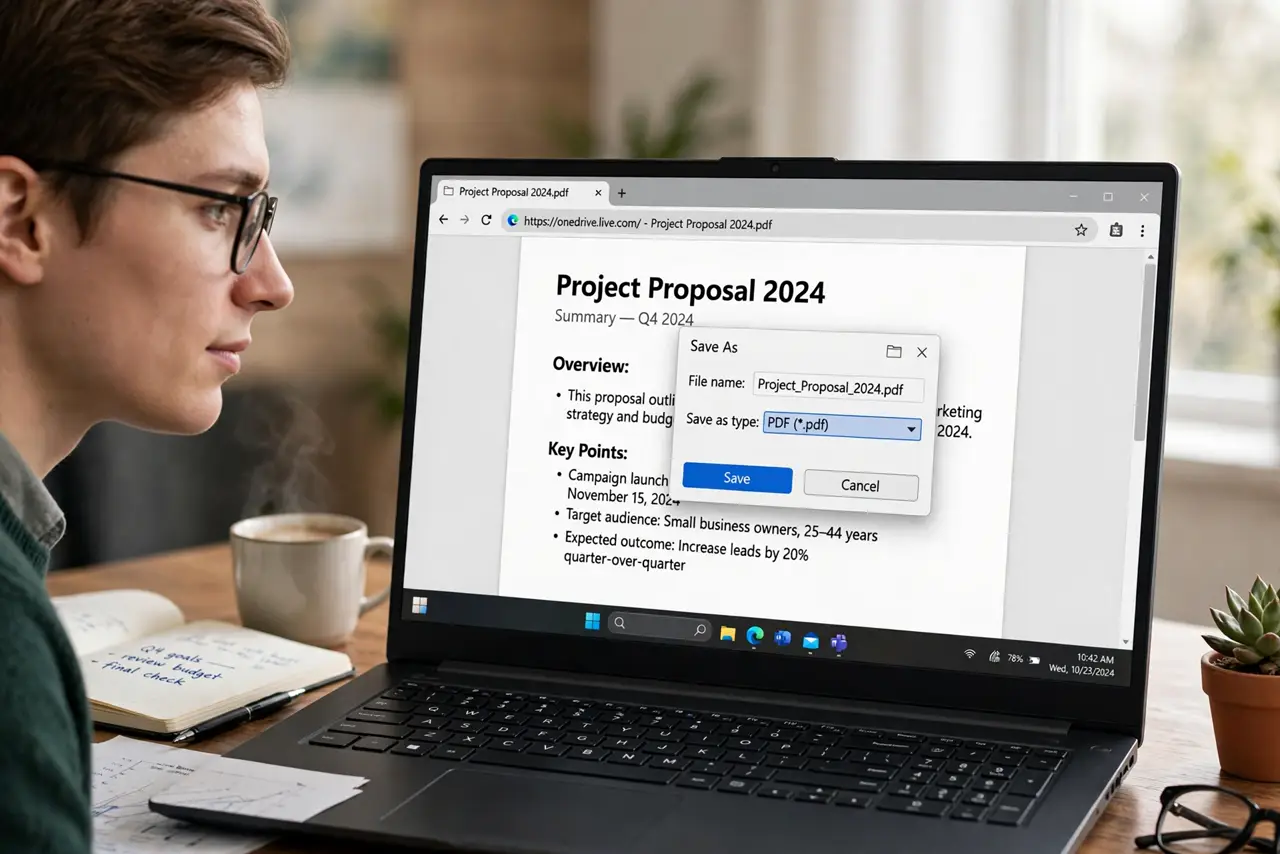
Quick fix: go to File, Download, PDF Document — the file lands in your downloads. Check Print layout view, since page breaks and wide tables there are what the PDF keeps. Large documents can take a minute to convert, so wait for the download to finish before closing the tab.
Follow these steps
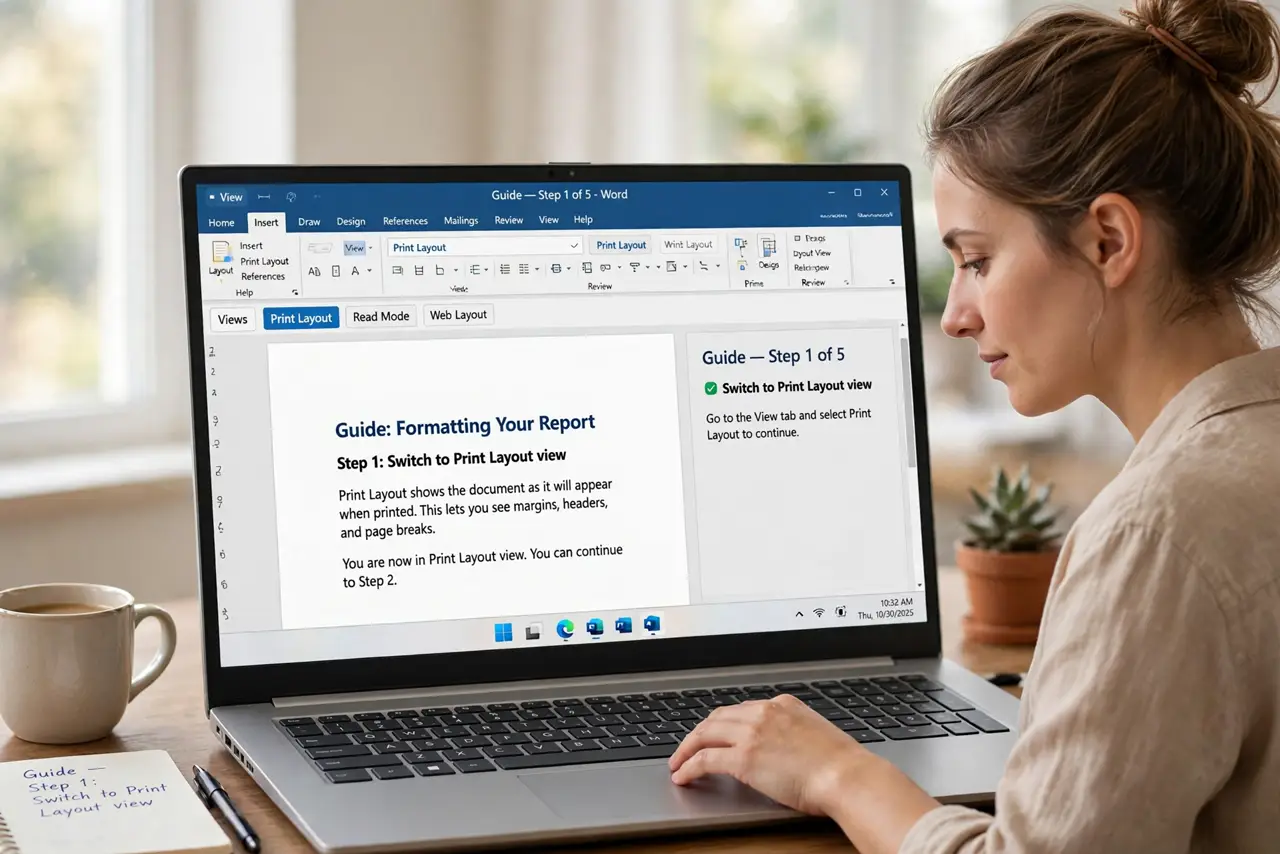
- Switch to Print layout view. View > Print layout shows true page breaks. Fix strays here — the PDF freezes whatever this view shows.
- Check wide elements. Tables and images wider than the page get cut in the PDF. Shrink them, or give the page a landscape section before downloading.
- Download as PDF. File > Download > PDF Document (.pdf). The conversion runs and the file saves to your downloads folder.
- Open the PDF before sending. Skim it: fonts, page count, and that one tricky table. Catching a broken layout now beats an apology email later.
- Mind the file size. Image-heavy documents make fat PDFs. If it is too big to email, compress images first — or share a view-only link instead, which you can stop sharing later.
- Keep the Docs original. The PDF is a snapshot — future edits happen in the Docs file. Download fresh copies after changes rather than editing the PDF.
What NOT to do
- Do not close the tab mid-conversion. Large documents need a minute; closing early gives you a partial or missing file.
- Do not email the Docs link when a PDF was asked for. Portals and print shops want the frozen file, not a live document.
- Do not assume 'looks fine in Docs' means 'fine in PDF.' Print layout view is the truth — normal view hides page breaks.
- Do not download repeatedly over a weak connection. Each attempt restarts the conversion; wait for one to finish.
Frequently asked questions
Where does the PDF go after downloading?
Your browser's download folder, usually Downloads. The file name matches the document title — rename it there if needed.
Why is my PDF missing pages?
Usually the download was interrupted, or content sat outside the page margins. Re-download on a stable connection and check Print layout first.
Can I password-protect the PDF from Docs?
No — Docs exports an unprotected PDF. Protect it afterward with a PDF tool, or share the Docs file with restricted permissions instead.