Stop Sharing a Link? How To
You shared a document with 'anyone with the link,' and now that link is floating around — forwarded, posted, who knows where. Turning off link sharing cuts access instantly, but there is a difference between disabling the link and removing individual people. Here is how to lock it back down.
TL;DR / Quick Fix
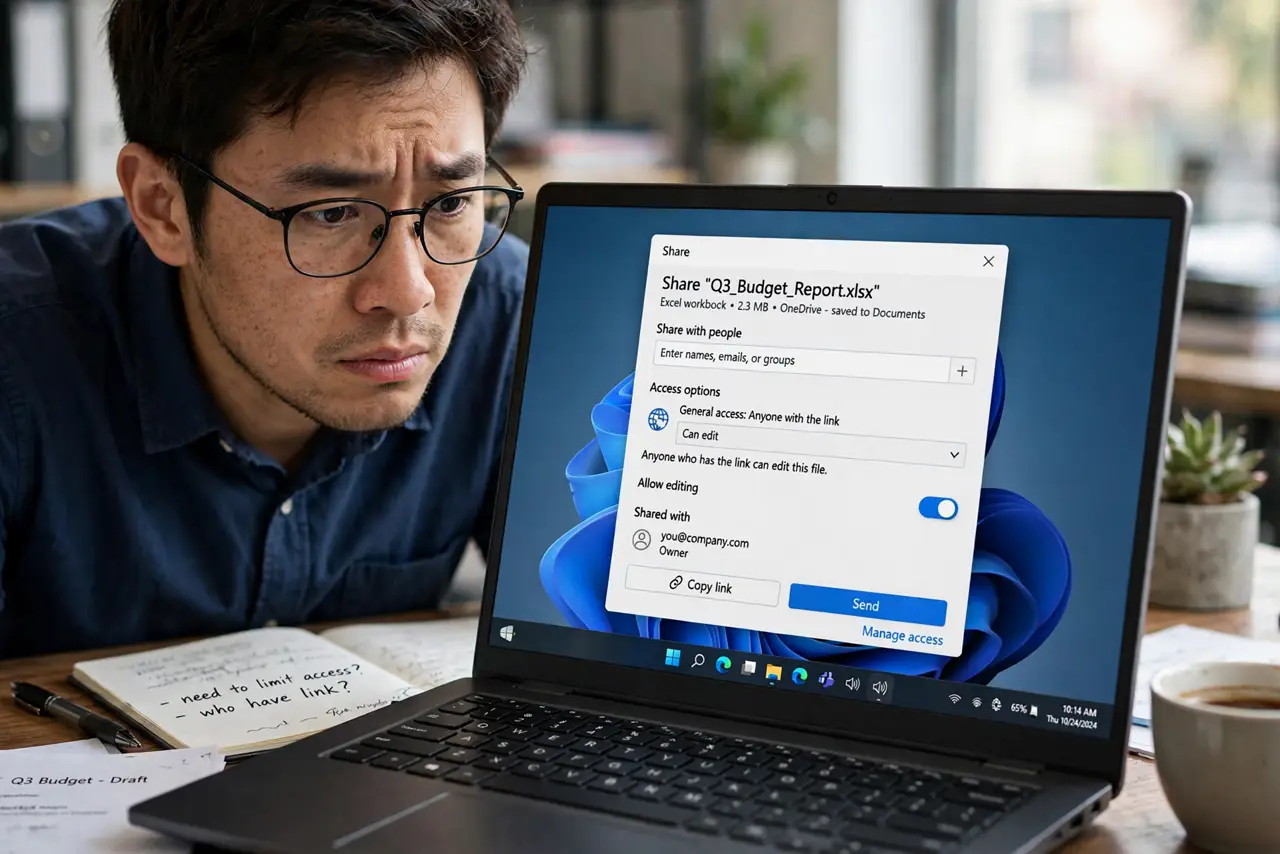
Quick fix: click Share, set General access from 'Anyone with the link' to Restricted, and click Done. The old link dies at once — everyone who had it loses access unless added by email. To remove specific people instead, open Share and delete them from the people list individually.
Follow these steps
- Open the Share dialog. Click the blue Share button, top right. Everything about access lives here.
- Find General access. Below the people list, 'General access' shows the current link setting — likely 'Anyone with the link.'
- Switch it to Restricted. Change the dropdown to 'Restricted.' Only people added by email keep access — the public link stops working immediately.
- Remove individual people if needed. To cut one person but keep others, hover their name in the Share list and remove them. Restricted plus a trimmed people list is the tightest setup.
- Tell the people who still need it. Anyone who legitimately used the old link now gets 'request access' prompts. Send them a fresh, properly permissioned invite — or a PDF copy if they only need to read.
- Double-check with a private window. Paste the old link into a private browsing window. If it asks for sign-in or denies access, the lockdown worked.
What NOT to do
- Do not assume deleting the link from a chat unsends it. Anyone who opened it while it was live may have copied the content — revoking stops future access, not past views.
- Do not leave it on 'Anyone with the link' for sensitive documents. That setting is one forward away from public.
- Do not confuse removing the link with deleting the document. The file is untouched — only access changed.
- Do not forget copies. If someone used File > Make a copy while the link was live, their copy survives your lockdown.
Frequently asked questions
If I turn off link sharing, can people still see the document?
Only people you added by email with explicit permission. Everyone relying on the old link is locked out immediately.
Can I see who opened my link?
No — Docs does not log link visitors. You can see editors and commenters in the activity dashboard, but anonymous link viewers are invisible.
Someone forwarded my link — what now?
Switch General access to Restricted right away. Then consider whether the content was sensitive enough to warrant fresh copies or notifications.