Research in Google Docs
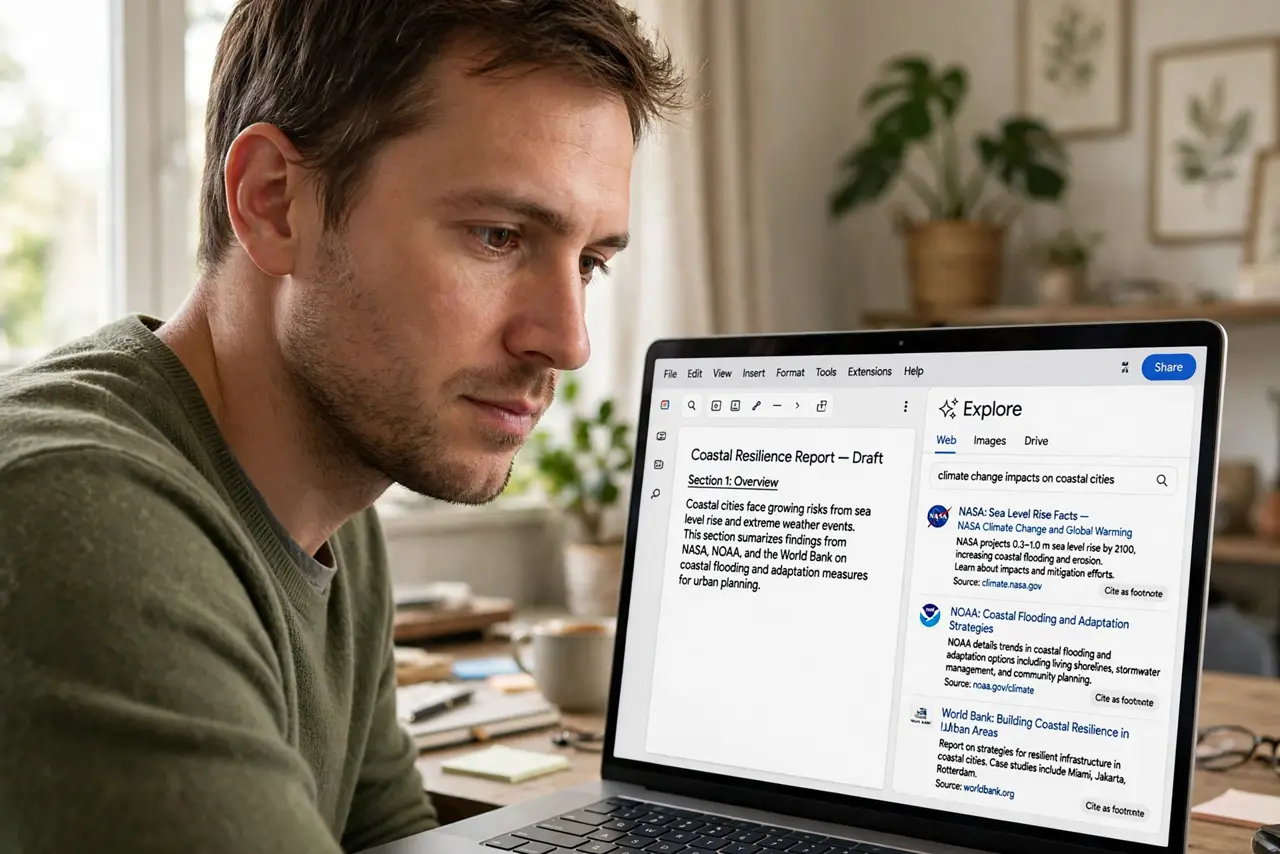
Researching means twenty tabs, lost quotes, and images saved to mysterious folders. Google Docs' Explore panel keeps it in one place: search the web, preview results, and insert images and citations without leaving your document. Fewer tabs, fewer rabbit holes, faster writing. See the Explore tool and translating documents for the full toolkit.
TL;DR / Quick Fix
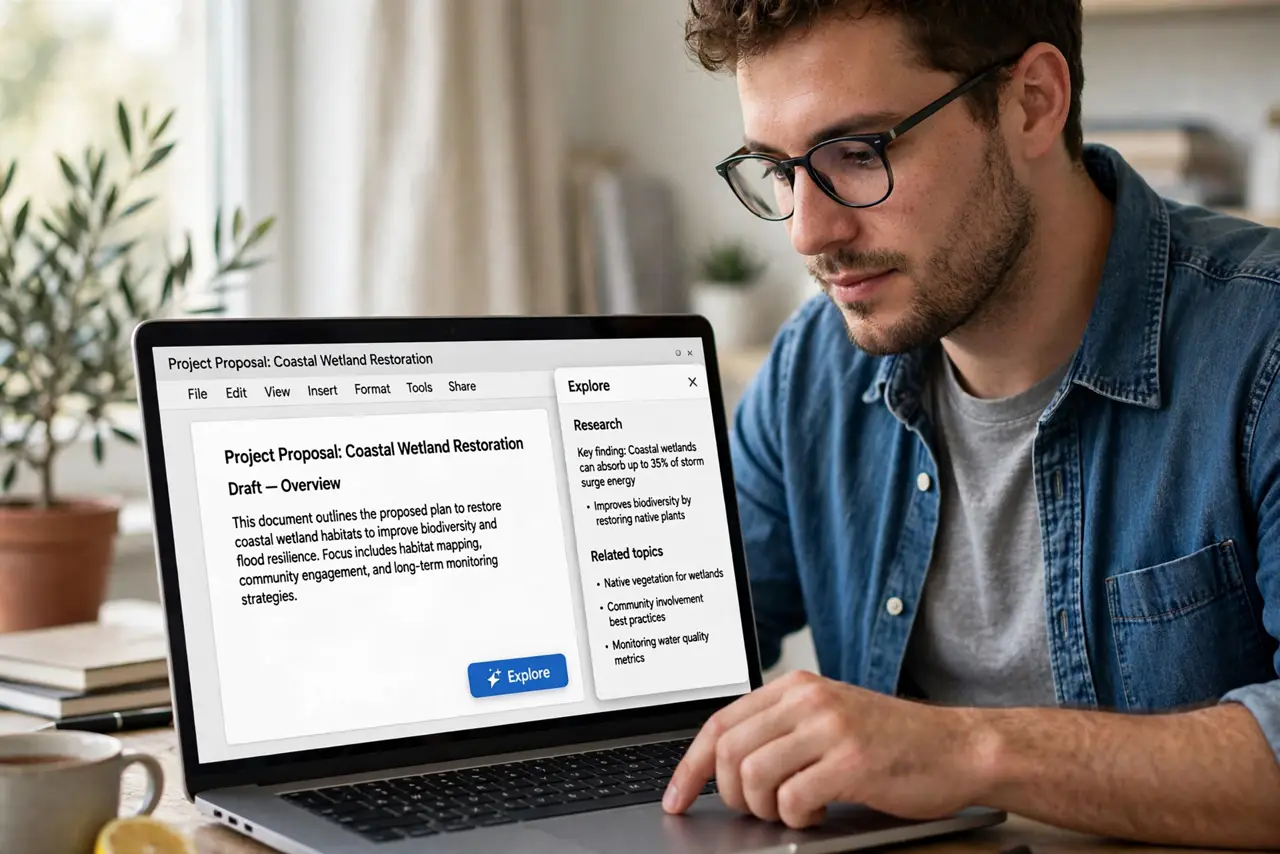
Quick fix: Google Docs' Explore panel researches without leaving your document — search the web, insert images, and cite sources from the sidebar. Click Explore at the bottom right and type your topic. Fewer tabs open means fewer rabbit holes and faster writing.
Follow these steps
- Open the Explore panel. Click the Explore button at the bottom right of your document. A research sidebar appears beside your text.
- Search your topic. Type what you are writing about. Web results, images, and related topics appear without opening a single new tab.
- Preview before inserting. Click results to preview them in the panel. Judge relevance here, not after pasting junk into your document.
- Insert images properly. Images inserted through Explore come with attribution. Drag them into place and resize sensibly.
- Cite sources. Use the citation option to add properly formatted references. Your bibliography builds itself as you research.
- Keep the document the hub. Resist opening browser tabs alongside. The panel is the research tool; the document stays the center of gravity.
What NOT to do
- Do not treat Explore as a fact-checker. It finds sources; you still judge their credibility.
- Do not paste without reading. Preview every source before it earns a place in your document.
- Do not forget image rights. Explore's attribution helps, but verify licensing for published work.
- Do not research everything upfront. Write first, research the gaps — Explore rewards the iterative approach.
Frequently asked questions
Is this the same as Google search?
Similar engine, tighter integration. Results are tuned for document use, with insert and cite actions built in.
Can I use it for academic work?
As a starting point, yes — but verify sources independently and prefer primary references for citations.
Does it work offline?
No — Explore needs a connection. Draft offline, research when connected.