The Explore Tool? What It Does
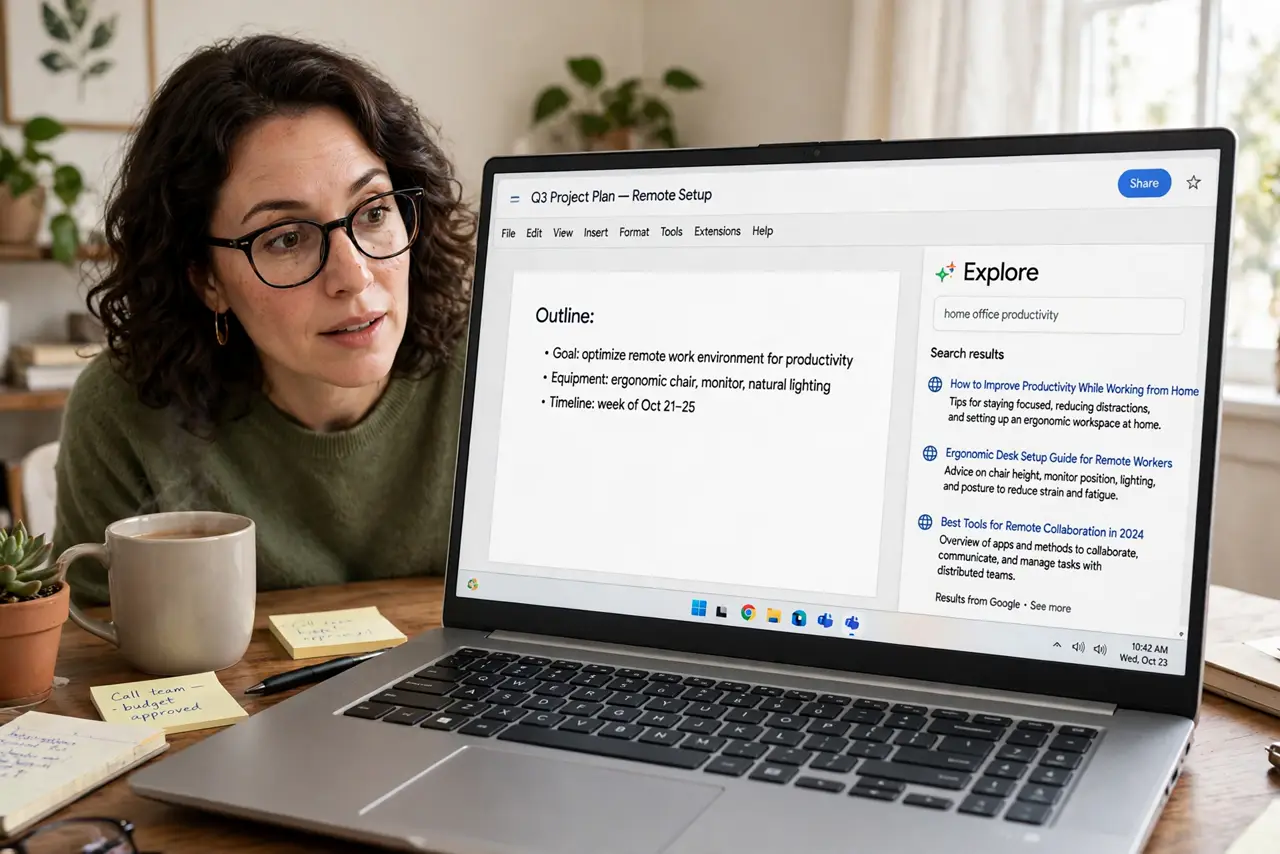
Research without leaving your document — the Explore tool searches the web, images, and your Drive from a sidebar and lets you insert findings with one click. Here is what it actually does well and where it falls short.
TL;DR / Quick Fix
Quick fix: in Google Docs click the Explore icon (bottom-right) or press Ctrl+Alt+Shift+I, search your topic, and drag results — quotes, images, Drive files — straight into the doc. It cites web sources automatically. It's a starting point, not a researcher: verify everything important elsewhere.
Follow these steps
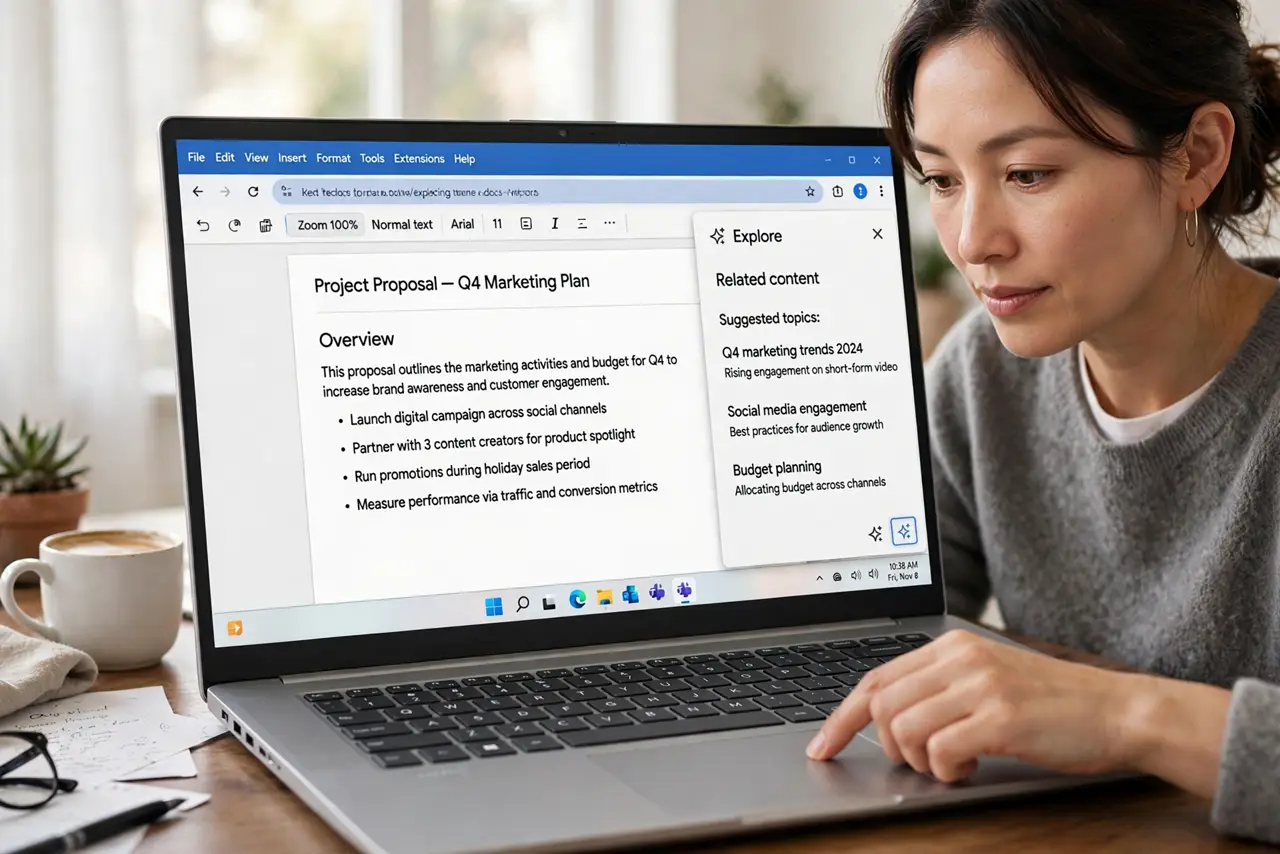
- Open Explore. Click the star or compass icon at the bottom-right, or Tools > Explore. The sidebar slides in beside your document.
- Search your topic. Type like a web search. Explore returns web results, images, and matching Drive files — three tabs of material.
- Insert with attribution. Hover a result and click Insert — web quotes arrive with a footnote citation automatically. Drive files insert as smart links.
- Use images carefully. Inserted web images may be copyrighted. Filter by usage rights, or treat them as placeholders — check rights before publishing.
- Mine your own Drive. The Drive tab finds your own files mentioning the topic — the fastest way to reuse your past work without hunting.
- Verify before trusting. Explore ranks for relevance, not truth. Cross-check facts that matter — it is a scout, not a source.
What NOT to do
- Do not treat Explore results as verified. Relevance ranking is not fact-checking.
- Do not publish inserted web images without checking rights. Copyright applies to convenient images too.
- Do not let Explore replace real research. It is a starting sketch — depth needs dedicated sources.
- Do not ignore the Drive tab. Your own past work is often the best source in the room.
Frequently asked questions
Where is the Explore tool?
Bottom-right icon in Docs — or Tools > Explore. In Sheets and Slides it lives in similar spots with tailored powers.
Does Explore work offline?
No — it needs the web for web results. The Drive tab needs sync too.
Can I turn off Explore?
There is no off switch — just do not open it. It sits quietly until summoned.