Remove a Hyperlink in Docs
You pasted a URL and Docs helpfully turned it into a blue underlined link — helpful once, annoying when the printed page shows a dead URL or the link points somewhere wrong. Here is how to remove links without deleting the text.
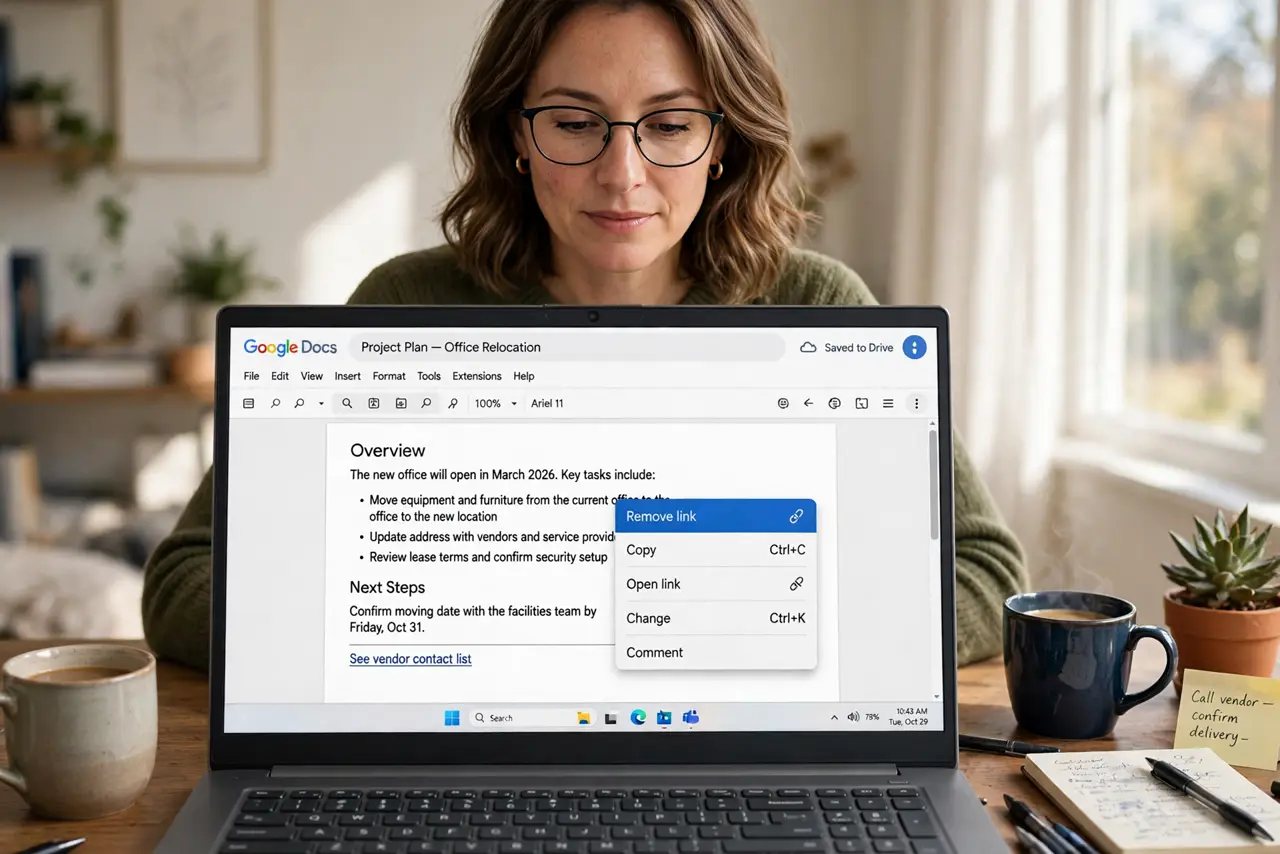
TL;DR / Quick Fix
Quick fix: in Google Docs right-click the linked text and choose Remove link — the text stays, the hyperlink goes. To stop auto-linking while you type, go to Tools > Preferences and uncheck automatic link detection. For a whole document of links, select all and remove links in batches.
Follow these steps
- Remove one link. Right-click the linked text > Remove link. The words stay put; only the hyperlink dies.
- Remove while selecting. Select the linked phrase, then right-click > Remove link. Works for partial links inside longer sentences.
- Stop auto-linking. Tools > Preferences > uncheck Automatically detect links. Docs stops linkifying URLs as you type — paste stays plain.
- Clear a link-heavy document. Select All with Ctrl+A, right-click > Remove link. Batch removal beats hunting fifty links one by one.
- Fix the link instead, when it is just wrong. Right-click > Edit link to correct the URL. A wrong link fixed beats a right link removed.
- Check before printing. Print preview shows linked text in blue or gray. Remove or fix strays — paper links help nobody.
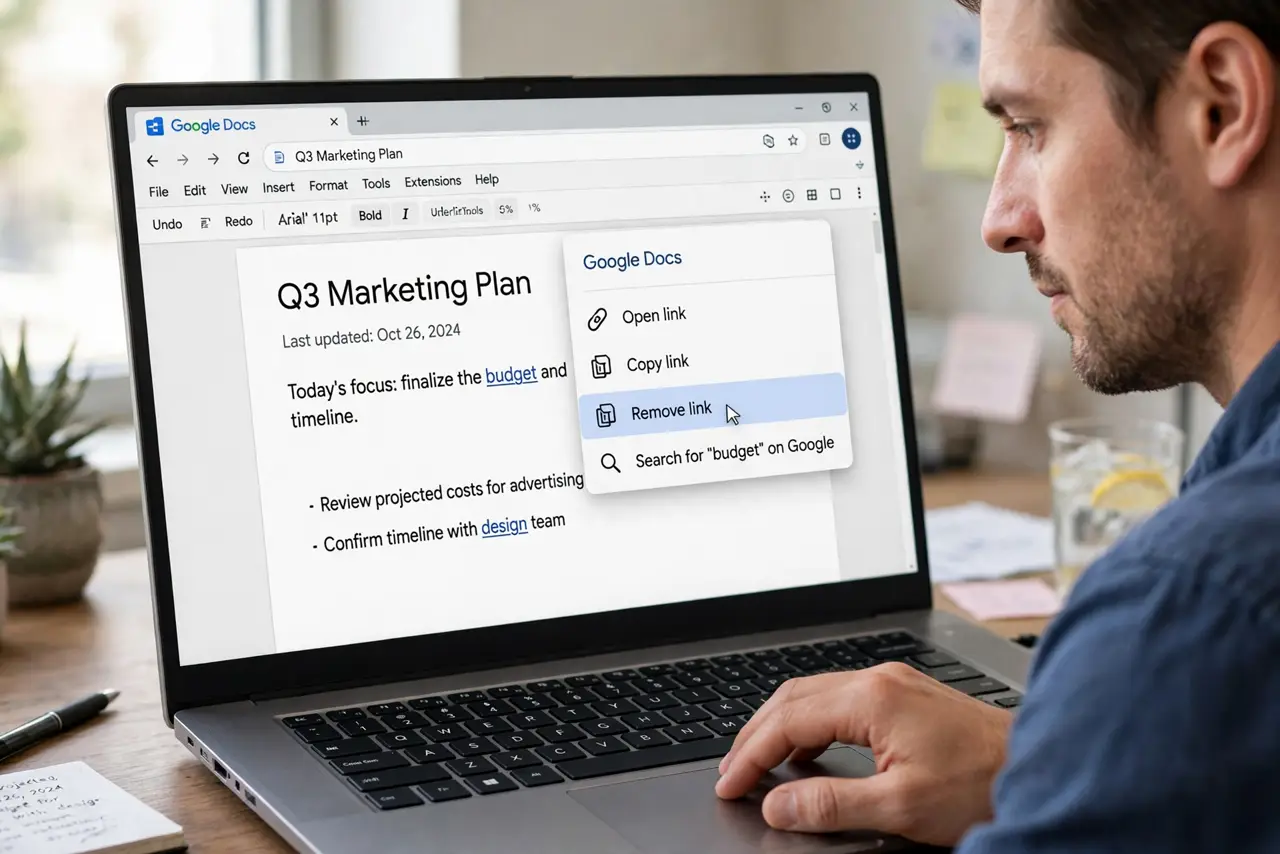
What NOT to do
- Do not delete the text to kill the link. Remove link keeps your words — deletion is overkill.
- Do not leave auto-link detection on if it annoys you. One preferences toggle ends the battle forever.
- Do not remove links from a document people read digitally. Links are navigation — keep the useful ones.
- Do not forget pasted links carry the source formatting. Paste without formatting — Ctrl+Shift+V — avoids the whole mess.
Frequently asked questions
Why does Docs keep turning my URLs into links?
Automatic link detection in Tools > Preferences. Uncheck it once and it stays off.
Can I remove all links at once?
Select all, right-click, Remove link — the batch method clears the document in seconds.
Does removing a link delete the URL text?
No — the visible text stays exactly as it was; only the clickable hyperlink is removed.