Make a Copy of a Doc
You need your own version of a shared document — a template, a form, a handout — without touching the original. File > Make a copy duplicates the document into your Drive in seconds, with options to copy comments and keep the sharing. The original never knows it happened.
TL;DR / Quick Fix
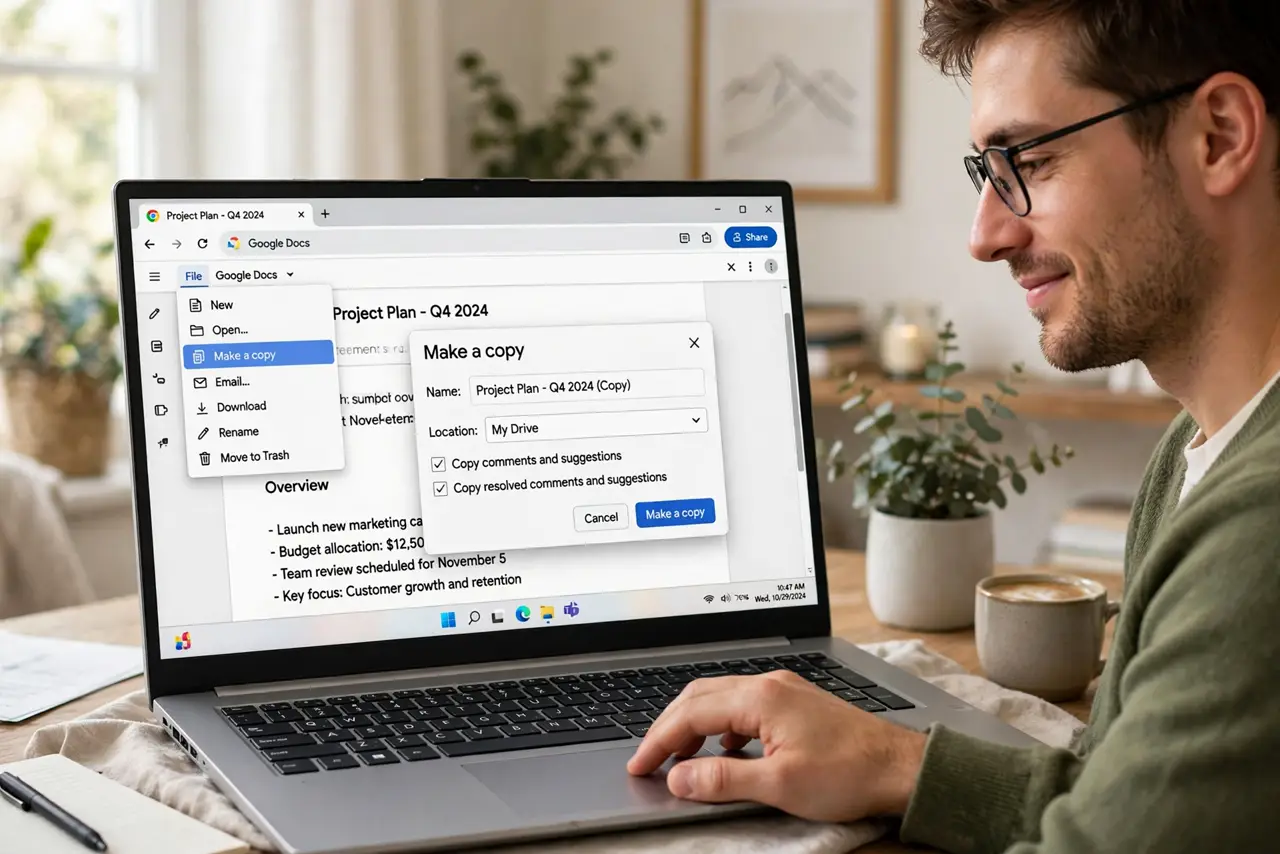
Open the document and choose File > Make a copy, then name it and pick the Drive folder. Tick the boxes to copy comments or share with the same people if needed. The copy opens instantly as your own file; the original stays untouched.
Follow these steps
- Open the document you want to copy. You need at least view access. Open it in Google Docs on the web — the copy option lives in the File menu.
- Choose File > Make a copy. Click File in the menu bar, then Make a copy. A dialog asks for the new name and destination.
- Name the copy clearly. Give it a name that distinguishes it from the original — add your name or the date. Future-you will thank present-you.
- Pick the Drive folder. Use the folder picker to choose where it lands, or leave it in My Drive. Copies of shared files always land in your own Drive.
- Decide on comments and sharing. Tick Share it with the same people only if they should see your copy. Copy comments if the feedback matters to your version.
- Open and verify the copy. The copy opens in a new tab as your file, with you as owner. Edit freely — the original is untouched.
What NOT to do
- Do not edit the original when you meant to copy. If the document allows editing, your changes land on everyone's version — copy first.
- Do not copy a document to dodge sharing rules maliciously. Copying for your own work is fine; redistributing someone else's restricted content is not.
- Do not forget the copy inherits images and links. Large originals make large copies — check your Drive storage if you copy media-heavy files often.
- Do not rename the original by accident. In the copy dialog, double-check you are naming the copy, not editing the source tab.
Frequently asked questions
Does the original owner see that I made a copy?
No. Making a copy is silent — the original owner gets no notification and the original is unchanged.
Why is Make a copy grayed out?
The owner disabled downloading, printing, and copying for viewers. You will need to ask them for a copy or for edit access.
Does the copy keep the version history?
No — a copy starts fresh with no version history. If history matters, ask the owner to share the original with edit access instead.