Table of Contents Outdated in Docs? Update It
You add three new sections and the table of contents still shows the old list — Google Docs does not refresh it on its own. The fix is one click, but only if you know where it hides. This guide shows how to update it and keep it accurate.
TL;DR / Quick Fix
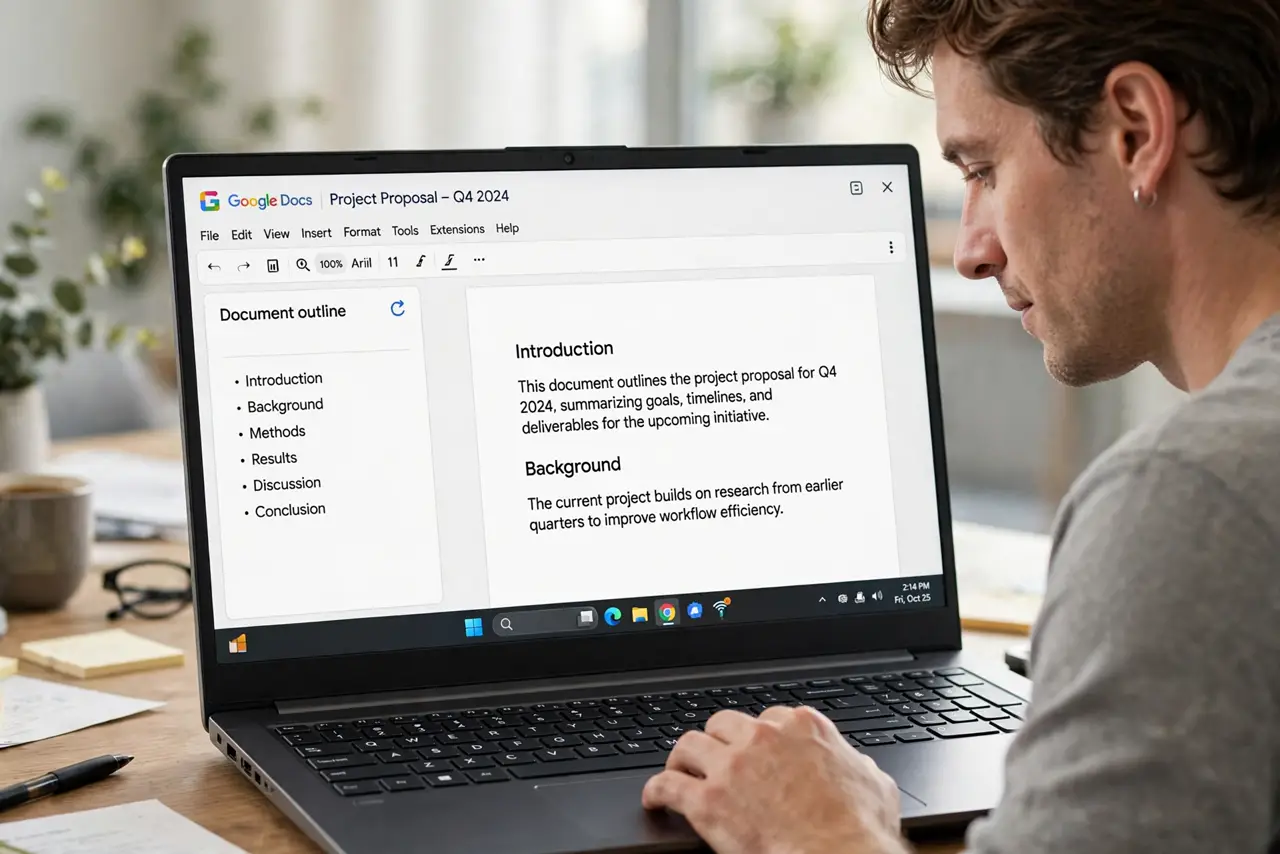
Click inside the table of contents and hit the refresh icon to pull in new headings. Use real heading styles for every section title, since the TOC only sees styled headings. After big edits, refresh the TOC last, right before sharing or printing.
Follow these steps
- Use heading styles for every title. Format each section title with Heading 1, 2, or 3 from the styles menu. The table of contents only lists styled headings — bold big text it does not recognize is invisible to it.
- Insert the table of contents once. Place the cursor where the TOC belongs and open Insert, then Table of contents. One TOC per document is enough; a second one just doubles the confusion.
- Click the refresh icon after edits. Click anywhere inside the TOC and press the circular refresh icon that appears. New headings appear and renamed ones update — but check the page numbers too if the document's numbering changed.
- Fix headings that refuse to appear. If a title still does not show up, select it and reapply the heading style. Text that only looks like a heading is the usual culprit.
- Choose the right TOC format. Pick the plain, dotted, or linked format when inserting. Links are best for on-screen reading; dotted leaders suit printed documents.
- Refresh last, right before sharing. Make the TOC refresh the final step before you share or print. Any edit after the refresh can silently outdated it again.

What NOT to do
- Do not fake headings with bold and big fonts. The TOC cannot see them, and your document outline stays empty too.
- Do not insert a second TOC to fix a stale one. Refresh the existing one instead.
- Do not forget the TOC after restructuring. Moving sections around without refreshing leaves phantom entries.
- Do not manually type entries into the TOC. Typed entries never update and will contradict the real headings.
Frequently asked questions
Why won't my table of contents update?
You need to click inside it and press the refresh icon. Docs never updates a TOC automatically.
Why is a heading missing from the TOC?
It is probably not a real heading style. Select the text and apply Heading 1, 2, or 3, then refresh.
Can I remove the blue links from the TOC?
Yes. Delete the TOC and reinsert it in the plain or dotted format without links.