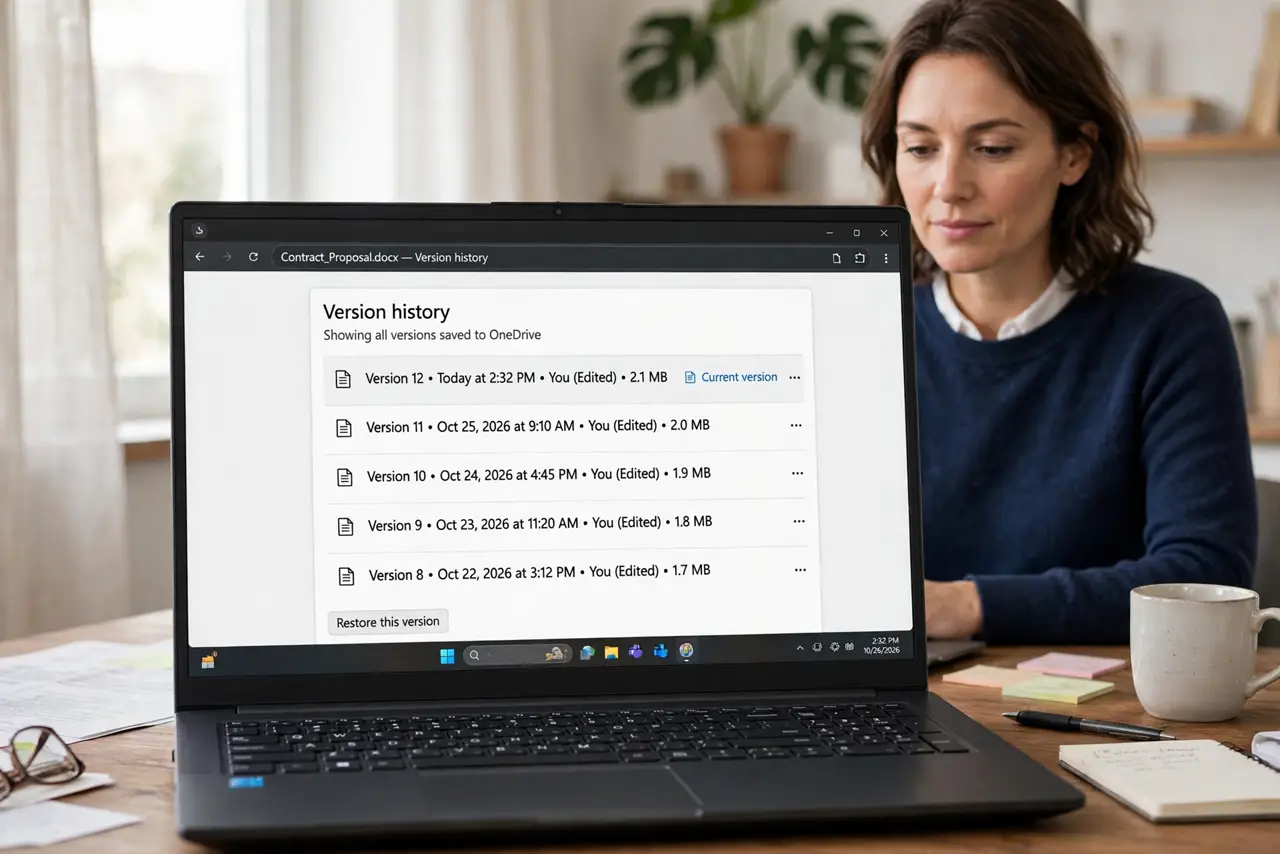
Document Version History Missing a Version? Fix It
A missing version in history feels like lost work, but the version is often in a different copy of the file, under a different name, or in an account you did not expect. Check those places before concluding it is gone.
TL;DR / Quick Fix
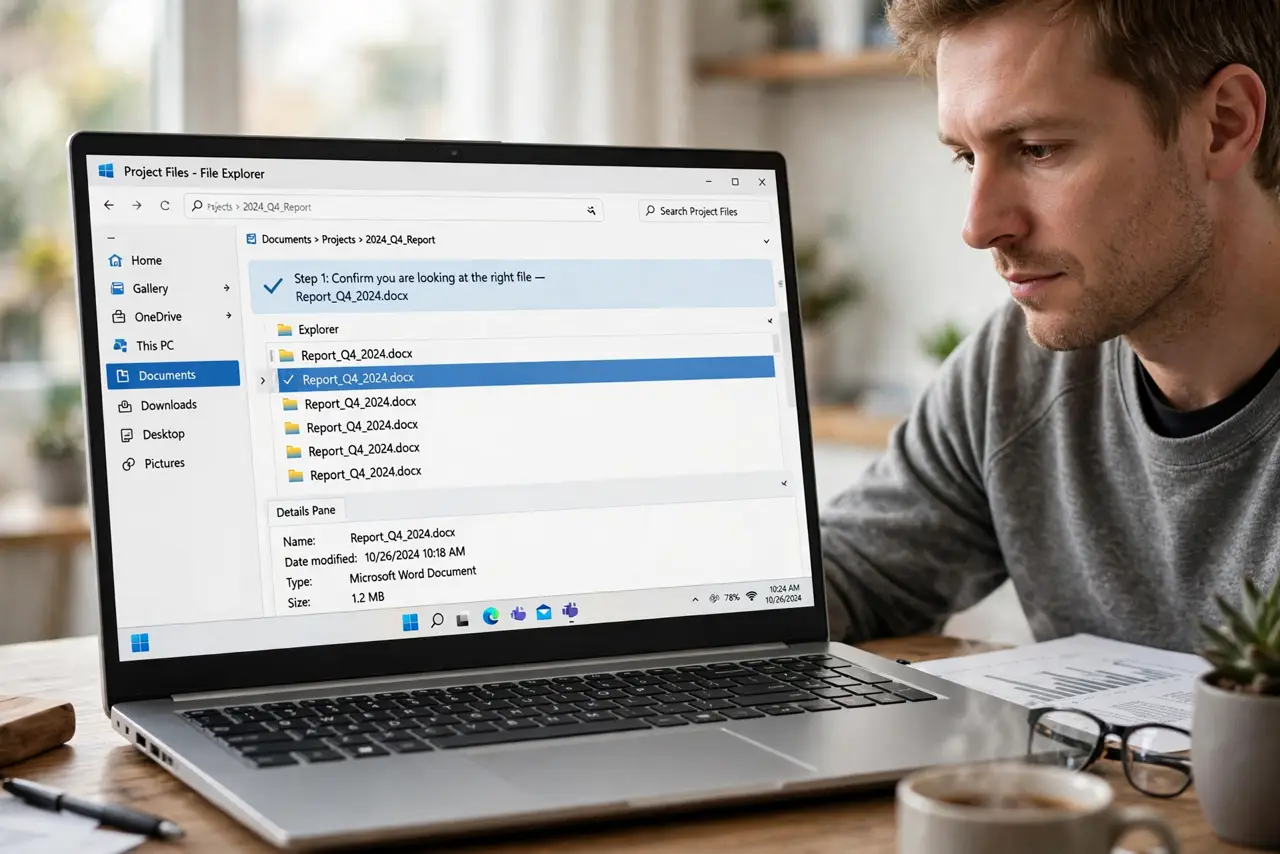
Quick fix: Confirm you are looking at the right file. Check for renames and moved copies. Check whether you edited a different account copy. Look for an autosaved or offline copy. Restore the nearest version, then reapply edits. Set up a safer editing habit for next time.
Follow these steps
- Confirm you are looking at the right file. Open the history of the exact file you edited, not a similarly named copy. Duplicate names are the most common reason a version seems missing.
- Check for renames and moved copies. Search for the file by its content or an unusual phrase, not just its name. A renamed or moved copy carries its own history.
- Check whether you edited a different account copy. If you use more than one account, the version may live in the other account's copy. Sign into each and check before assuming loss.
- Look for an autosaved or offline copy. An offline edit that never synced may sit on one device as a separate copy. Open that device and let it sync, or save its copy under a new name.
- Restore the nearest version, then reapply edits. If the exact version is gone, restore the closest one and redo only the missing edits. Do not keep working in a restored copy without saving it as the current version.
- Set up a safer editing habit for next time. Edit one copy, on one device, and let sync finish before switching. Most missing versions are really diverging copies.
What NOT to do
- Do not keep editing the wrong copy while searching. You will create yet another diverging version.
- Do not assume history keeps every keystroke forever. Some systems prune old versions, so restore promptly.
- Do not overwrite the current file with a restored version without saving a backup first.
- Do not search only by filename. Renamed copies hide from name searches but not from content searches.
Frequently asked questions
Why is a version missing from history?
Usually you edited a different copy, the file was renamed, or the edit never synced from another device.
Can I recover a pruned old version?
Sometimes from a device copy or a backup, but not reliably. Restore the nearest version promptly.
How do I stop this happening again?
Edit one copy, finish syncing before switching devices, and avoid duplicate filenames.