Data Bars? Basics
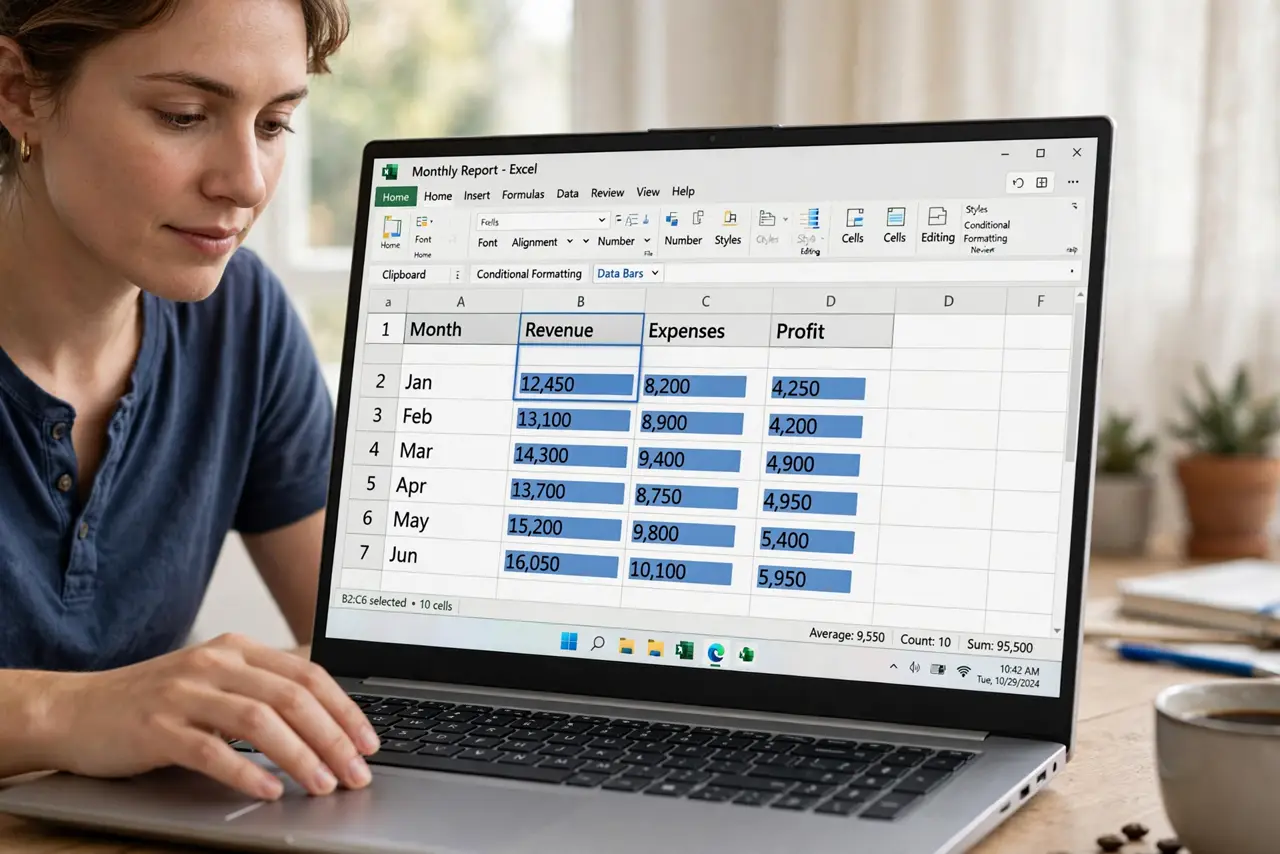
You have a column of numbers and you want to see the big ones at a glance, without reading every cell. Data bars paint a little horizontal bar inside each cell, scaled to the value — an instant visual ranking. They are one of Excel's conditional formatting tricks and take about ten seconds to apply. Here is how to add them, tune them, and remove them without breaking your sheet.

TL;DR / Quick Fix
Quick fix: select your numbers, go to Home, then Conditional Formatting, then Data Bars, and pick a color. Excel paints in-cell bars scaled to each value instantly. To adjust, use Manage Rules to set minimum and maximum; to remove, choose Clear Rules for the selection. Your numbers stay untouched throughout.
Follow these steps
- Select the numbers you want to visualize. Click and drag over the cells containing the values — data bars work on any numeric range. Keep headers out of the selection so Excel does not try to bar-chart your labels.
- Apply a data bar style. On the Home tab, click Conditional Formatting, hover over Data Bars, and pick a solid or gradient fill in any color. The bars appear instantly, scaled from the smallest to the largest value by default.
- Understand how the scaling works. By default, the shortest bar is your minimum value and the longest is your maximum. That means the bars show relative rank, not absolute size — useful alongside color scales, which shade cells by value instead.
- Set custom minimum and maximum. Go to Conditional Formatting > Manage Rules, select the rule, and click Edit Rule. Set the minimum and maximum to fixed numbers (or formulas) so bars compare against a target instead of just the range itself.
- Adjust appearance options. In the same Edit Rule dialog, you can change the bar color, hide the numbers so only bars show, or set the bar direction for negative values. A clean look: solid fill, values hidden, negative bars in red.
- Remove data bars cleanly. Select the range, go to Conditional Formatting > Clear Rules > Clear Rules from Selected Cells. Your numbers stay exactly as they were — clearing a rule never deletes data.
What NOT to do
- Do not apply data bars to text or mixed ranges. Excel needs numbers to scale bars; text cells just get ignored, which looks broken.
- Do not use gradient and solid fills on the same sheet carelessly. Mixed styles look sloppy — pick one and stay consistent.
- Do not forget the scaling is relative by default. Adding a huge outlier later re-scales every bar and can make real differences invisible — set a fixed maximum for comparisons over time.
- Do not print without previewing. Data bars print fine, but pale gradient fills can wash out on paper — check Print Preview first.
Frequently asked questions
Why do all my bars look almost the same length?
One value is far bigger (or smaller) than the rest, so it dominates the scale. Set a fixed minimum and maximum in Manage Rules to restore the contrast.
Can I show only the bars without the numbers?
Yes — in Edit Rule, check 'Show Bar Only.' The numbers stay in the cells for formulas; you just see the bars.
Do data bars slow down Excel?
On normal sheets, no. On tens of thousands of rows, conditional formatting adds some recalculation cost — keep ranges as tight as you need.