Icon Sets? Basics
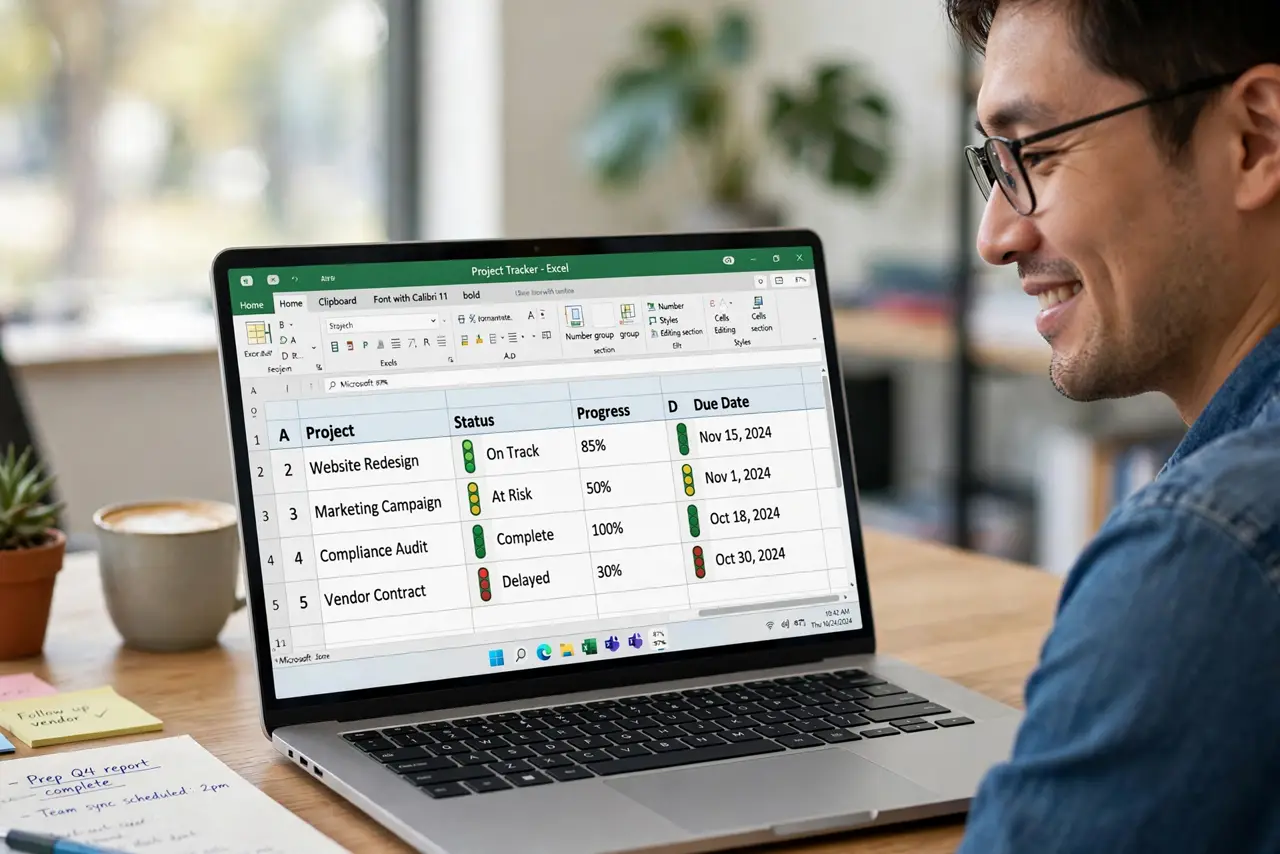
You want a column that screams 'on track' or 'behind' without anyone reading the numbers. Icon sets drop little arrows, flags, or traffic lights into each cell based on the value — green up-arrow for good, red down-arrow for bad. They are the punchiest of Excel's conditional formats and take seconds to apply. Here is how to use them without making a mess.
TL;DR / Quick Fix
Quick fix: select your numbers, go to Home, then Conditional Formatting, then Icon Sets, and pick a set like arrows or traffic lights. Excel assigns icons by value automatically. Use Manage Rules to change the thresholds, and Clear Rules to remove them — your numbers stay untouched.
Follow these steps
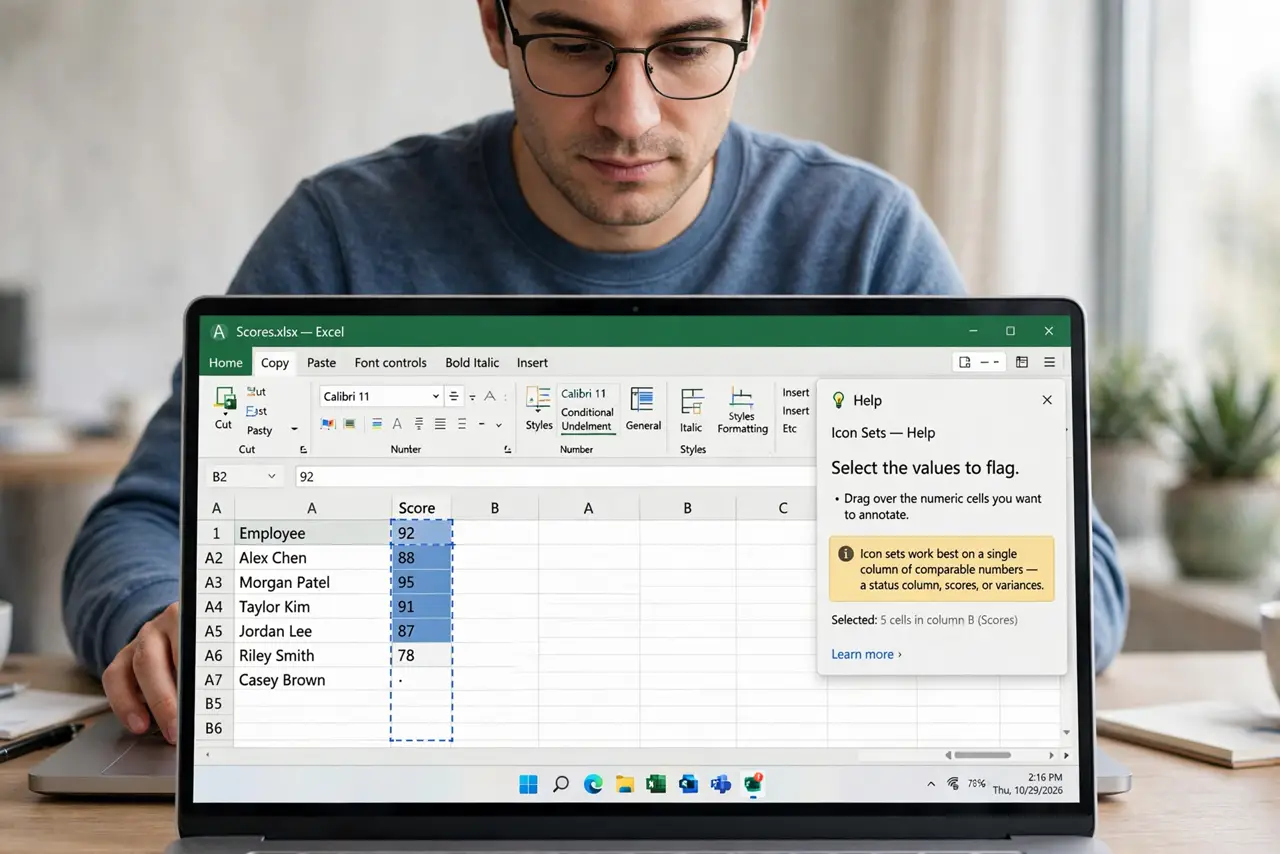
- Select the values to flag. Drag over the numeric cells you want to annotate. Icon sets work best on a single column of comparable numbers — a status column, scores, or variances.
- Apply an icon set. On the Home tab, click Conditional Formatting, hover over Icon Sets, and choose arrows, traffic lights, flags, or ratings. The icons appear instantly, split into thirds by default.
- Understand the default thirds. Excel divides your range into top third, middle third, and bottom third automatically. That is relative ranking — fine for spotting outliers, misleading if you need fixed targets (see next step).
- Set meaningful thresholds. Go to Conditional Formatting > Manage Rules > Edit Rule and change the icon thresholds to real targets — for example, green above 90%, yellow 70–90%, red below 70%. Fixed thresholds keep the story honest as data changes.
- Pair icons with their cousins. Icons combine well with data bars for magnitude plus status, or color scales for a heatmap with markers. One extra layer maximum — more becomes visual noise.
- Remove icon sets cleanly. Select the range, go to Conditional Formatting > Clear Rules > Clear Rules from Selected Cells. The icons vanish; numbers and formulas are untouched.
What NOT to do
- Do not use icon sets on text. They need numbers to evaluate — text cells get skipped and the column looks broken.
- Do not leave the default thirds on tracked metrics. A 'green' icon that just means 'top third of a bad month' misleads everyone — set real thresholds.
- Do not mix three different icon styles on one sheet. Pick one set and stay consistent or the report looks chaotic.
- Do not rely on icons alone for colorblind readers. Red/green arrows are ambiguous for many — pair icons with the numbers or labels.
Frequently asked questions
Why are all my icons the same?
Your values fall within one third of the range, or the thresholds do not fit the data. Set custom thresholds matched to your real targets.
Can I show only icons without numbers?
Yes — in Edit Rule, check 'Show Icon Only.' The numbers remain in the cells for formulas; viewers see just the icons.
Which icon set is most professional?
Simple arrows or the 3-traffic-lights set, used sparingly. Novelty sets (flags, stars) look playful — fine for dashboards, risky for board reports.