Flash Fill in Excel? Basics
You're manually splitting 500 full names into first and last name columns — or combining them back. Flash Fill does it automatically: type the pattern once or twice, and Excel figures out the rest. It's the closest thing Excel has to mind reading, and most users have never tried it.
TL;DR / Quick Fix
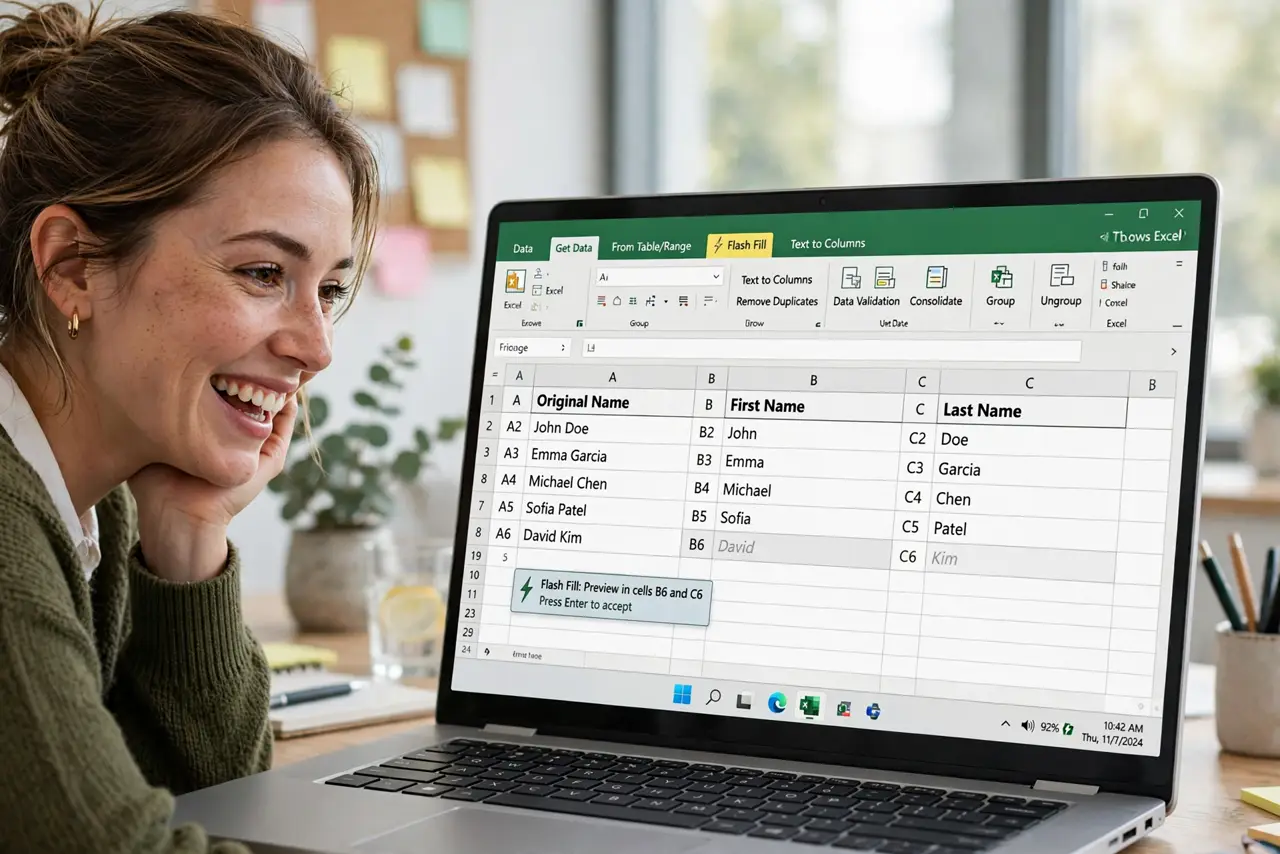
Quick fix: type the result you want in the next column for one or two rows, then press Ctrl+E — Excel fills the rest following your pattern. It splits names, reformats phones, and extracts bits of text. Always eyeball the results, since it guesses and can guess wrong.
Follow these steps
- Set up an example column. Put your source data in column A, then in column B type the desired result for the first row — e.g., just the first name from a full name. One or two examples teach the pattern.
- Trigger Flash Fill. Press Ctrl+E (or Data tab, Flash Fill). Excel fills the column following your example. If it does nothing, add a second example row — two examples disambiguate most patterns.
- Use it for splitting text. Full names to first/last, emails to usernames, addresses to zip codes — Flash Fill excels at extracting parts. It's faster and safer than nested text functions for one-off jobs.
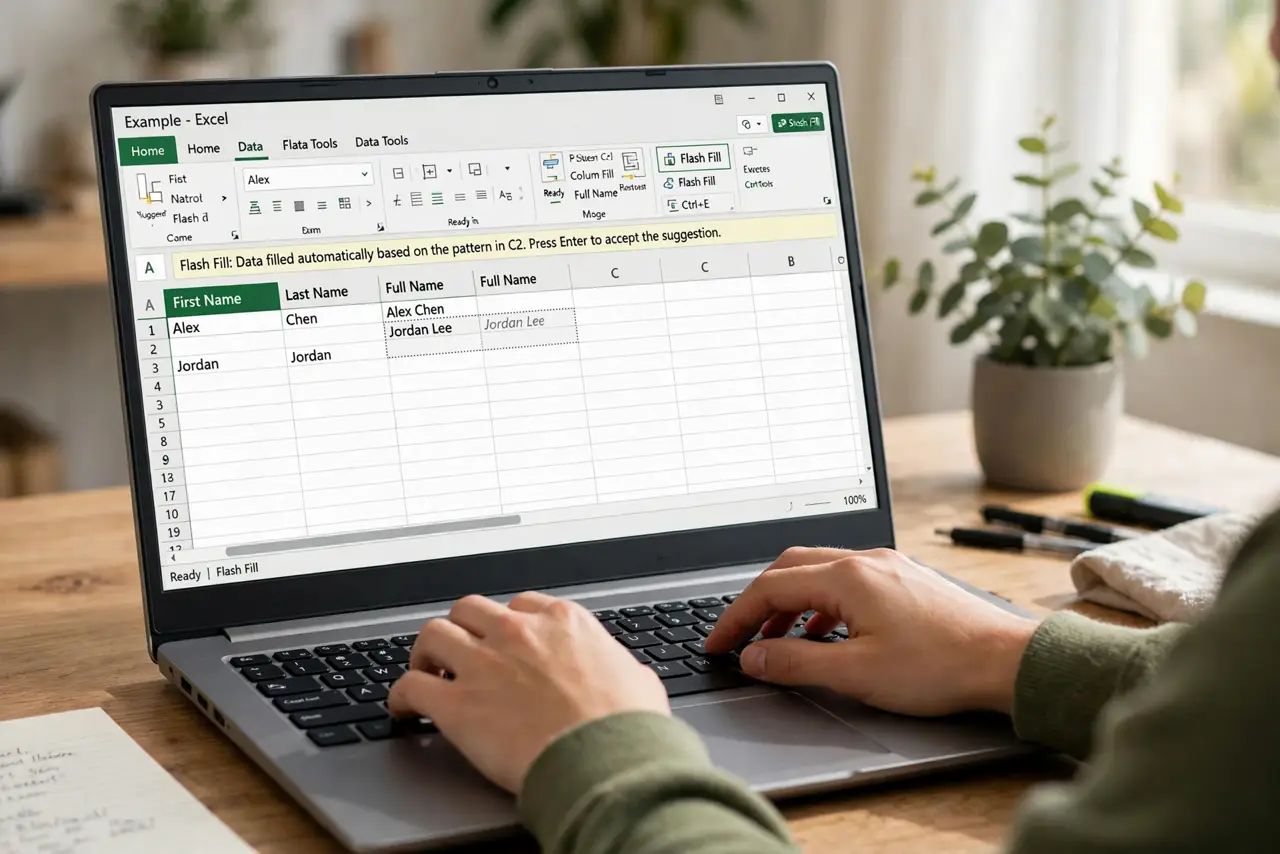
- Use it for combining and reformatting. It also joins columns and reformats entries like phone numbers. Type the target format once and let it propagate down the column.
- Verify the guesses. Flash Fill guesses — brilliantly, but still guesses. Scroll through the results, especially unusual entries (hyphenated names, suffixes like Jr.), and fix the ones it got wrong.
- Know when to use formulas instead. For data that updates or repeats monthly, use text functions or formulas — Flash Fill is a one-time fill, not a live calculation. One-off cleanup: Flash Fill. Recurring report: formulas.
What NOT to do
- Do not trust Flash Fill on critical data without checking. A wrong guess in a mailing list means misaddressed mail — verify before you send anything.
- Do not use Flash Fill on data that will change. It's a static fill; if the source updates, the filled column goes stale. Use formulas for living data.
- Do not fight it when it won't trigger. Inconsistent source data confuses the pattern matcher — clean the source first, then try again.
- Do not forget Ctrl+Z exists. A bad Flash Fill undoes instantly — experiment freely, since every guess is reversible.
Frequently asked questions
Why is Ctrl+E doing nothing?
Usually the pattern is ambiguous with one example — add a second. Or the data is too inconsistent for a pattern to exist; Flash Fill needs a detectable rule.
Does Flash Fill work on Mac Excel?
Yes — same feature, same shortcut equivalent. The Data tab button works identically on both platforms.
Can it handle dates and numbers?
Yes, for reformatting — it can flip date formats and add number formatting. But verify carefully; date guessing across locales is a classic error source.