Freeze Panes Froze the Wrong Row? Fix It
You freeze panes and Excel locks the wrong rows — usually because the active cell was in the wrong place when you clicked. Freeze Panes works relative to the selected cell, which is the part everyone misses. This guide shows how to aim it correctly.
TL;DR / Quick Fix
Unfreeze everything first, then select the cell just below and right of the rows and columns to lock. Apply Freeze Panes once with the right cell selected. Scroll to confirm the correct headers stay visible. If headers still move, you selected the wrong cell — unfreeze and retry.
Follow these steps
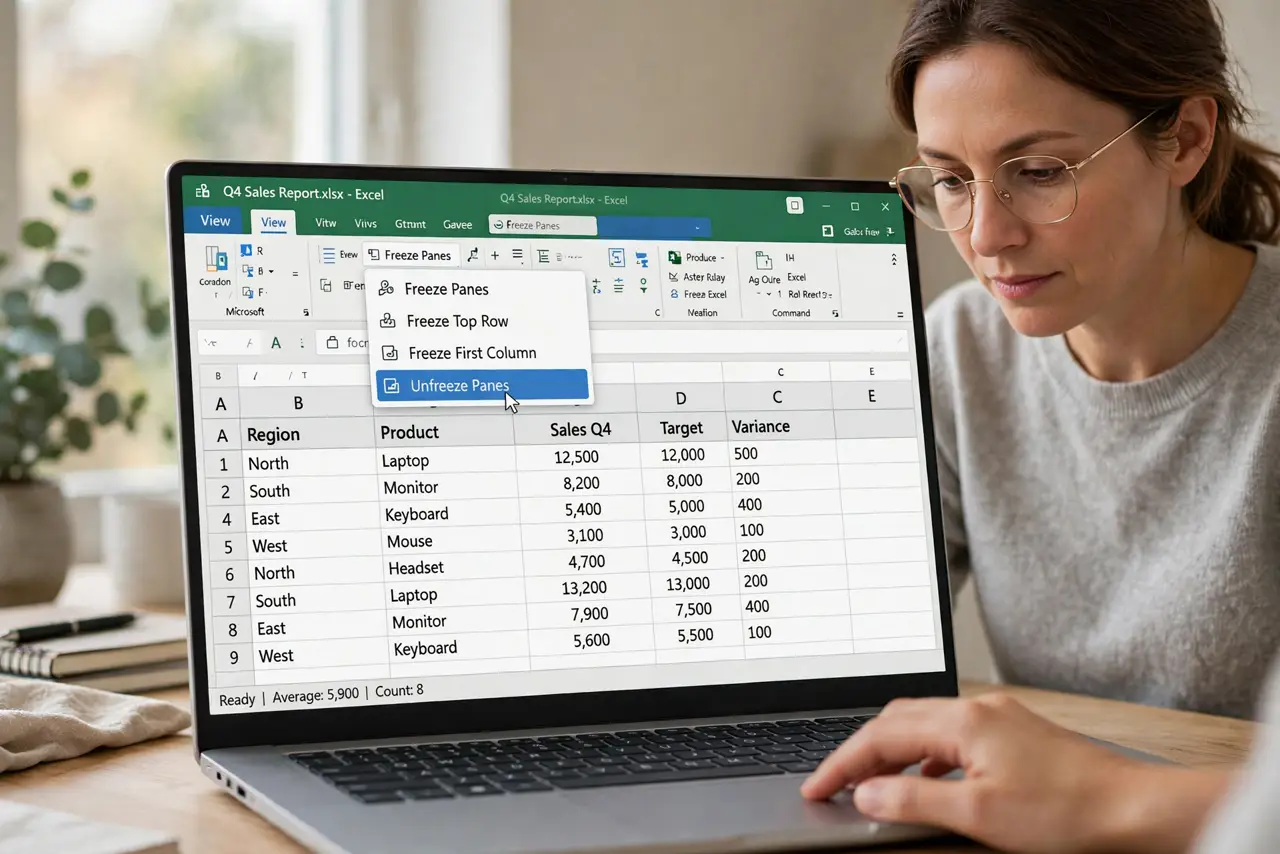
- Unfreeze everything. Open View, Freeze Panes, and choose Unfreeze Panes. Starting from a clean state removes the old wrong freeze.
- Select the anchor cell. Click the cell immediately below the rows and to the right of the columns you want frozen. To freeze the top row only, select any cell in row 2.
- Apply Freeze Panes. Open View, Freeze Panes, and choose Freeze Panes. Excel locks everything above and left of your selected cell.
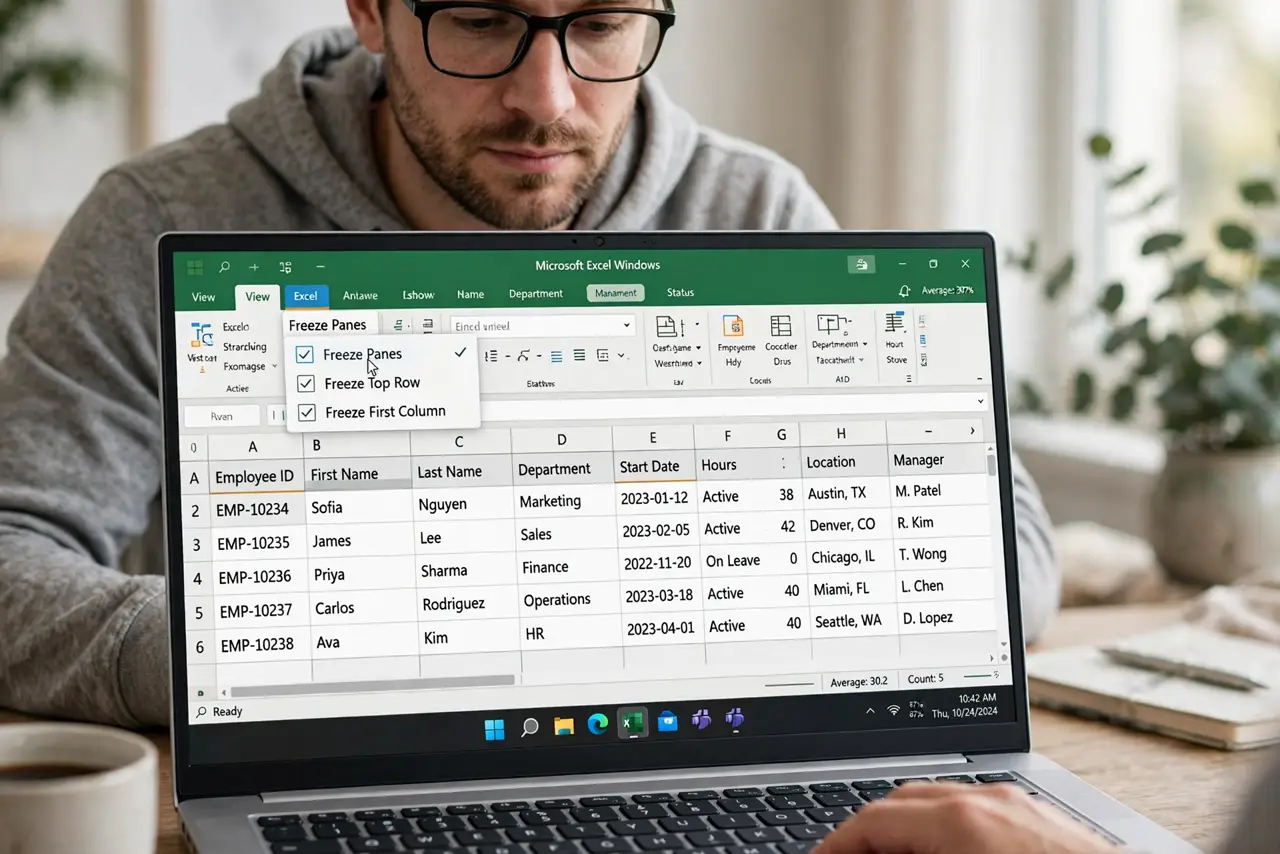
- Use the presets for simple cases. For just the top row or first column, use the Freeze Top Row or Freeze First Column presets. They aim correctly with no cell selection needed.
- Scroll to verify. Scroll down and right. The right headers should stay put while data moves — and if filtered rows are also in play, clear the filter first so you can see what is actually frozen.
- Redo it if it is wrong. A wrong freeze means the anchor cell was wrong. Unfreeze, reselect, and apply again — it takes ten seconds once you know the rule.
What NOT to do
- Do not click Freeze Panes with a random cell selected. The selection aims the freeze, so a random click freezes random rows.
- Do not stack Freeze Top Row on an existing freeze. Unfreeze first, then apply the preset.
- Do not freeze panes to fix a scrolling problem caused by filters. Clear the filter instead.
- Do not forget split panes exist. Split is a different feature that divides the window rather than locking headers.
Frequently asked questions
Why did Freeze Panes freeze the wrong rows?
Because the active cell was in the wrong place. Freeze Panes locks everything above and left of the selected cell.
How do I freeze just the top row?
Select any cell in row 2 and choose Freeze Panes, or use the Freeze Top Row preset directly.
How do I unfreeze panes?
On the View tab, open Freeze Panes and choose Unfreeze Panes.