VLOOKUP vs XLOOKUP? Plain Explanation
Excel has two lookup functions that do nearly the same job, and choosing feels like a coin toss. XLOOKUP is newer and more forgiving; VLOOKUP is older and everywhere. This guide explains the real differences so you pick with confidence.
TL;DR / Quick Fix
Use XLOOKUP for new work: it searches any direction, defaults to exact match, and survives inserted columns. Keep VLOOKUP for old shared files where compatibility matters. Learn one well before switching, since mixed formulas confuse collaborators. Both beat manual searching through thousands of rows every time.
Follow these steps
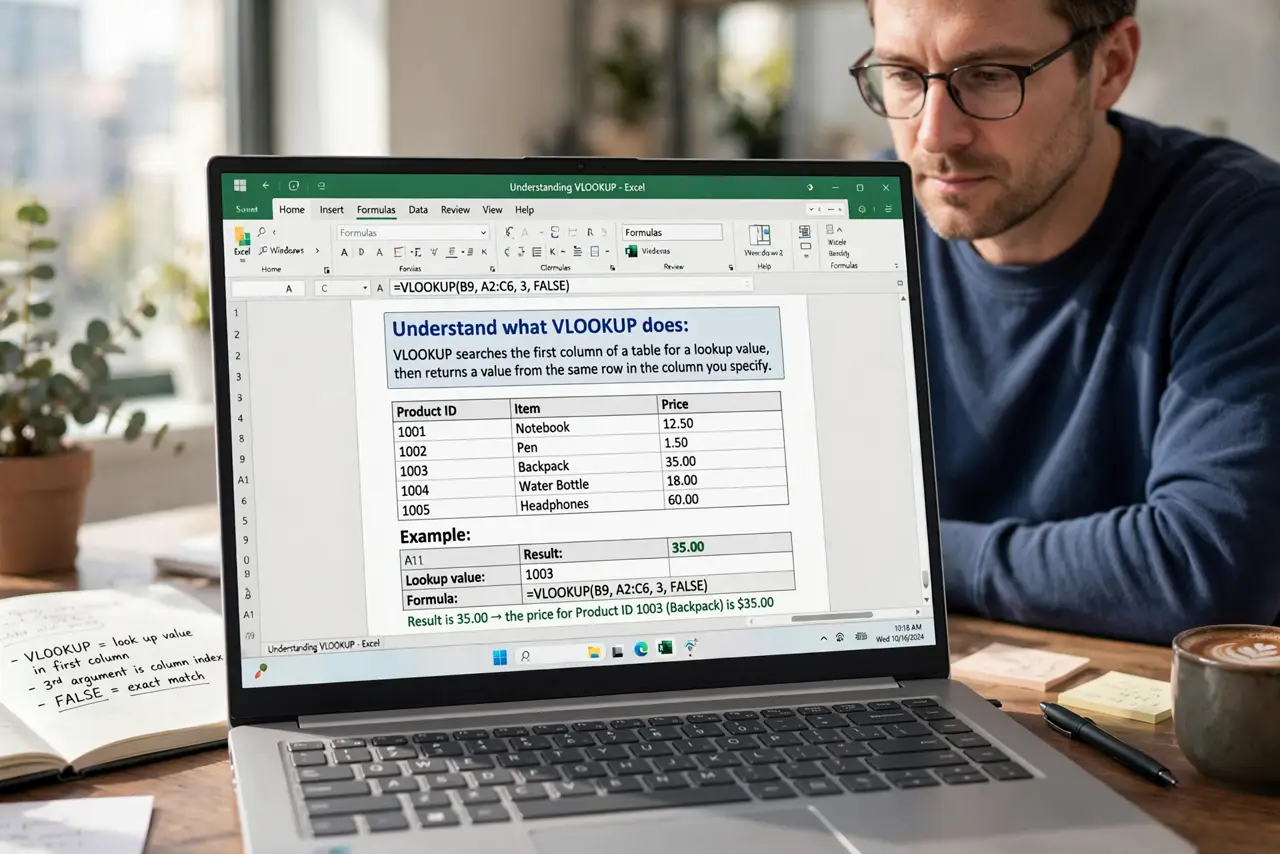
- Understand what VLOOKUP does. VLOOKUP searches the first column of a range for a value and returns a value from a column to its right. It cannot look left, and it breaks if someone inserts a column.
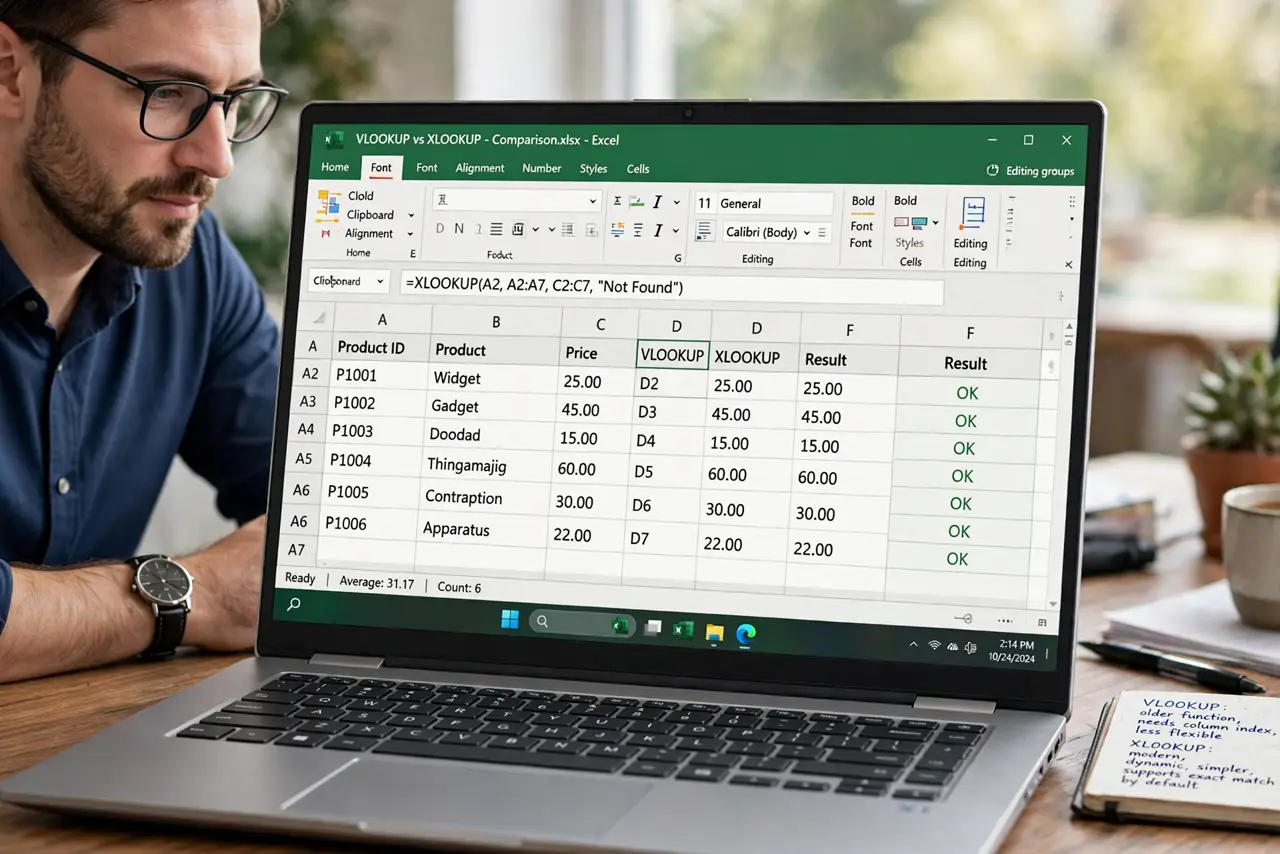
- Understand what XLOOKUP does. XLOOKUP searches any column and returns from any other, defaults to an exact match, and keeps working when columns are inserted. It is the safer default for new spreadsheets.
- Use XLOOKUP for new work. In new files, write XLOOKUP from the start. Fewer arguments to get wrong means fewer broken formulas later — and for cross-spreadsheet lookups, Sheets users reach for IMPORTRANGE instead.
- Keep VLOOKUP in old shared files. If a workbook is shared with people on older Excel versions, VLOOKUP still works everywhere. Consistency in a shared file beats modernity.
- Match exactly, not approximately. Both functions can do approximate matches, but exact match is what you want 95 percent of the time. Check the match argument whenever results look odd.
- Handle the not-found case. Wrap the lookup so a missing value shows a clear message instead of an error code. A clean not-found message saves everyone debugging time.
What NOT to do
- Do not use VLOOKUP to search leftward. It cannot look left of the search column — restructure the data or use XLOOKUP.
- Do not hard-code column numbers in VLOOKUP. Inserted columns silently shift them and corrupt results.
- Do not mix both functions randomly in one file. Pick one per workbook so collaborators can follow the logic.
- Do not ignore the exact-match setting. Approximate match on unsorted data returns confident-looking wrong answers.
Frequently asked questions
Should I learn VLOOKUP or XLOOKUP?
XLOOKUP for new work — it is simpler and more capable. Learn VLOOKUP too, since you will inherit old files full of it.
Why does my VLOOKUP return the wrong value?
Usually a hard-coded column number shifted after a column insert, or an approximate match on unsorted data. XLOOKUP avoids both traps.
Does XLOOKUP work in old Excel versions?
No. It needs a recent Excel or the web version, which is why VLOOKUP persists in shared legacy files.