Merge Cells? The Catch
That big centered title across the top of your spreadsheet looks great — until sorting breaks, copying pastes weirdly, and filters refuse to work. Merged cells are Excel's most tempting formatting trap: perfect for looks, poison for data. This guide explains the catch and the safe alternative everyone should use instead.

TL;DR / Quick Fix
Quick fix: avoid Merge Cells for anything you will sort, filter, or analyze — it breaks all three. For titles, use Center Across Selection instead: select the cells, open Format Cells, Alignment, and choose Center Across Selection. It looks identical but keeps every cell independent and functional.
Follow these steps
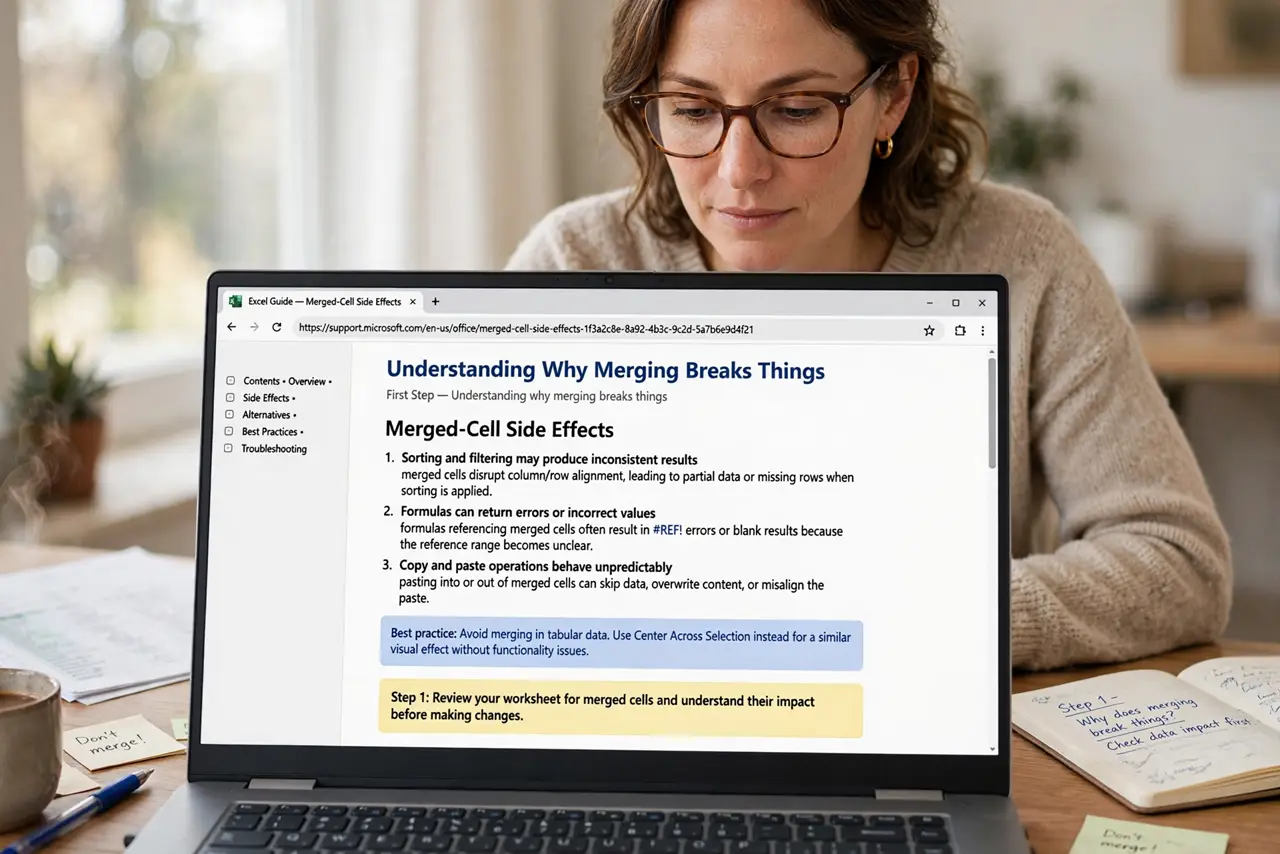
- Understand why merging breaks things. Merged cells confuse Excel's grid logic — sorting a column with merges scrambles rows, and filters choke on them. The hidden rows people blame on filters are often merges in disguise.
- Use Center Across Selection instead. Select the cells, press Ctrl+1, go to Alignment, and set Horizontal to Center Across Selection. The title centers across the range visually while every cell stays separate and sortable.
- Unmerge what is already merged. Select the merged area and click Merge & Center again to unmerge. Data stays in the top-left cell — check that nothing was lost, then apply Center Across Selection.
- Never merge inside a data table. Headers can be centered across selection; the data rows below must stay one-cell-per-value. A merged cell in the data area will haunt every future sort and filter.
- Fix copy-paste weirdness. Pasting into merged areas produces unpredictable results. Unmerge the destination first, paste, then reformat — thirty seconds that prevent an hour of cleanup.
- Reserve merging for print-only sheets. The one safe use: a final presentation sheet nobody will sort or filter. Even then, keep a clean unmerged master copy.
What NOT to do
- Do not merge cells in data you will sort. This is the number one rule — merged data columns sort into chaos.
- Do not merge to center a title. Center Across Selection looks the same and breaks nothing — there is no reason to merge for this.
- Do not build forms with merged cells. Merged form fields break tab order and data extraction — use proper cell sizing instead.
- Do not ignore the warning dialog. When Excel warns that merging keeps only the upper-left value, it means data loss — cancel and reconsider.
Frequently asked questions
How do I unmerge without losing data?
Select and click Merge & Center to toggle off. Only the top-left cell's value survives — copy the others out first if they hold data.
What is Center Across Selection?
A formatting option that visually centers text across cells without merging them. Same look, zero side effects — the professional's choice.
Why do experts hate merged cells?
They break sorting, filtering, VBA, pivot tables, and copying. Looks are the only thing merges do well.