Highlight Top Values
You scan a thousand-row sales sheet hunting for the top ten — squinting, scrolling, missing one. Top/Bottom Rules highlight the highest and lowest values automatically: top 10, bottom 10%, above average. The standouts find themselves; you just read.
TL;DR / Quick Fix
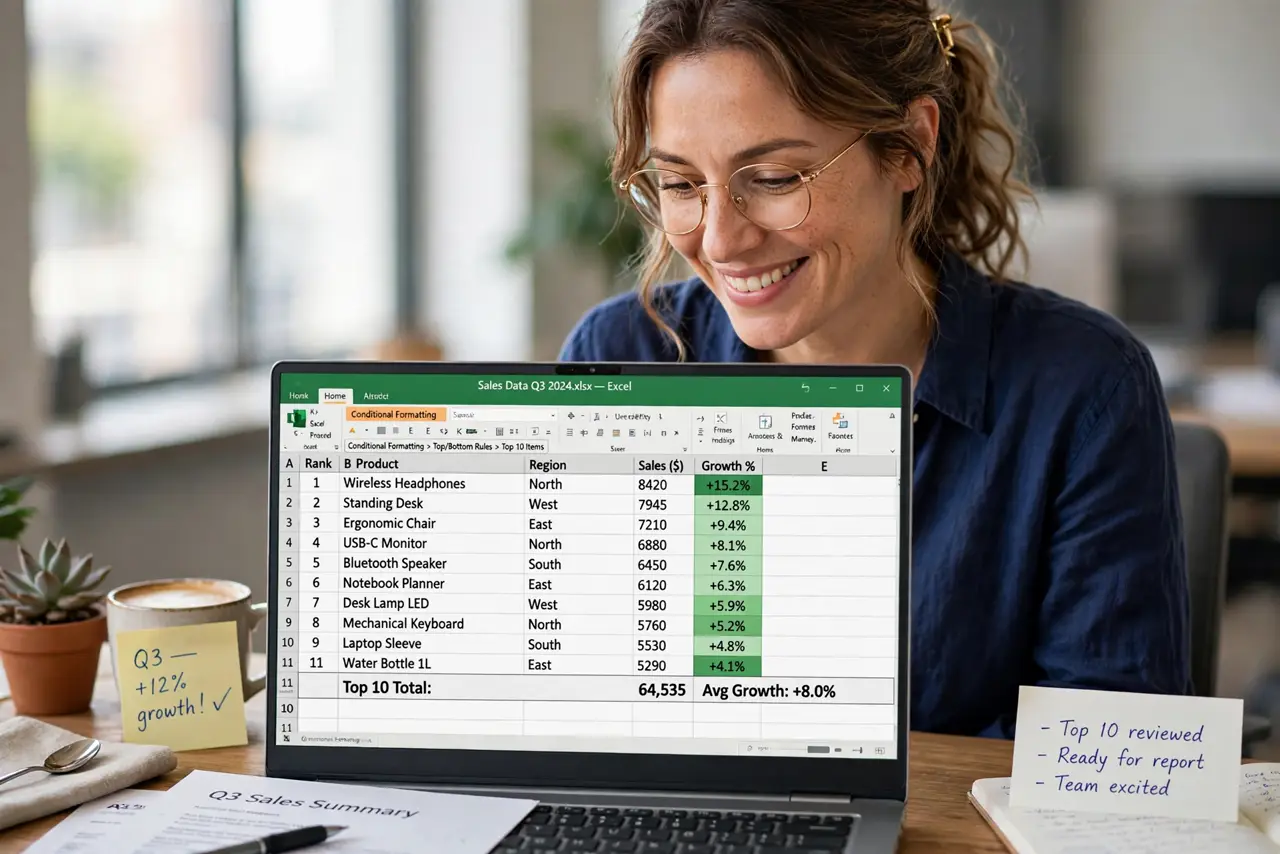
Quick fix: select your data range, go to Home, Conditional Formatting, Top/Bottom Rules, and choose Top 10 Items. Pick a highlight style and the leaders light up instantly. Adjust the number or switch to Top 10% for bigger datasets. Rules stay live — new data re-highlights automatically.
Follow these steps
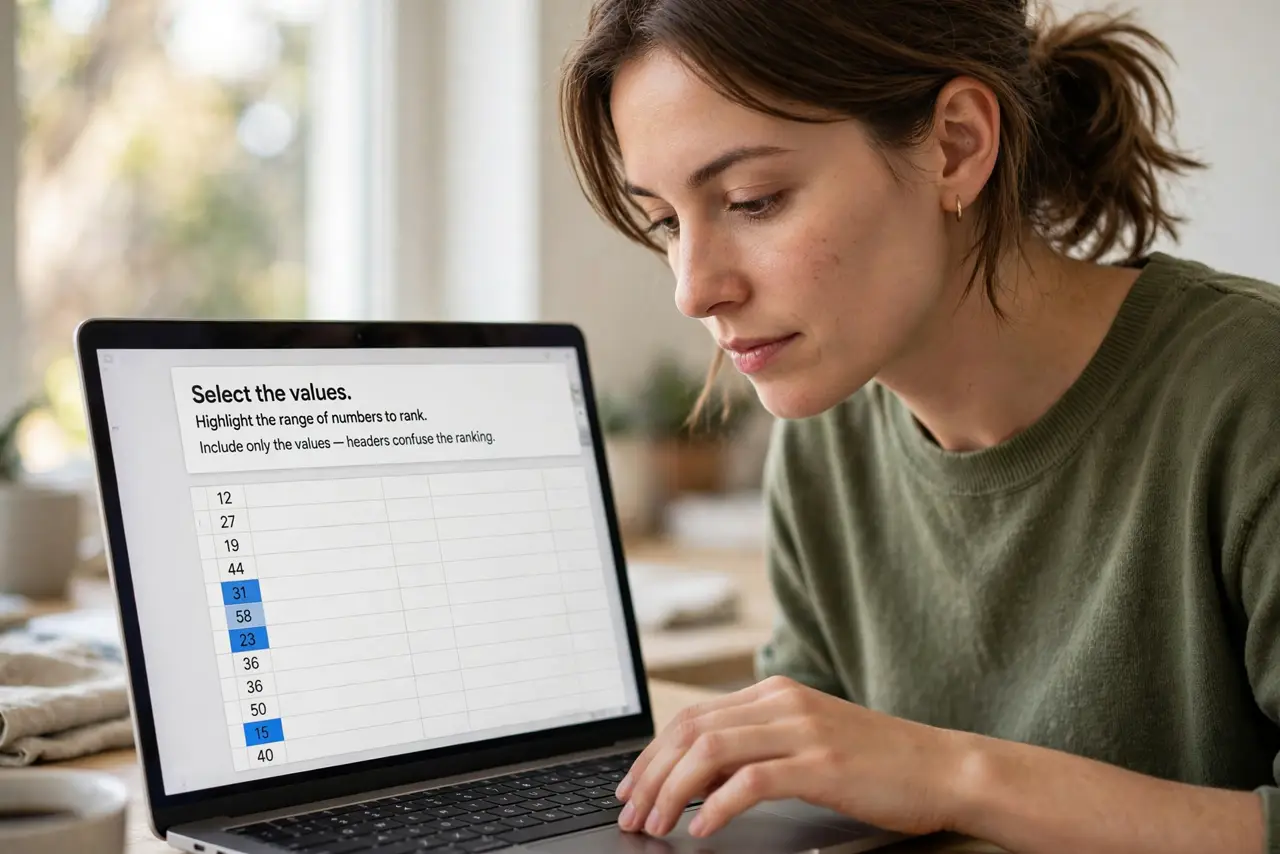
- Select the values. Highlight the range of numbers to rank. Include only the values — headers confuse the ranking.
- Open Top/Bottom Rules. Go to Home, Conditional Formatting, Top/Bottom Rules. Six options: top/bottom items, percents, and above/below average.
- Choose Top 10 Items. Pick the rule and set the count. Ten is the default; adjust to your actual question — top 3, top 25, whatever matters.
- Pick the highlight. Choose a built-in style or custom format. Green for winners is conventional; make losers red only if that helps.
- Try Above Average. For a different cut, use Above Average. It highlights everything beating the mean — great for spotting the solid middle.
- Combine with color scales. Top/Bottom for the extremes, color scales for the gradient — the data bars guide completes the visualization toolkit.
What NOT to do
- Do not highlight everything. If half the sheet glows, nothing stands out — restraint makes highlights meaningful.
- Do not use top-10 on tiny datasets. Top 10 of 12 rows is nearly the whole table — scale the rule to the data.
- Do not forget rules are live. New data re-sorts the highlights automatically — that is the feature, not a bug.
- Do not print without checking. Highlight colors that pop on screen can vanish on grayscale printers — test print.
Frequently asked questions
Top 10 items or top 10 percent?
Items for fixed counts, percent for proportional. A growing dataset wants percent; a fixed leaderboard wants items.
Can I highlight the bottom too?
Yes — Bottom 10 Items mirrors the rule. Top green, bottom red is the classic dashboard.
Why did my highlights disappear?
The range changed or the rule was cleared. Check Manage Rules to see what is applied where.