IMPORTRANGE Asks for Permission? Fix It
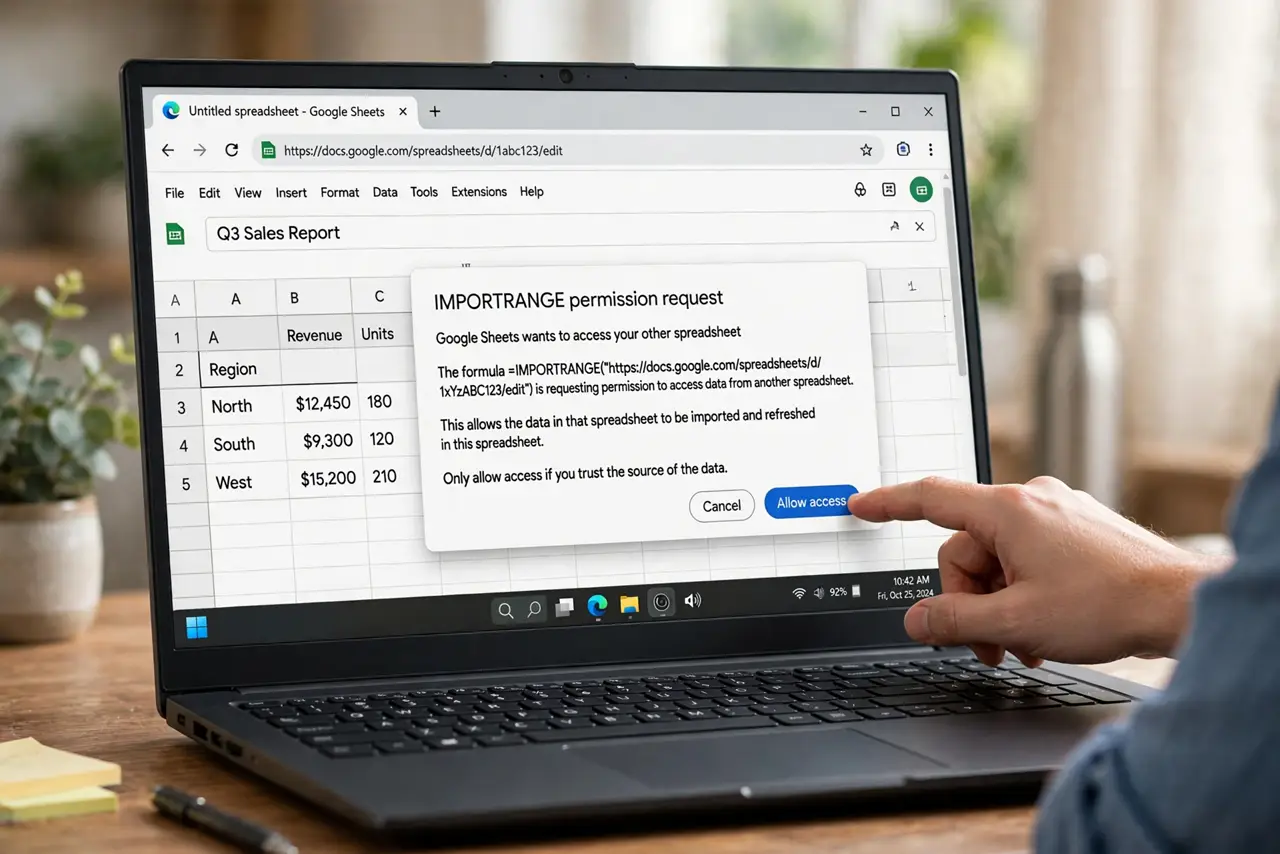
You write a perfect IMPORTRANGE formula and Google Sheets shows #REF! with a permission prompt instead of your data. The formula needs one-time access approval for the source spreadsheet — a security step, not a bug. This guide shows how to grant it correctly.
TL;DR / Quick Fix
Click the #REF! cell and press Allow access to grant the one-time permission. You need at least viewer access to the source sheet or the prompt cannot succeed. If access was revoked, remove and re-add the formula to trigger the prompt again.
Follow these steps
- Read the actual error. Hover the #REF! cell and read the message. If it mentions access permission, this is the one-click fix — not a formula syntax problem.
- Click Allow access. Click inside the cell and press the Allow access button. This grants your spreadsheet one-time permission to read the source file.
- Confirm you can open the source. You need at least viewer access to the source spreadsheet. If opening it shows a no-access message, ask the owner to share it with you first.
- Re-trigger the prompt if it vanished. If the button is gone, delete the formula and type it again. A fresh formula always re-triggers the permission prompt.
- Check the source range still exists. If permission is granted but data is missing, verify the source sheet name and range. Renamed sheets break the reference silently.
- Document the dependency. Note in the sheet which file it pulls from. When the source owner reorganizes their Drive, you will know exactly what broke.
What NOT to do
- Do not share the destination sheet expecting the data to follow. Viewers of your sheet see the imported data, but the permission belongs to the formula owner.
- Do not use IMPORTRANGE on a source you cannot open. No access means no data, and no formula tricks change that.
- Do not nest IMPORTRANGE inside volatile chains without need. Each import refreshes on its own schedule and can lag.
- Do not ignore a revoked-access error. Re-grant it promptly or the sheet quietly goes stale.
Frequently asked questions
Why does IMPORTRANGE show #REF!?
It needs one-time access permission to the source spreadsheet. Click the cell and press Allow access.
I clicked Allow access but still see an error. Why?
You probably lack access to the source file itself. Ask the owner to share it with you, then re-trigger the prompt.
Does everyone viewing my sheet need to allow access?
No. The permission belongs to the sheet owner who authorized it; viewers just see the imported results.