Tune Fan Curves
Your PC's fans blast like a jet at idle, then go quiet under load — or roar constantly for no reason. The fan curve decides how fast fans spin at each temperature, and the factory curve is tuned for worst cases, not your desk. Ten minutes of tuning buys silence without buying hardware.
TL;DR / Quick Fix
Quick fix: open your motherboard's fan control software or the BIOS, find the fan curve, and set a gentle slope — slow and quiet below 50°C, ramping up past 70°C. Save the profile. Test with a stress run; temperatures should stay safe while idle goes silent.
Follow these steps
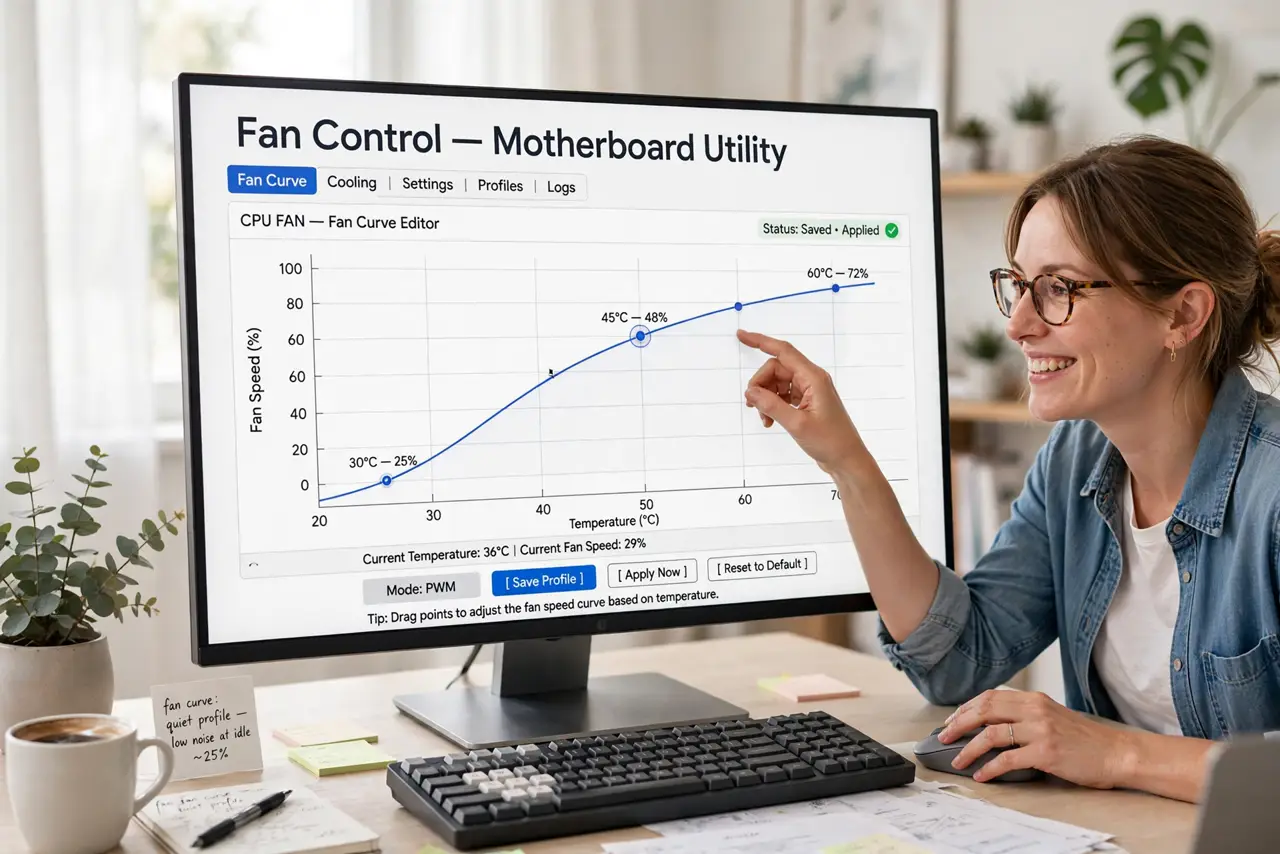
- Open fan control. Use your motherboard maker's Windows software, or enter the BIOS/UEFI and find the hardware monitor or fan control section. Every modern board has curve editing somewhere — check the manual if it hides.
- Understand the graph. The X axis is temperature, the Y axis is fan speed percent. The curve says 'at this heat, spin this fast.' Factory curves are conservative — loud early, to be safe everywhere.
- Set a quiet idle. Below 50°C, fans can run whisper-quiet — 20 to 30 percent. An idling PC makes little heat; blasting fans at idle is pure noise with no benefit.
- Ramp up under load. From 60°C upward, raise the curve steeply — 70 percent by 75°C, full speed near 85°C. Load needs cooling; this is where the fans earn their noise.
- Test with a stress run. Run a demanding game or stress test for ten minutes and watch temperatures. CPU under 85°C and GPU under 83°C sustained means the curve is safe — adjust if anything runs hotter.
- Save the profile. Save the curve as a named profile in the software or BIOS. Boards sometimes reset to defaults after updates — a saved profile restores your silence in seconds.
What NOT to do
- Do not flatten the curve for silence. Fans barely spinning at 90°C cooks components — quiet idle, strong load, always.
- Do not set 100 percent at low temps. Full blast at 40°C wears bearings and deafens the room for zero thermal benefit.
- Do not tune blind. Watch actual temperatures during a stress test — a curve is only good if the numbers say so.
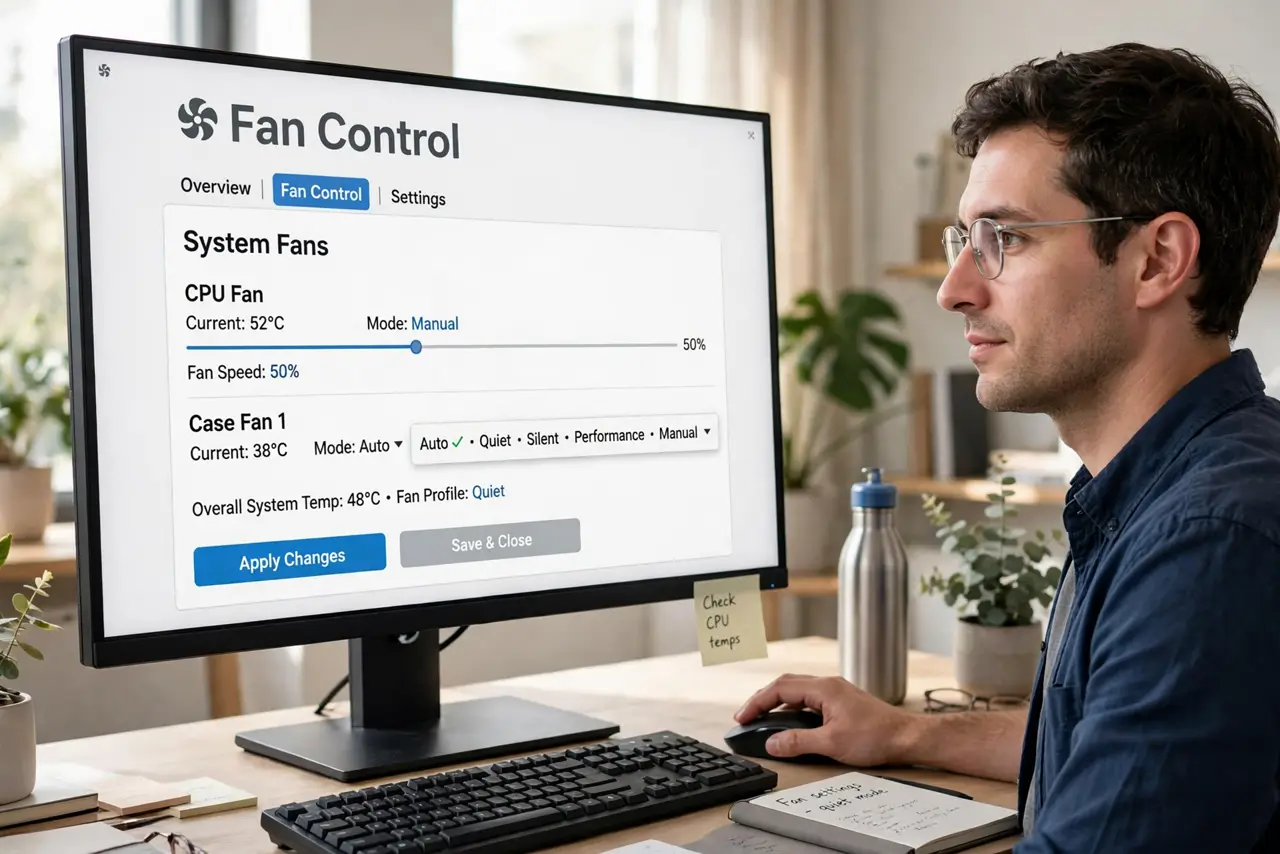
- Do not forget the GPU has its own curve. Motherboard software handles case and CPU fans; GPU fans tune in the graphics card's own software.
Frequently asked questions
What temperatures are safe?
Sustained CPU under 85°C and GPU under 83°C is comfortable for most hardware. Brief spikes higher are normal; constant 95°C+ is not.
Can I just use the Silent preset?
Yes — most boards include one, and it is a fine starting point. Custom curves just fit your exact noise tolerance better.
Why do fans pulse up and down?
The curve has a steep step at a common temperature, so tiny fluctuations swing the fans. Smooth the curve around idle temps to stop the pulsing.