Block a Sender in Gmail?
One sender keeps filling your inbox — a newsletter you never asked for, a store you bought from once, or someone you simply do not want to hear from. Blocking in Gmail takes about ten seconds, and it stops their mail from ever reaching your inbox again. This guide shows the exact steps on desktop and phone, and what blocking does and does not do.
TL;DR / Quick Fix
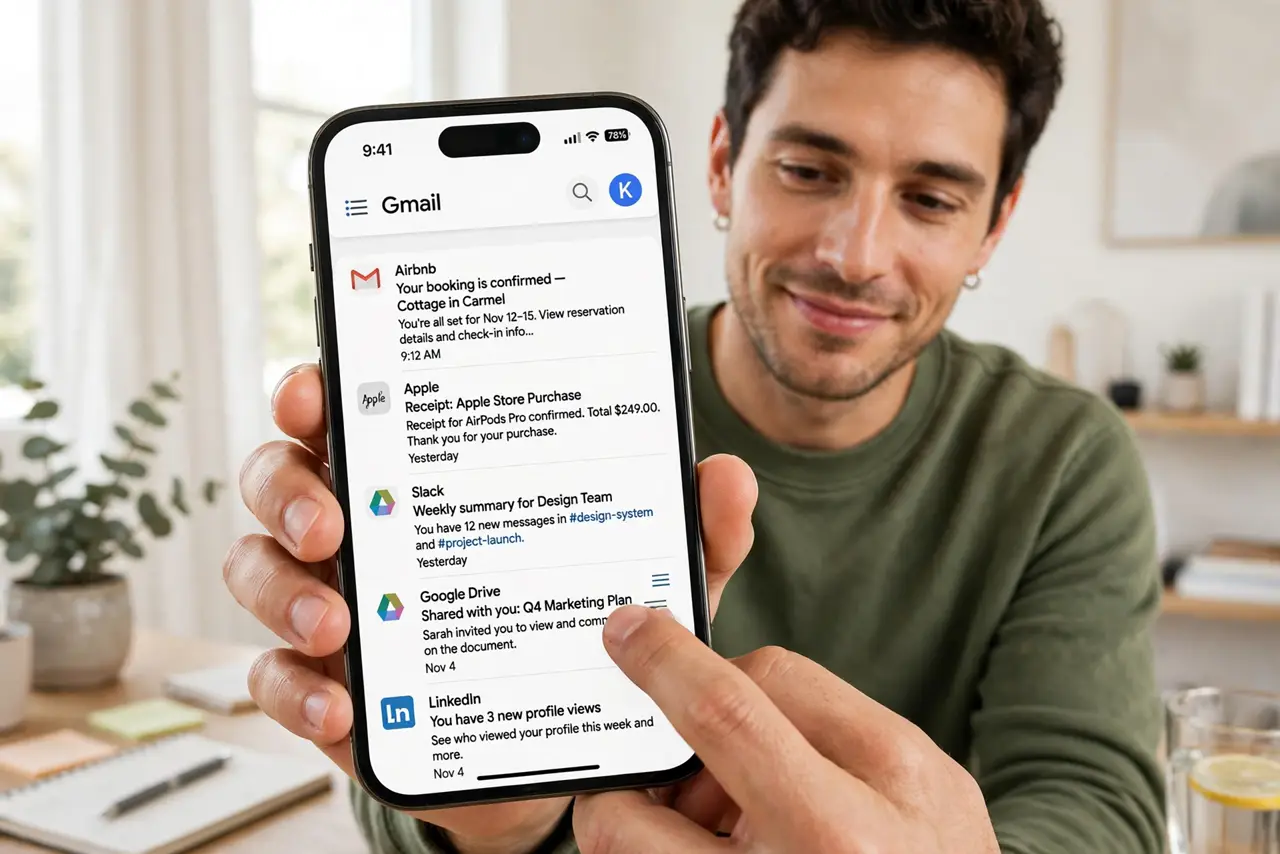
Quick fix: blocking a sender in Gmail takes seconds — open one of their emails, tap the three-dot menu, and choose Block. Their future messages skip the inbox and land in Spam. It is reversible, and the sender is never notified. Use a filter instead to archive receipts quietly.
Follow these steps
- Open one email from the sender. Find any recent email from the person or company you want to block. Open it so you can see the full message — you do not need to reply or do anything else first.
- Tap the three-dot menu. On desktop, the three vertical dots sit at the top-right of the email, next to the reply arrow. On the phone app, tap the same three dots above the message. This opens the message options.
- Choose Block. Select 'Block [sender name]' from the menu. Gmail asks for confirmation — click Block again. From now on, messages from blocked senders go straight to Spam without touching your inbox.
- Check where it landed. New messages from that address now skip the inbox automatically. They sit in Spam for 30 days before Gmail deletes them, so nothing important vanishes instantly.
- Unblock the same way. Changed your mind? Open one of their emails in Spam, tap the three dots, and choose Unblock. Gmail confirms, and future mail returns to the inbox normally.
- Use filters for finer control. Blocking is all-or-nothing. If you want order confirmations archived but out of your way, create a filter instead — it can skip the inbox, apply a label, or auto-delete without a block.
What NOT to do
- Do not confuse Block with Report spam. Blocking quietly reroutes one sender's mail to Spam. Reporting spam also tells Google the message is junk, which helps filters but is a stronger claim — use it for actual spam, not for a newsletter you once signed up for.
- Do not expect the sender to be notified. Gmail blocks silently. The other person gets no message and no bounce — your inbox simply stops showing their mail.
- Do not block your own bank or billing addresses casually. Invoices and password resets also land in Spam for 30 days, then vanish. If you might need their mail, use a filter with a label instead.
- Do not rely on blocking for phishing. A blocked scammer just uses a new address. Report phishing to Google, and never click links in suspicious mail — blocking alone does not protect you.
Frequently asked questions
What is the difference between blocking and unsubscribing?
Blocking reroutes one sender's mail to your Spam folder silently. Unsubscribing asks the sender to stop mailing you, which is cleaner for legitimate newsletters. Try the unsubscribe link first for real companies; block the ones that ignore it.
Do blocked senders know they are blocked?
No. Gmail never tells them. Their emails keep sending normally on their end — they just land in your Spam folder for 30 days and are then deleted.
Can I block someone in the Gmail app?
Yes. Open their email, tap the three-dot menu at the top, and choose Block. The steps are the same on iPhone and Android, and the block syncs everywhere instantly.