Share Inbox Access
You are on leave and a teammate needs to handle your inbox — or an assistant triages mail for an executive. Sharing your password is never the answer; Gmail's delegation lets someone read, send, and manage your mail as you, with their own login. Here is how to grant it and take it back.
TL;DR / Quick Fix
Quick fix: in Gmail on a computer, go to Settings, Accounts, and grant delegate access to your teammate's address — they can read and send as you without your password. Revoke it the same way when the coverage ends. Delegation beats sharing passwords, which you should never do.
Follow these steps
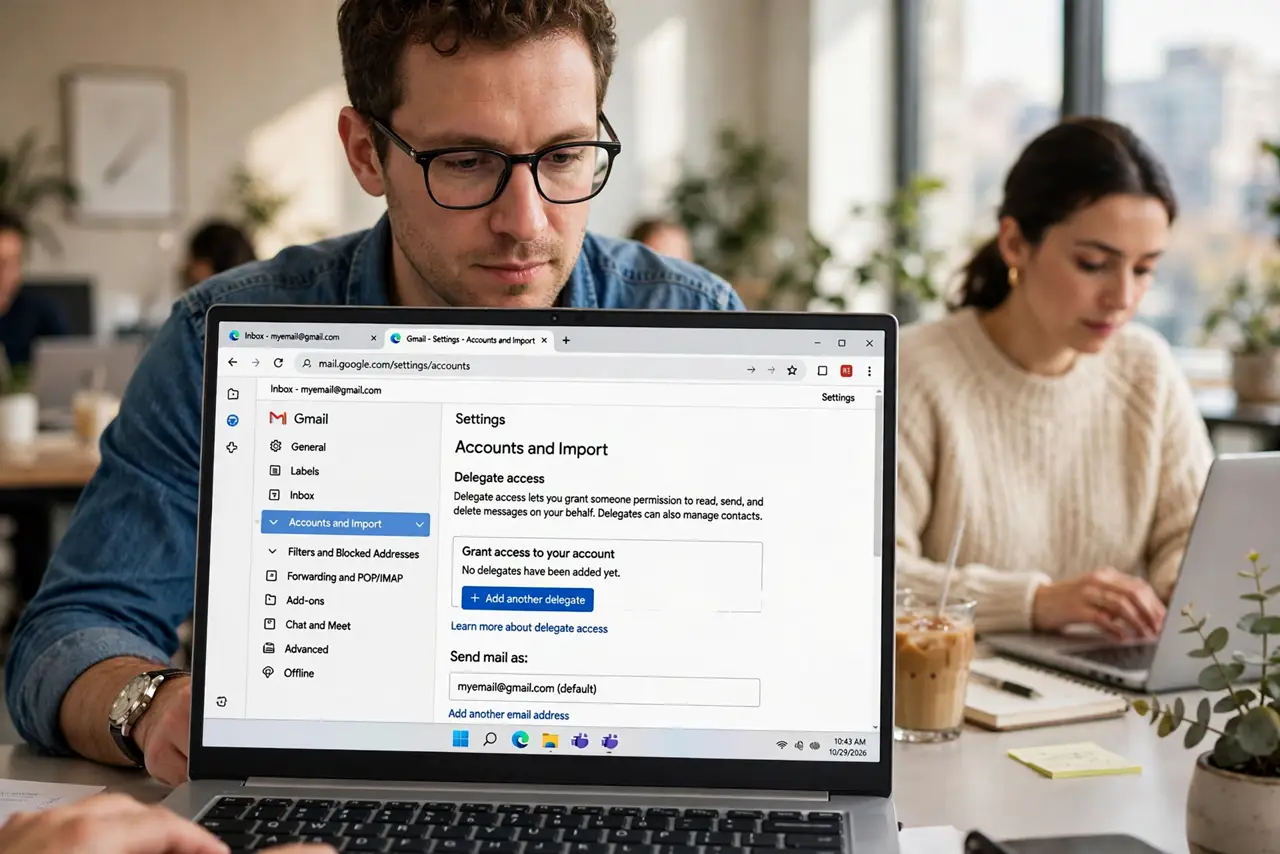
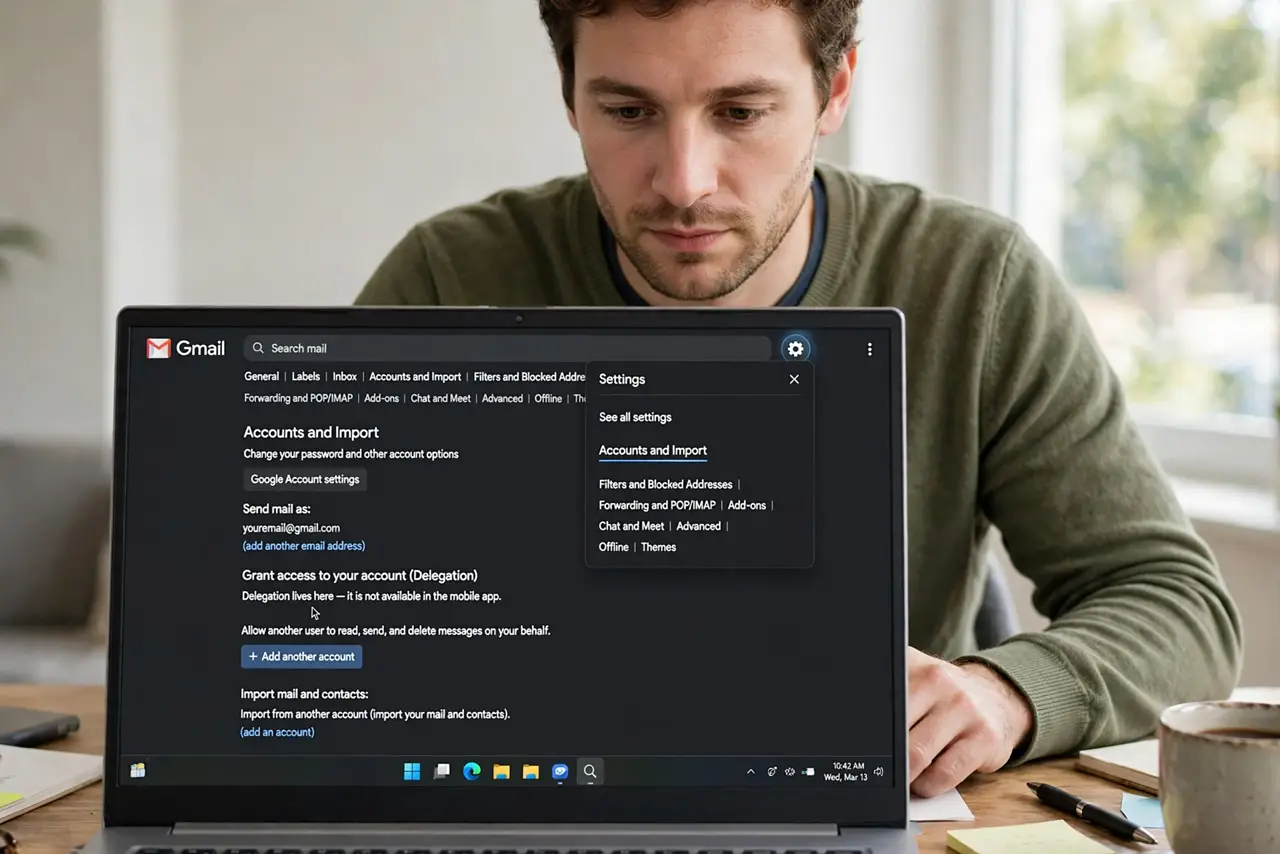
- Open the Accounts settings. In Gmail on a computer, click the gear, See all settings, then the Accounts and Import tab. Delegation lives here — it is not available in the mobile app.
- Grant access to their address. Under Grant access to your account, add the person's Gmail address. They get an email invitation and must accept before access starts — it can take up to a day to activate.
- Tell them how it looks. Delegates switch to your inbox from their account menu — mail they send shows as sent by them on your behalf. No password sharing, no separate login.
- Set expectations in writing. Agree on what they handle, what they escalate, and what they never touch. Delegation is a people process with a technical switch — the conversation matters more.
- Revoke when done. Back in the same settings page, remove the delegate when coverage ends. Access stops immediately — audit this quarterly so ex-teammates do not linger.
- Never share the password instead. Delegation exists precisely so passwords stay private. A shared password cannot be revoked per-person and exposes everything — always delegate, never share.
What NOT to do
- Do not share your Gmail password with a teammate. Delegation gives the same access with per-person revocation — passwords give everything forever.
- Do not grant delegation and walk away. Brief the delegate on boundaries — access without guidance creates mistakes.
- Do not forget to revoke. Old delegates with lingering access are a quiet security hole — review the list quarterly.
- Do not expect it in the mobile app. Delegation is set up and managed on the desktop site; the mobile app does not expose these settings.
Frequently asked questions
Can delegates change my password?
No — delegates can read, send, and manage mail, but not change account settings or the password. That boundary is the point.
How long does it take to activate?
Up to 24 hours after the invite is accepted. Plan ahead — it is not instant for urgent coverage.
Can I have multiple delegates?
Yes, within Gmail's limits. Each gets independent access you can revoke separately.