Set Up Gmail Offline
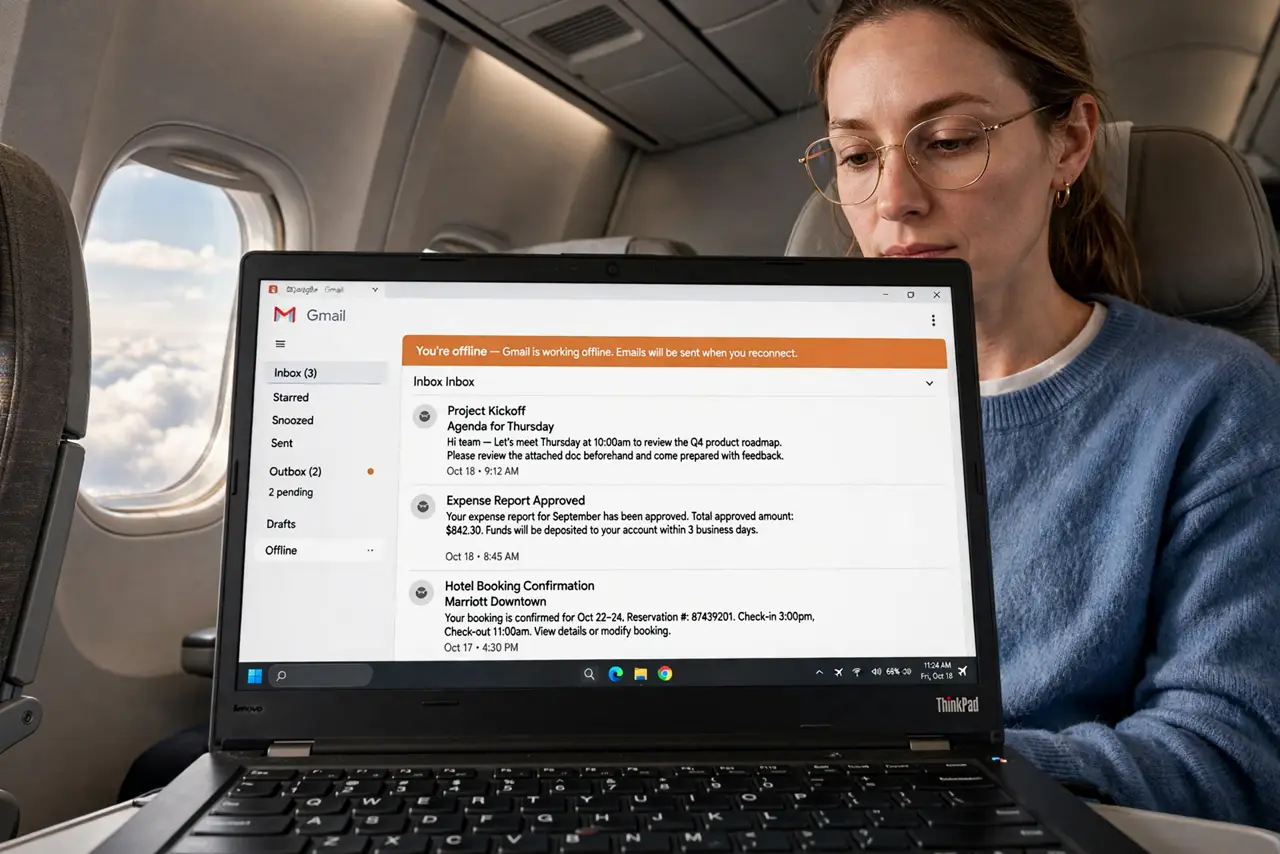
Planes, dead zones, and flaky hotel Wi-Fi should not stop your email. Gmail's offline mode downloads your recent mail so you can read, search, reply, and draft with no connection — everything syncs when you reconnect. It takes two minutes to enable and saves real trips. Here is the setup.
TL;DR / Quick Fix
Quick fix: in Gmail on a computer, open Settings, go to Offline, and enable offline mail — recent messages download so you can read, search, and draft without Wi-Fi. Outgoing mail sends when you reconnect. It needs Chrome and some free disk space to work.
Follow these steps
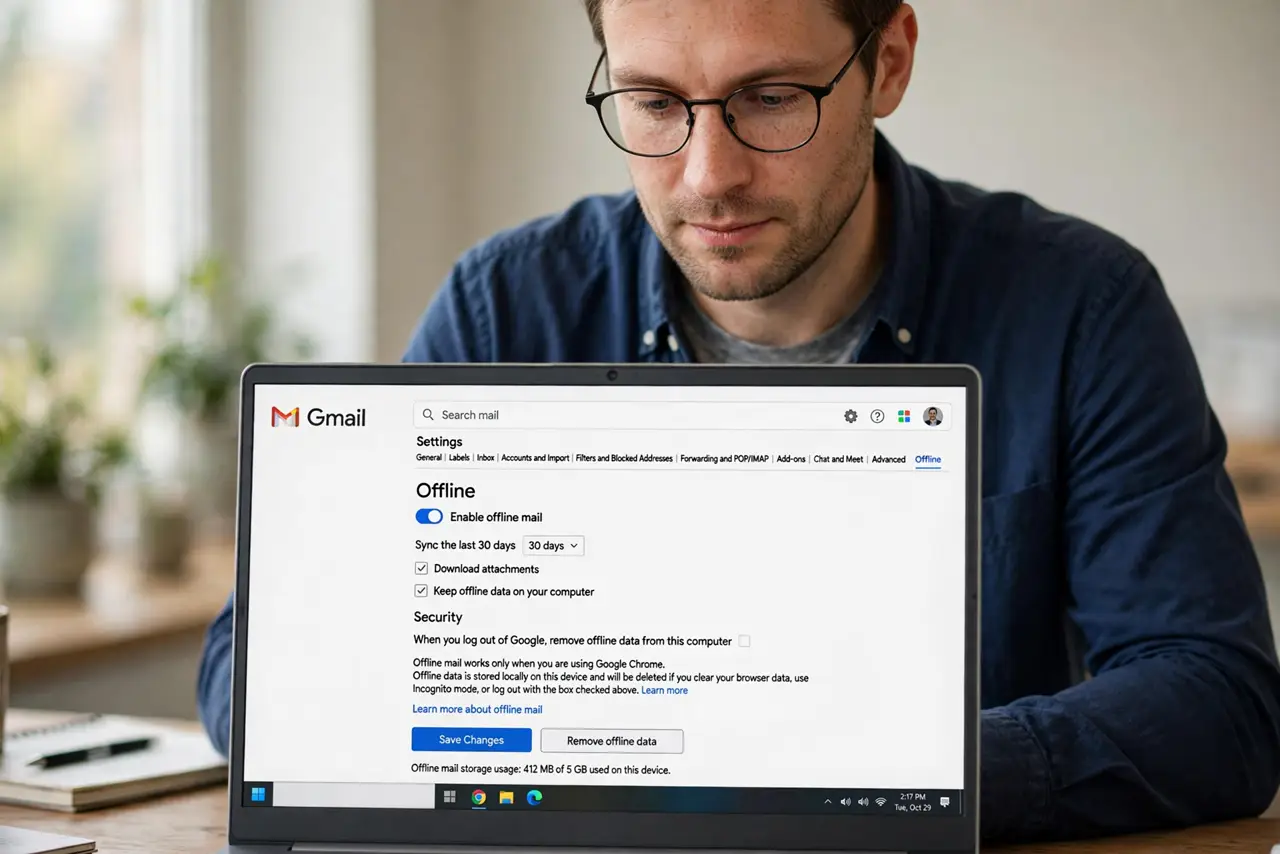
- Open the Offline settings. In Gmail on a computer, click the gear, See all settings, then the Offline tab. This is the entire control panel for offline mail — see the offline mode details for the fine print.
- Enable offline mail. Check Enable offline mail and choose how many days to sync — 7, 30, or 90. More days means more disk space; 30 is the sweet spot for most travelers.
- Choose the download scope. Pick whether attachments download too. Full attachments eat disk fast — download them only if you truly work with files offline.
- Decide the security option. Choose whether offline data stays on a shared computer or gets removed on sign-out. On a personal laptop, keep it; on shared machines, remove it.
- Test before the trip. Turn off Wi-Fi and open Gmail — your recent mail should be there, searchable and readable. Compose a test draft and watch it send on reconnect.
- Know the offline limits. You can read, search, label, and draft — but new mail will not arrive until you reconnect. It is a snapshot, not a live inbox. The Docs offline mode works the same way for documents.
What NOT to do
- Do not enable it on a shared computer carelessly. Offline mail stores your emails on that machine — use the remove-on-sign-out option there.
- Do not expect new mail offline. Offline mode is a snapshot of what downloaded — nothing new arrives until you reconnect.
- Do not sync 90 days on a full disk. Big sync windows need gigabytes free — match the days to your actual disk space.
- Do not use it in an old browser. Offline Gmail needs a modern Chrome — other browsers have limited or no support.
Frequently asked questions
How much disk space does it need?
Roughly a few hundred megabytes to a few gigabytes depending on days synced and attachments. Check before a trip.
Will drafts send automatically?
Yes — drafts and queued replies send the moment you reconnect. Nothing to remember.
Does it work on the phone app?
The Gmail mobile app caches recent mail on its own — offline mode is mainly a desktop feature.