Master Gmail Shortcuts
You process email like it is 1998 — mouse to the archive button, mouse to compose, mouse to the next message, hundreds of tiny trips a day. Gmail's keyboard shortcuts turn email into a flow state: J and K to move, E to archive, C to compose. Learn ten shortcuts and the mouse starts gathering dust.
TL;DR / Quick Fix
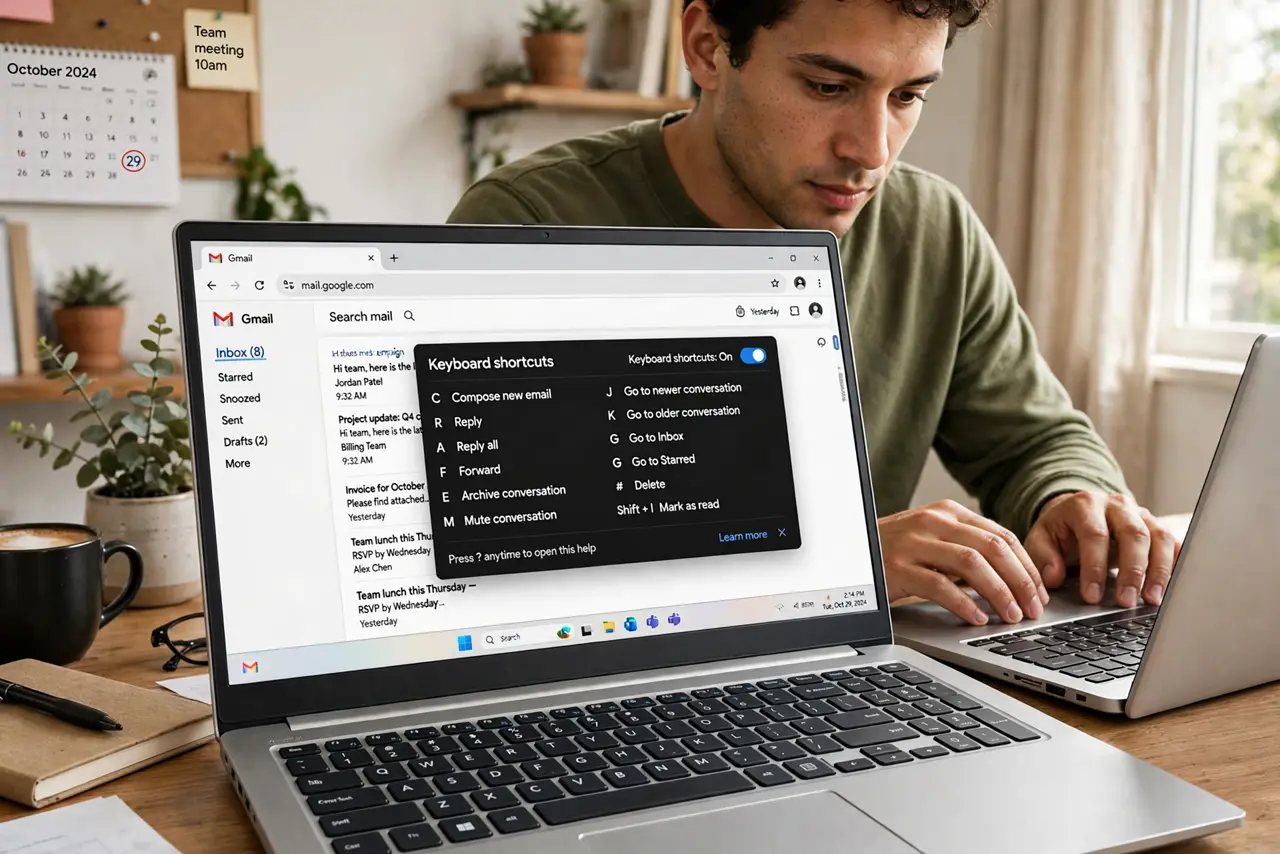
Quick fix: in Gmail settings, under General, turn on keyboard shortcuts. Press Shift+? anytime to see the full list. Start with J/K to move, E to archive, C to compose, and R to reply. Ten shortcuts learned over two weeks will change your mornings.
Follow these steps
- Turn them on. Open Gmail settings, go to General, and enable keyboard shortcuts. They are off by default — nothing works until you flip this switch and save.
- Open the cheat sheet. Press Shift+? (that's Shift plus the question mark) to see every shortcut. Keep it open on a second monitor or printed while learning — nobody memorizes them blind.
- Learn the movers first. J moves down, K moves up through messages — the Vim-style pair. X selects a conversation. These three are your navigation foundation; everything else builds on them.
- Learn the actors next. E archives, R replies, C composes, # deletes, S stars. Five keys handle ninety percent of email actions — practice them deliberately for a week.
- Use G then a letter to jump. G followed by I goes to Inbox, S to Starred, T to Sent, D to Drafts. The G-prefix jumps replace all sidebar clicking.
- Customize what you use most. In Settings, then Advanced, enable custom keyboard shortcuts to remap keys. If E-for-archive never stuck, assign your own — the best shortcut is the one you remember.
What NOT to do
- Do not try to learn all fifty at once. Ten core shortcuts beat fifty half-remembered ones — layer them in over weeks.
- Do not forget shortcuts need enabling. Half of 'shortcuts don't work' is the setting being off — check General first.
- Do not fight your muscle memory. If a shortcut never sticks after two weeks, remap it to something natural instead of forcing it.
- Do not use shortcuts in the wrong app. J/K/E are Gmail's — they do nothing useful in Outlook or Apple Mail.
Frequently asked questions
What are the most useful Gmail shortcuts?
J/K to move, X to select, E to archive, R to reply, C to compose, # to delete, G then I for inbox. That set alone transforms email.
Do shortcuts work in the Gmail app?
Mostly no — mobile Gmail is touch-first. A few work with an external keyboard on tablets, but shortcuts are a desktop superpower.
I pressed something and mail vanished. Help?
You probably hit E (archive) or # (delete). Check All Mail or Trash — and that is why learning deliberately beats mashing keys.