Search Gmail Like a Pro
You know the email exists — the invoice from March, the boarding pass, the address someone sent — but scrolling and keyword-guessing never finds it. Gmail's search operators are precision tools: from:, has:attachment, before:, larger: — combine a few and the haystack shrinks to a needle. Five operators cover ninety percent of lost-email hunts.

TL;DR / Quick Fix
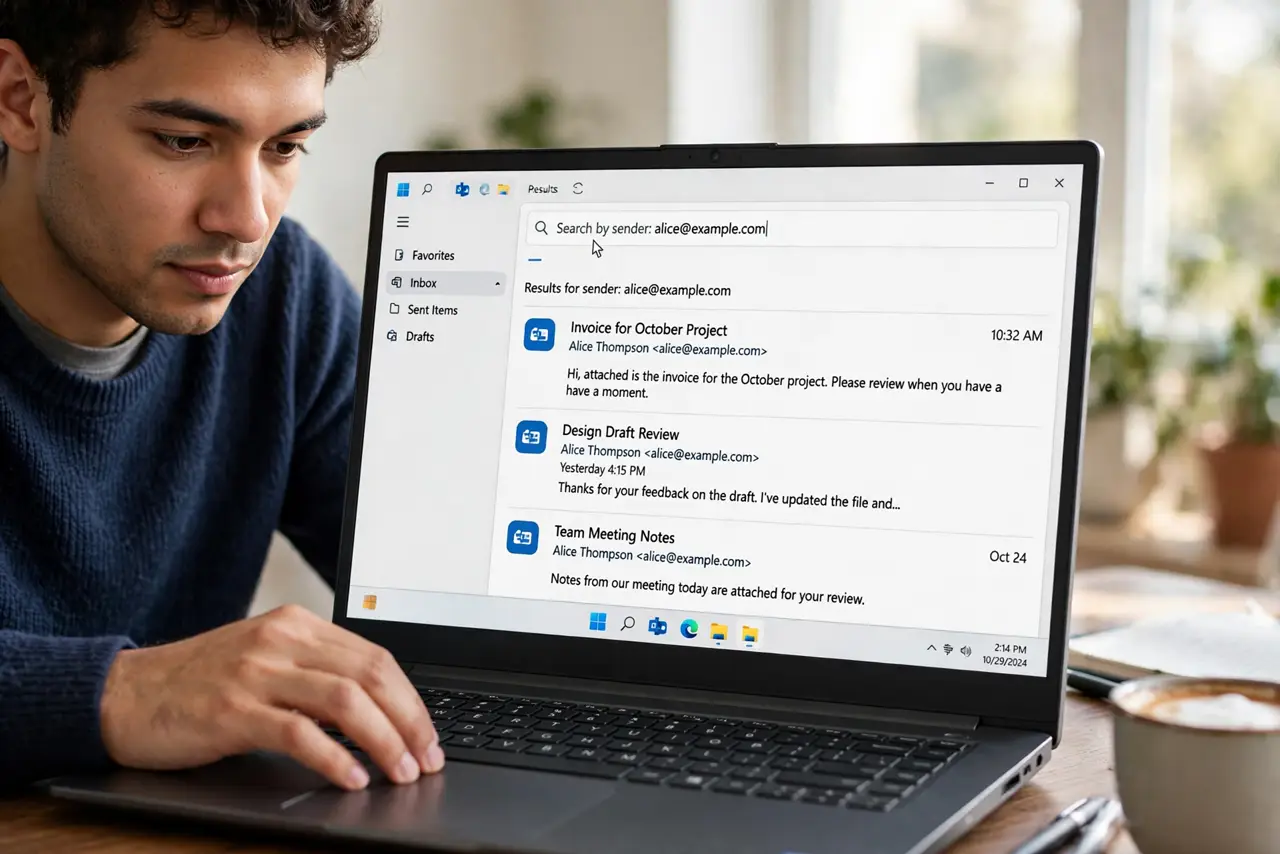
Quick fix: in the Gmail search box, type from:[email protected] to filter by sender, or has:attachment invoice to find invoices with files attached. Combine them — from:airline before:2026/04/01 has:attachment. Five operators cover nearly every lost-email hunt, and you will never scroll-hunt again.
Follow these steps
- Search by sender. Type from: followed by the name or address — from:airline finds everything the airline sent. This alone resolves half of all lost-email hunts.
- Filter for attachments. Add has:attachment to any search — has:attachment invoice shows invoices that came with files. Filenames work too: filename:pdf narrows to PDFs.
- Bound the dates. Use before: and after: with YYYY/MM/DD dates — after:2026/01/01 before:2026/04/01. Date bounds turn a thousand results into a dozen.
- Search inside labels. Type label:receipts followed by keywords to search within a label. Combined with filters and labels, this is a filing system you can query.
- Exclude the noise. A minus sign excludes terms — invoice -uber drops the ride receipts. Exclusion is the difference between twenty results and three.
- Combine freely. Operators stack: from:bank subject:statement after:2026/06/01. There is no limit — each operator multiplies the precision of the others.
What NOT to do
- Do not keyword-guess when operators exist. Typing 'invoice march' and scrolling is the slow way — from: plus before: is the fast way.
- Do not forget the minus for exclusions. Noise terms dominate results; one minus sign often does more than three inclusions.
- Do not search Trash and Spam by default. Gmail skips them unless you add in:trash or in:spam — check there when the email seems truly gone.
- Do not memorize all twenty operators. Five core ones — from:, has:attachment, before:/after:, label:, minus — cover nearly everything.
Frequently asked questions
Why does search miss an email I know exists?
Check spelling, then search in:trash and in:spam — Gmail excludes those by default. Filters may also have archived it under a label.
Do operators work in the Gmail app?
Yes — type them into the app's search bar exactly the same way. Mobile search honors every operator.
Can I save a frequent search?
Create a filter matching the search, or bookmark the search URL in your browser. Either way, one click re-runs it.