Add an Image to Your Signature
A plain text signature is fine, but a small logo or headshot makes your emails look properly professional. Gmail's signature editor supports images — uploaded or linked — with size controls that keep it tasteful. Here is how to add one without turning every email into a billboard.
TL;DR / Quick Fix
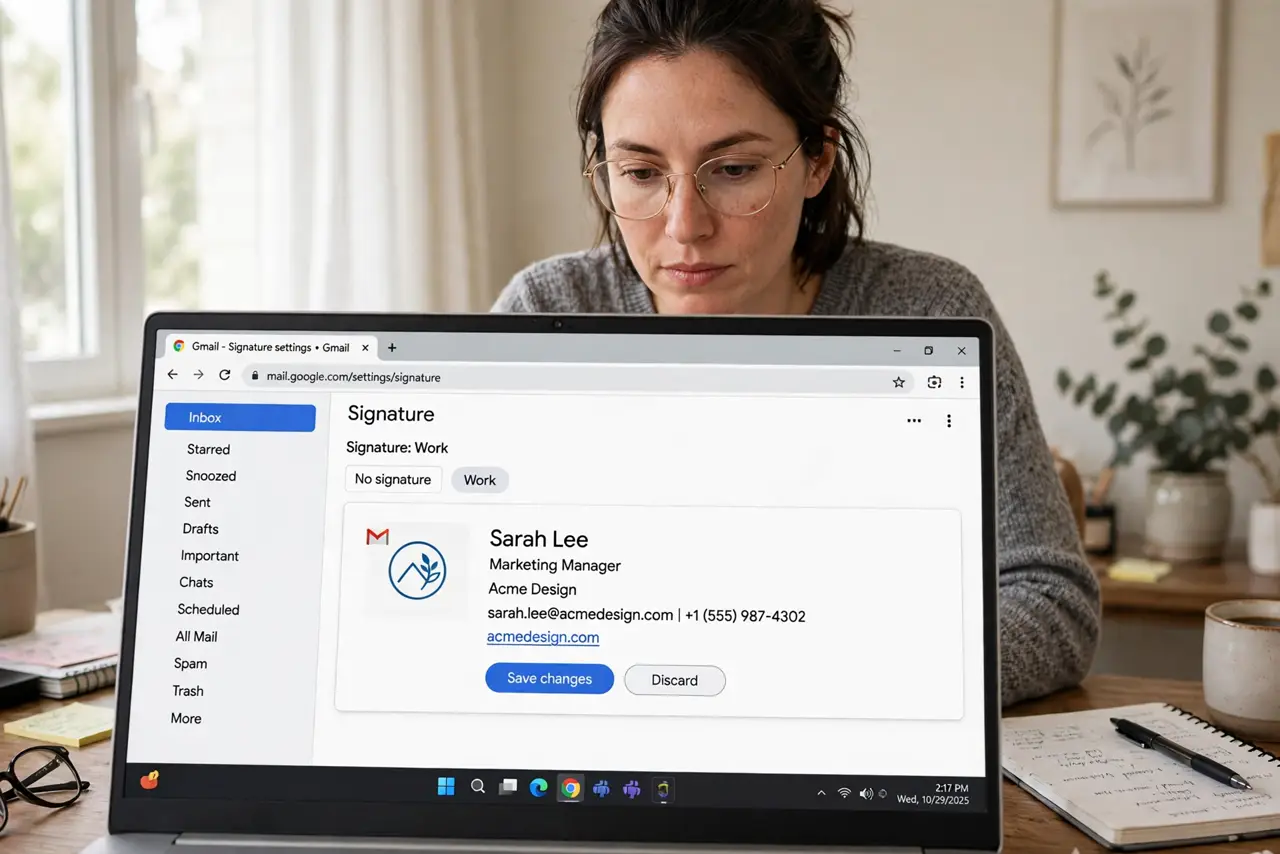
Quick fix: in Gmail settings under General, scroll to Signature, create or edit your signature, and use the image button to upload a small logo. Keep it under about 200 pixels wide so it stays tasteful. Set the signature as default for new emails and replies separately.
Follow these steps
- Open the signature editor. Gear icon, See all settings, General tab — scroll to the Signature section. Create a new signature or edit the existing one.
- Add the image with the image button. The mountain icon inserts an image — upload from your computer or link a hosted URL. Uploaded images are more reliable than linked ones.
- Keep it small. Resize to a modest width in the editor — a logo around 150–200 pixels wide reads as professional; full-width banners read as spam.
- Add text alongside the image. Name, title, phone — the image is the garnish, not the meal. Keep the text lines short so mobile mail apps wrap them cleanly.
- Set defaults for new mail and replies. Below the editor, choose which signature applies to new emails and to replies/forwards. Many people use the full signature for new mail and a short one for replies.
- Send yourself a test email. Check how it renders on phone and desktop before inflicting it on clients. Oversized or broken images are a bad first impression.
What NOT to do
- Do not use a giant banner image. A 600-pixel logo screams amateur — small and crisp wins every time.
- Do not link images from sketchy hosts. If the host dies or blocks hotlinking, your signature shows a broken-image icon to everyone.
- Do not stuff the signature with disclaimers and quotes. Every extra line trains recipients to ignore the whole block.
- Do not forget the plain-text fallback. Some recipients see only text — make sure the signature still makes sense without the image.
Frequently asked questions
Why does my image show as an attachment to recipients?
Some mail apps display signature images as attachments — normal and harmless. Small images minimize the annoyance.
Can I use different signatures for different addresses?
Yes — with Send-as aliases set up, Gmail lets you assign a signature per address.
Will the image work on replies?
Yes, if you set the signature default for replies too. Many people prefer a shorter signature on replies — set both.